200+ Free Project Status Presentation Templates
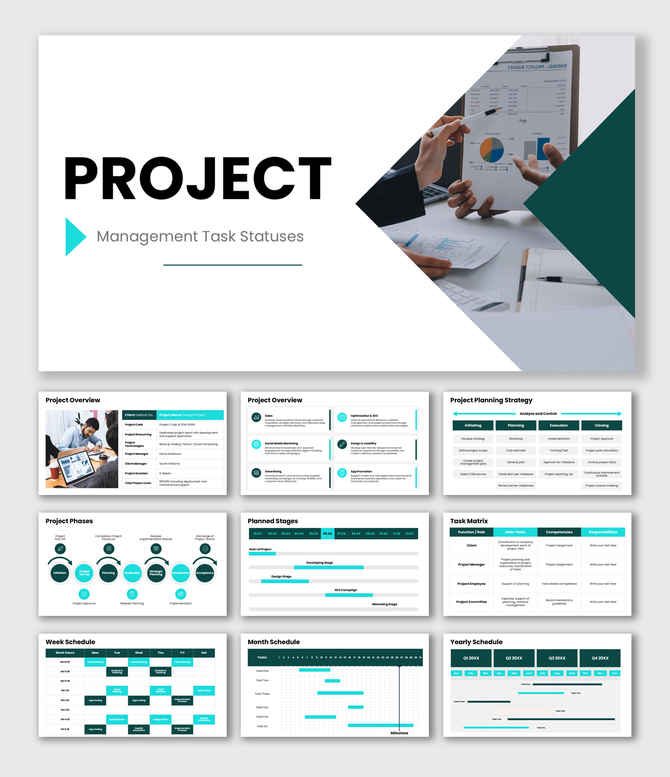
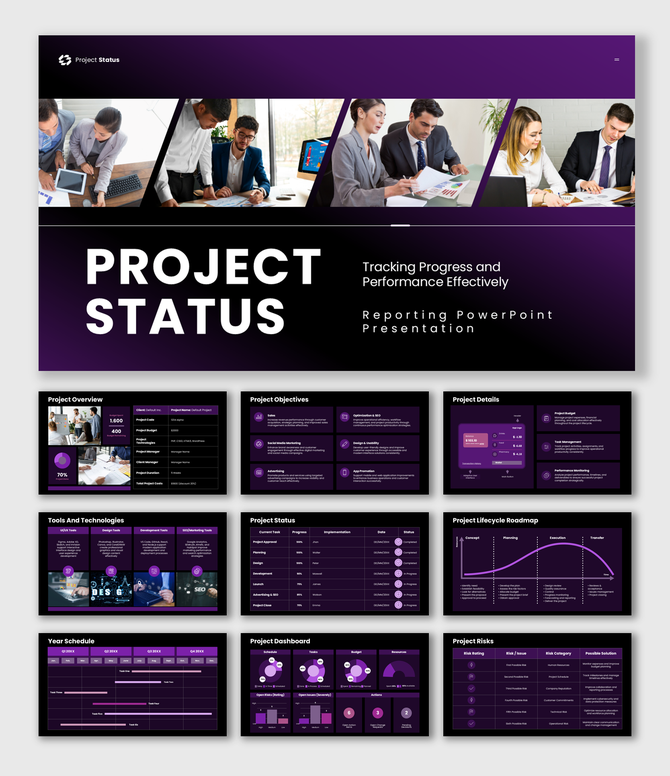
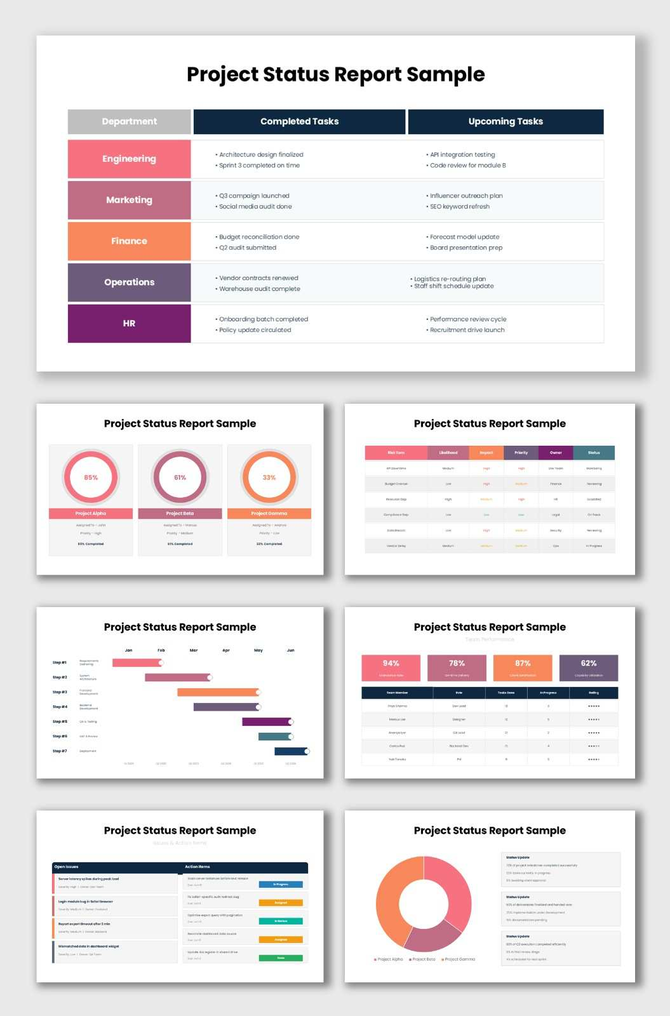
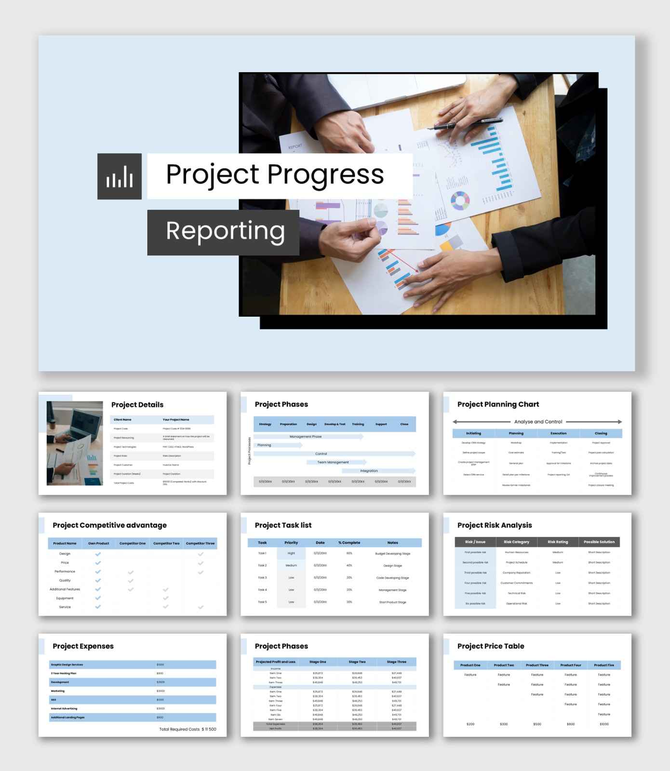
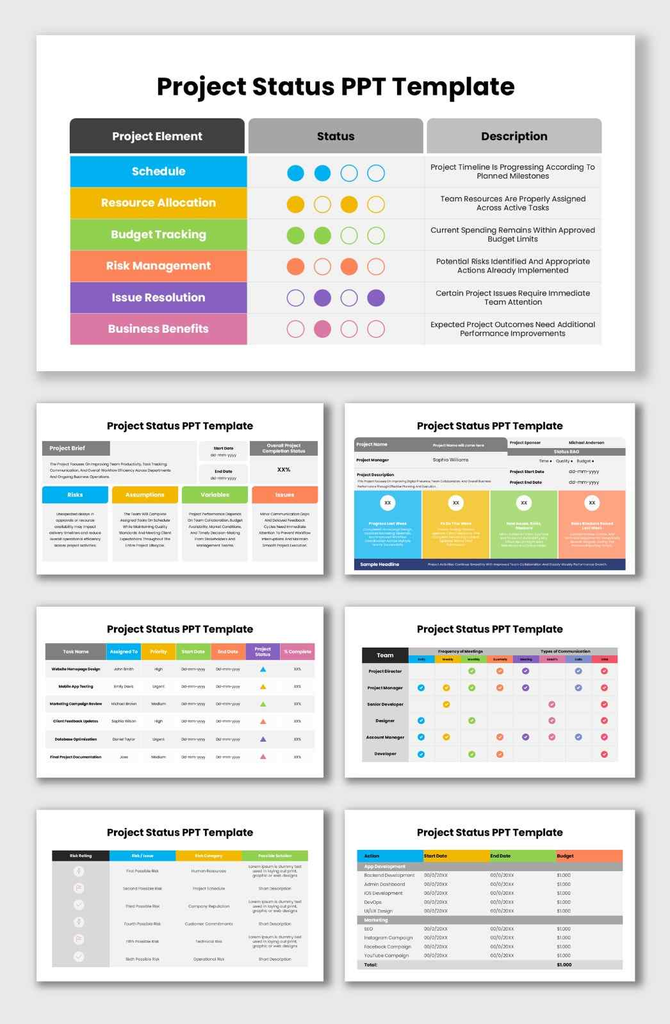
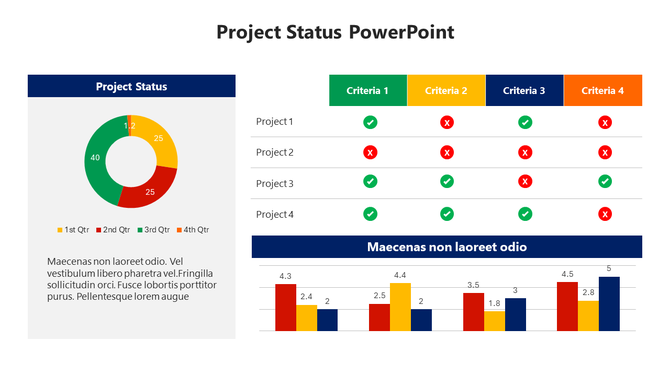
Browse 200+ free and premium project status templates for PowerPoint, Google Slides, and Canva. Whether you need a weekly progress update, an executive dashboard, an Agile sprint report, or a one-page project overview — every template is fully editable, free to download, and ready to present. No design skills needed.
Editor's Choice (1 of5)
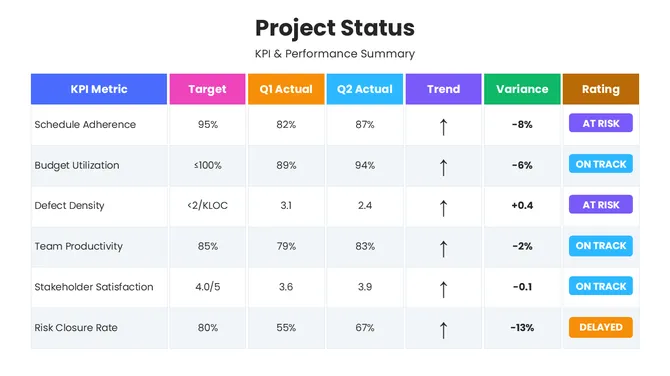
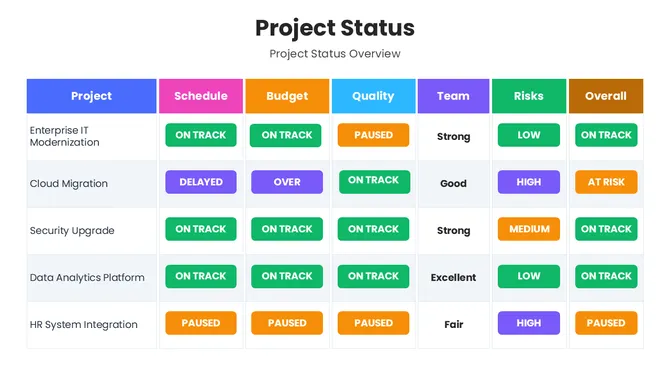
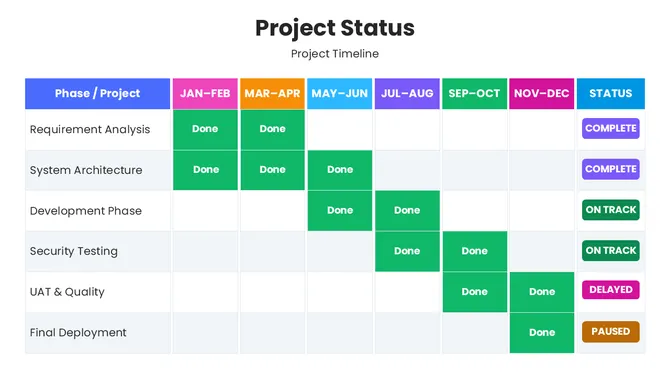
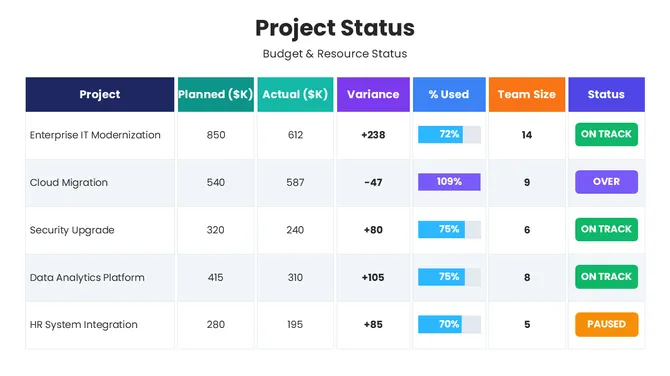
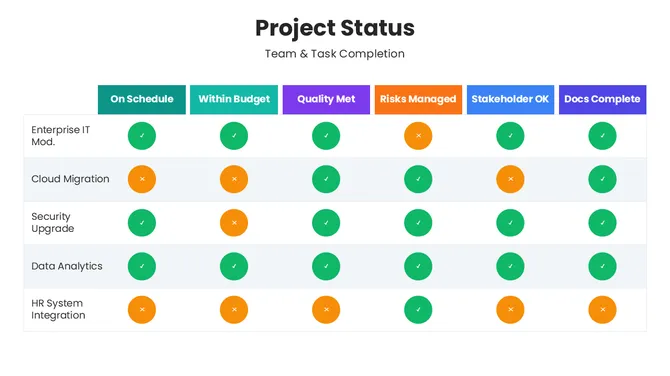
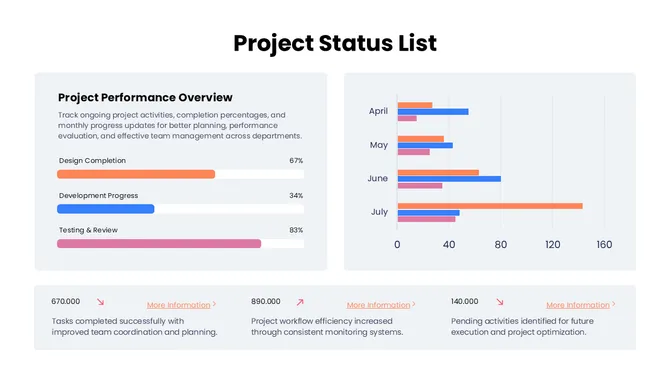
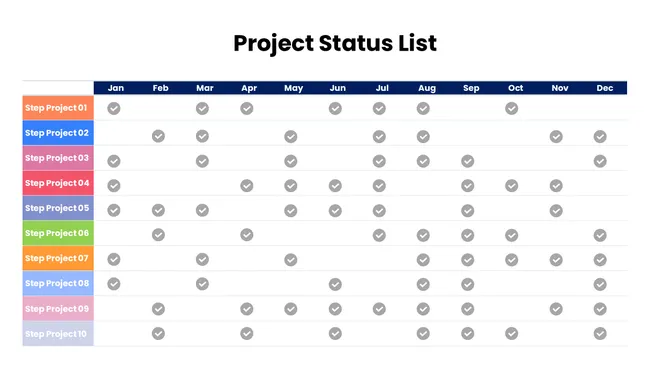
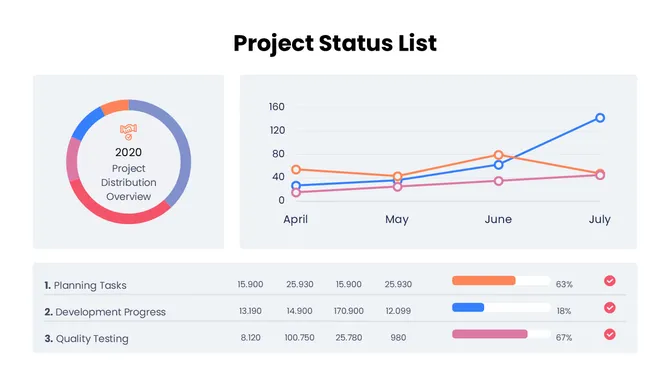
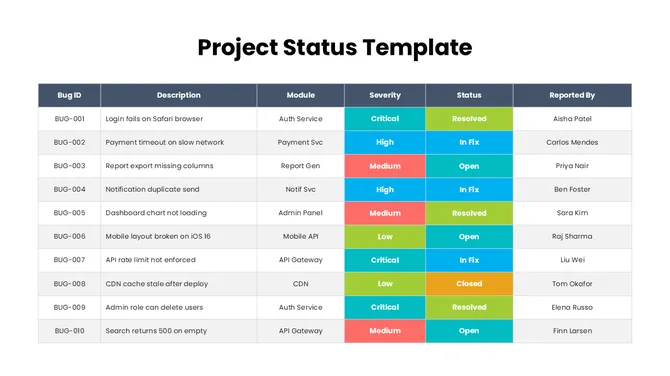
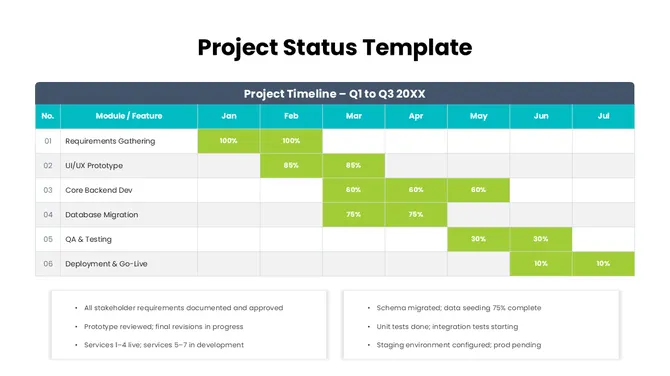
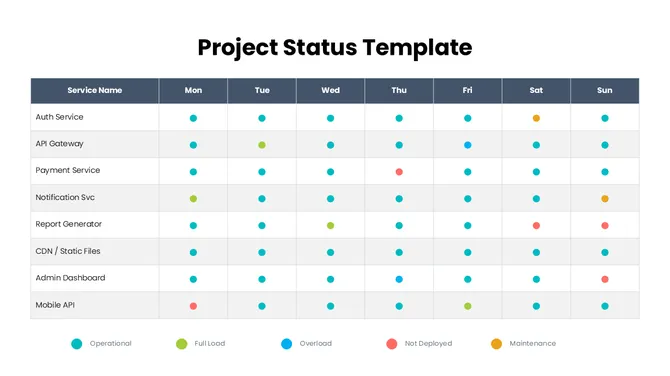
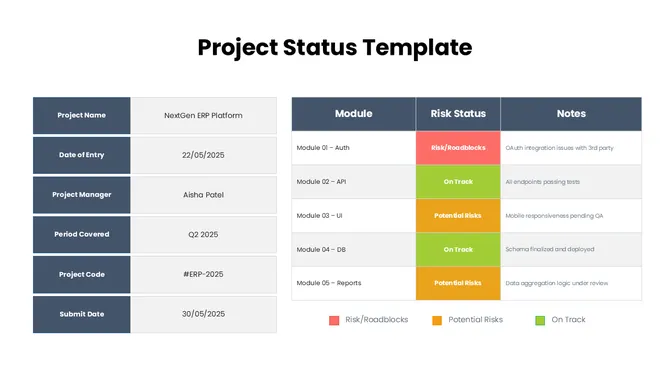
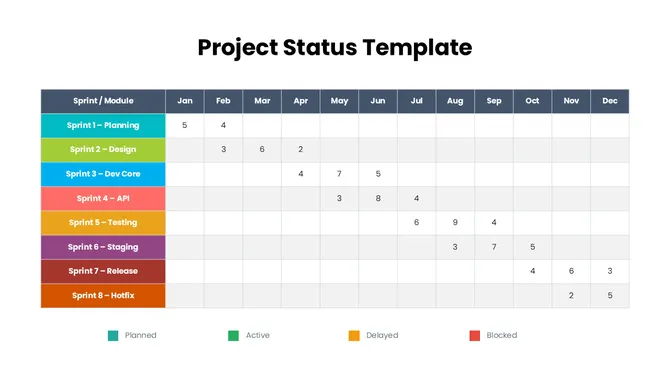

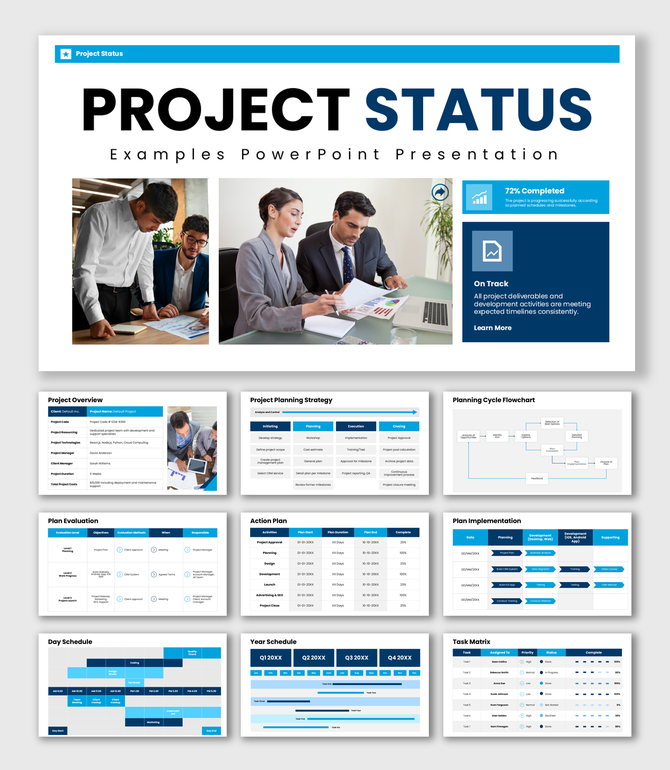
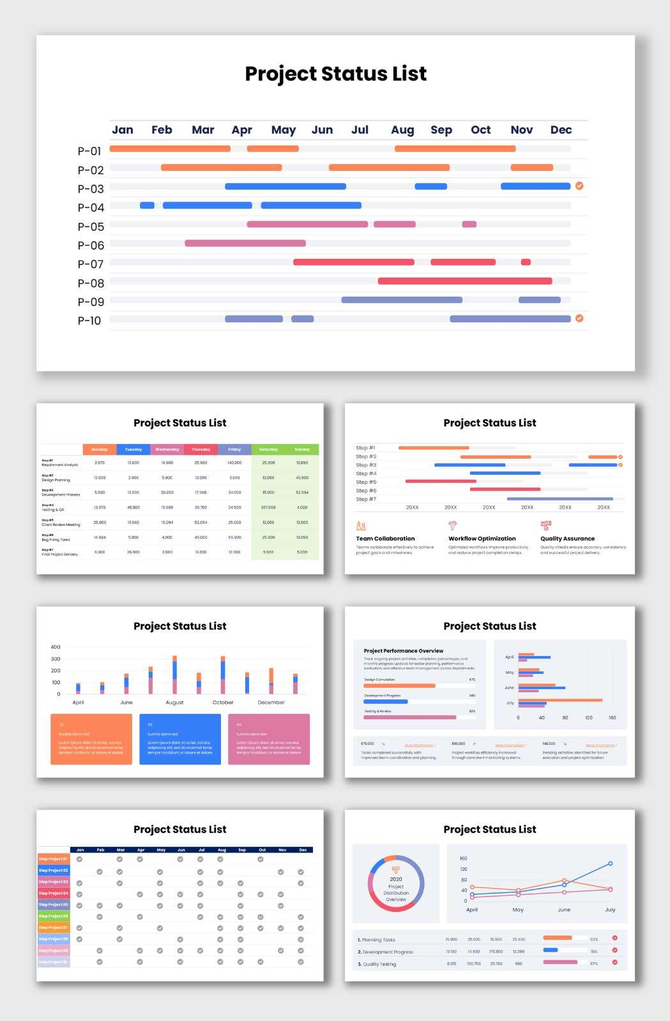
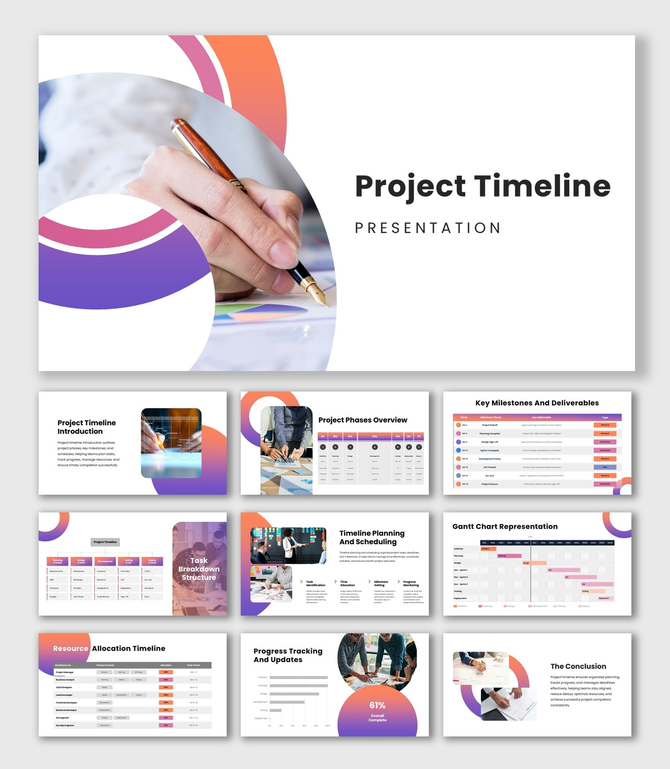
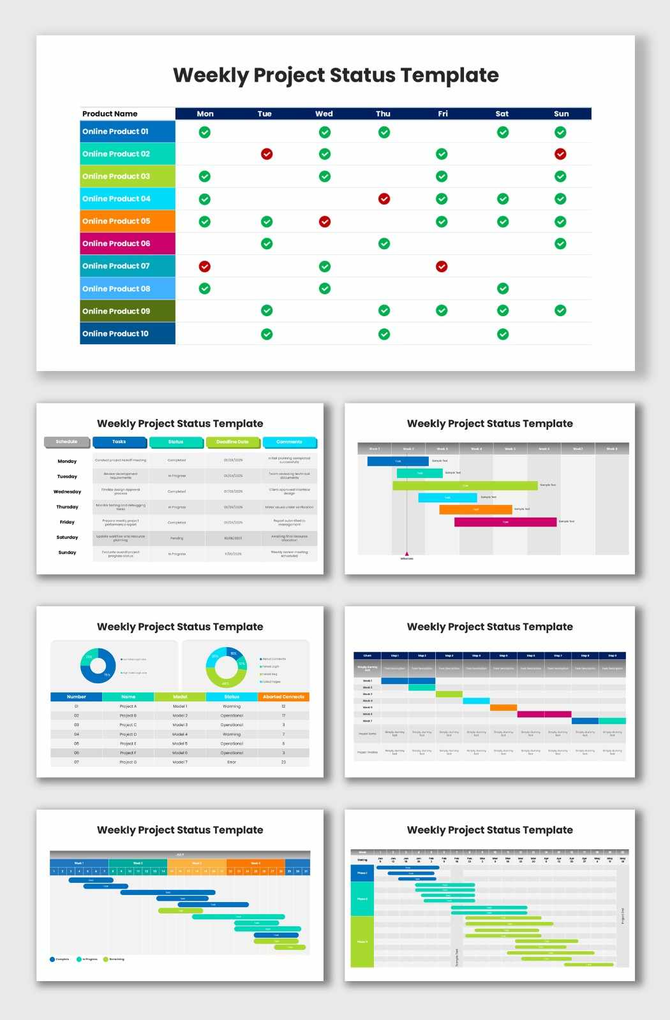
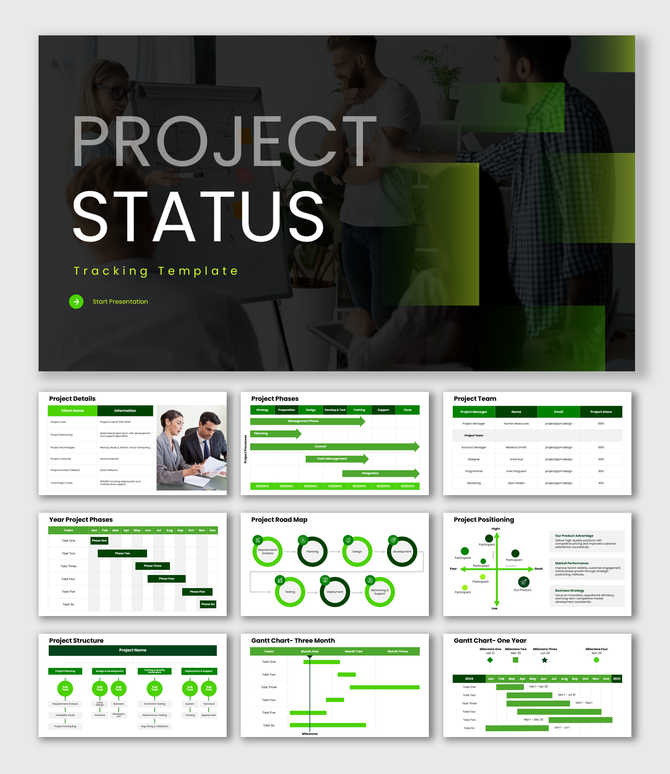
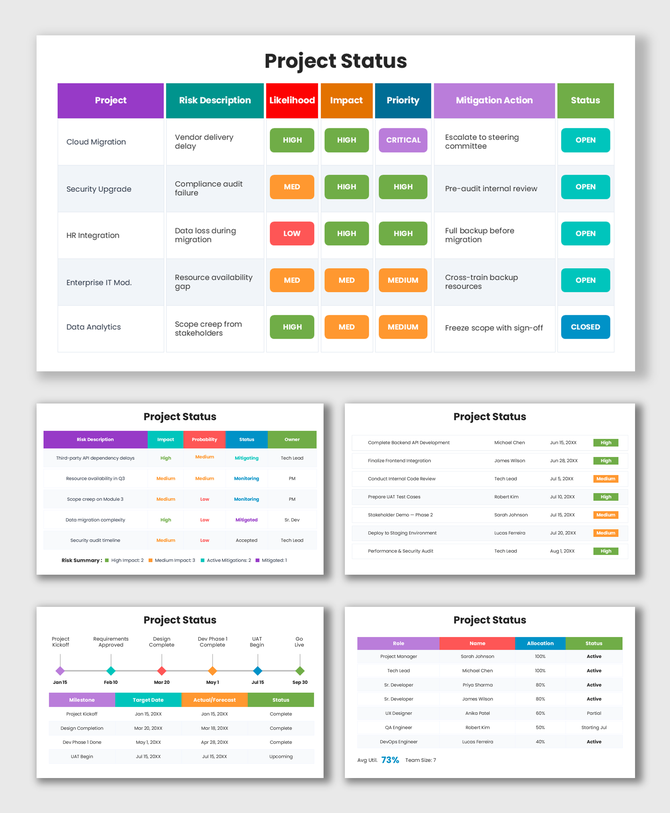
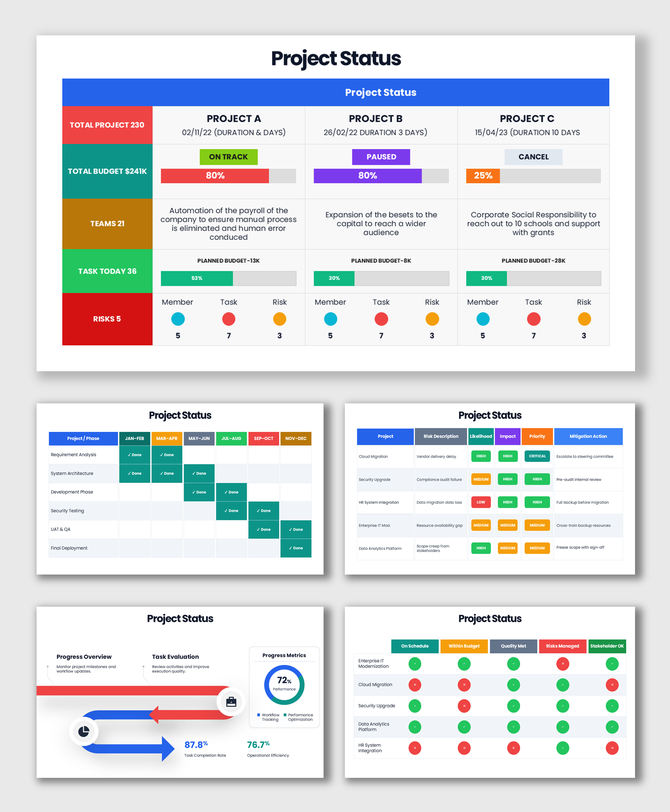
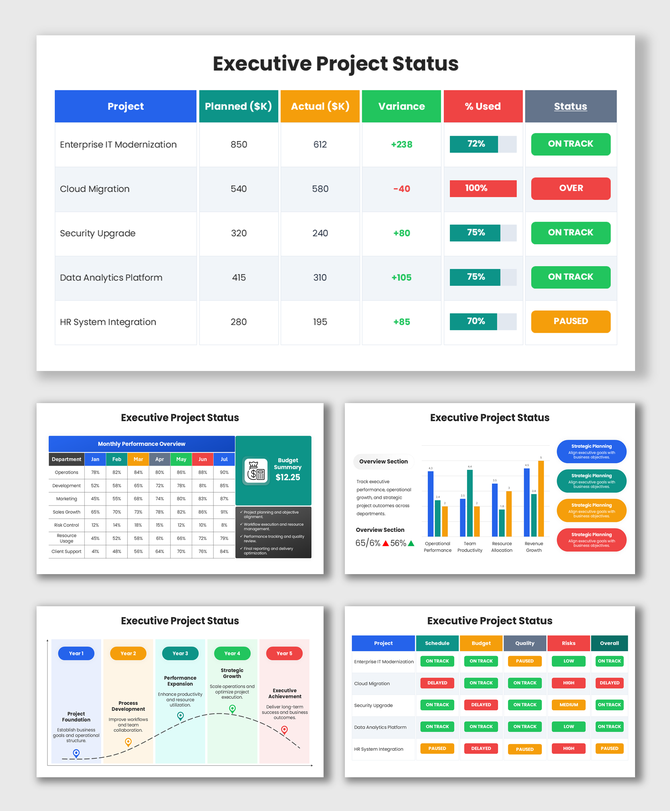
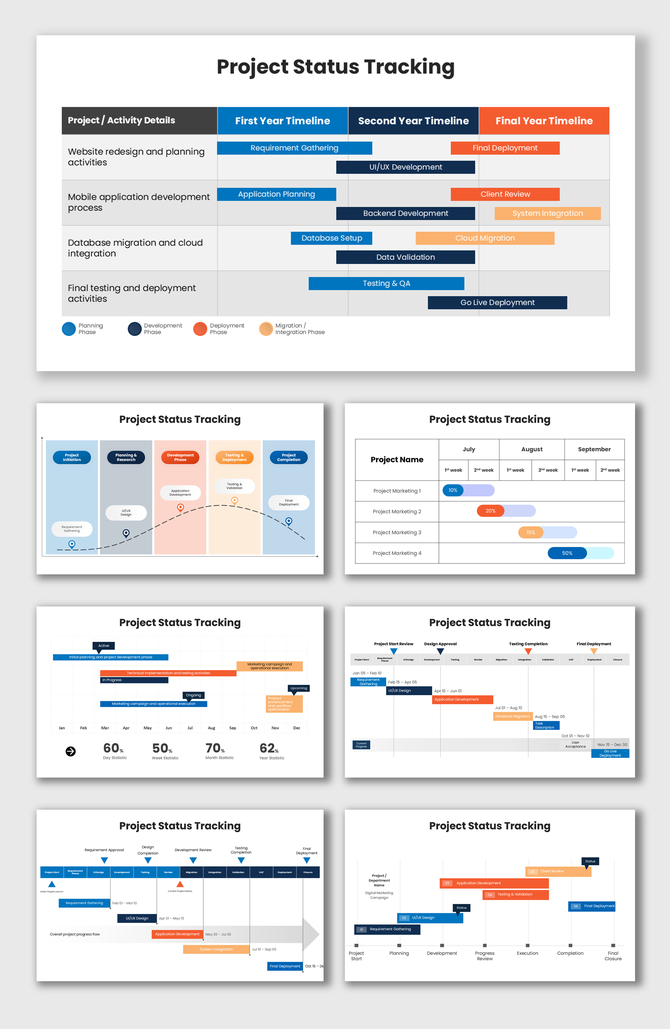
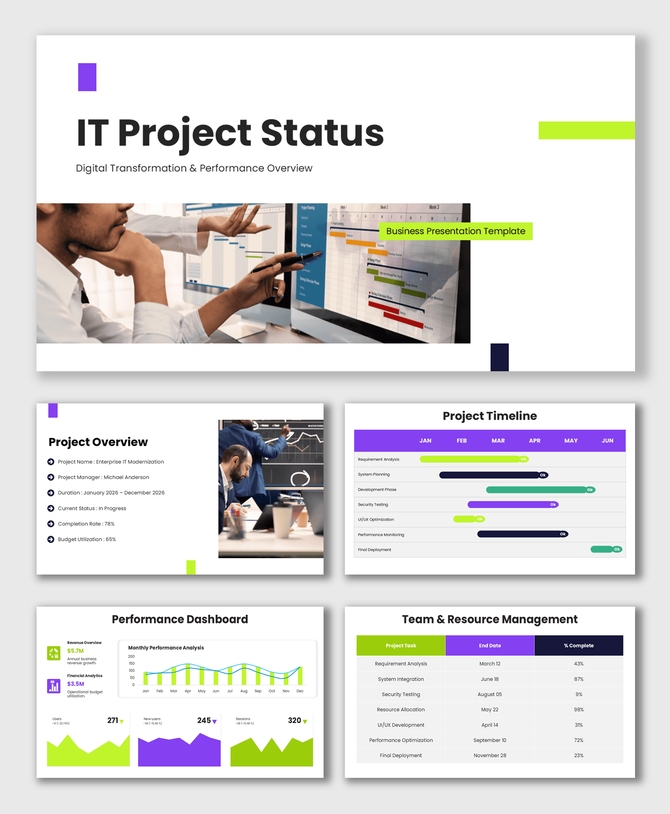
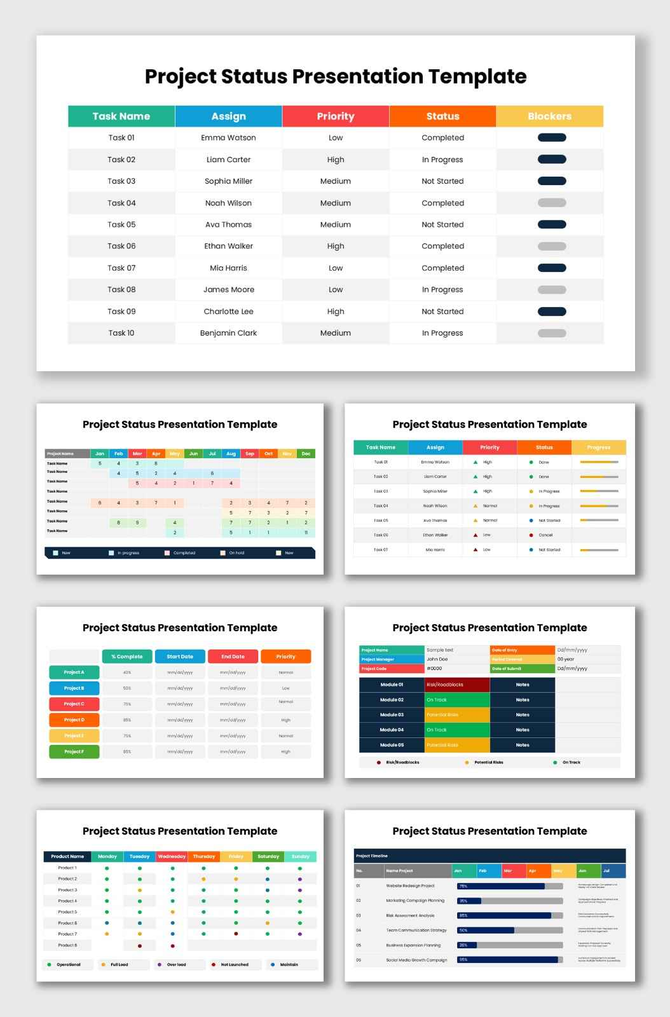
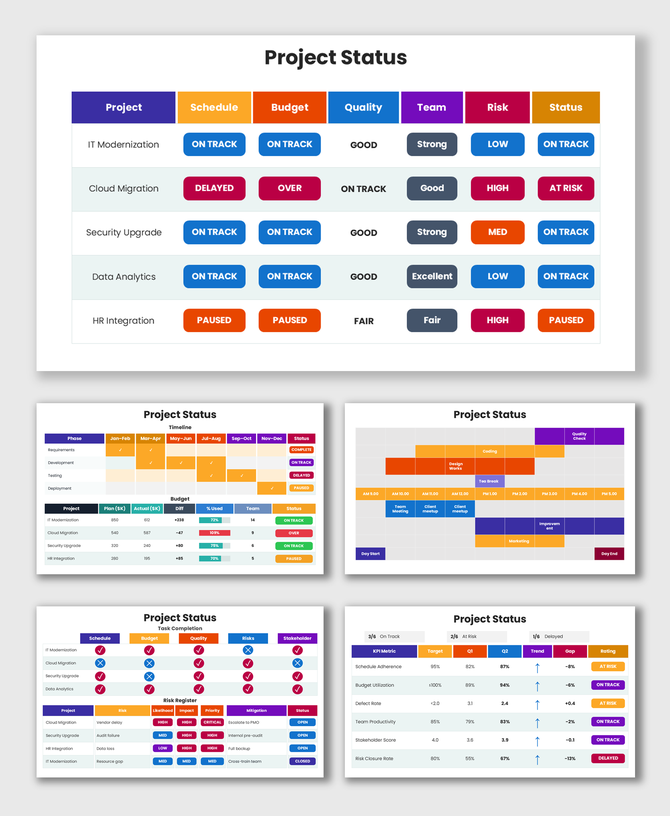
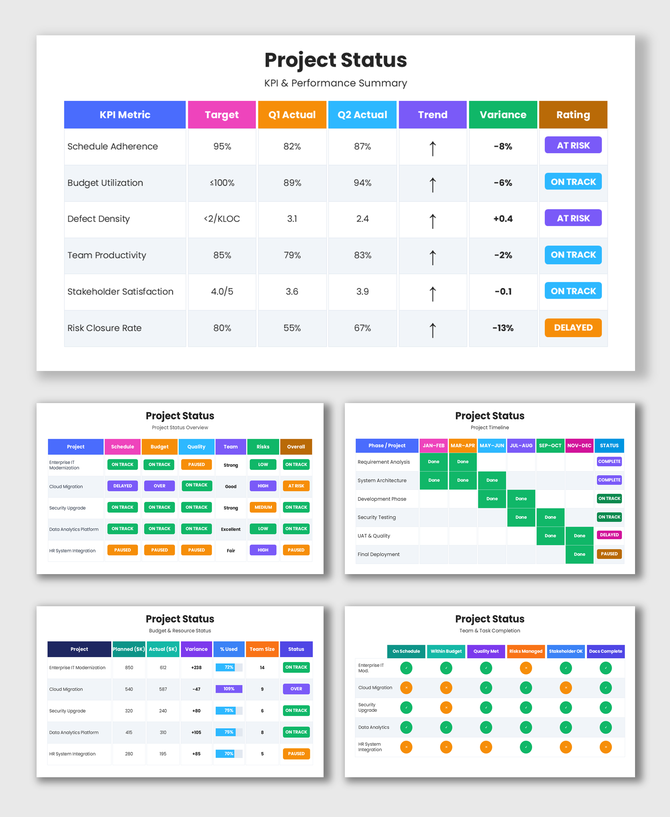
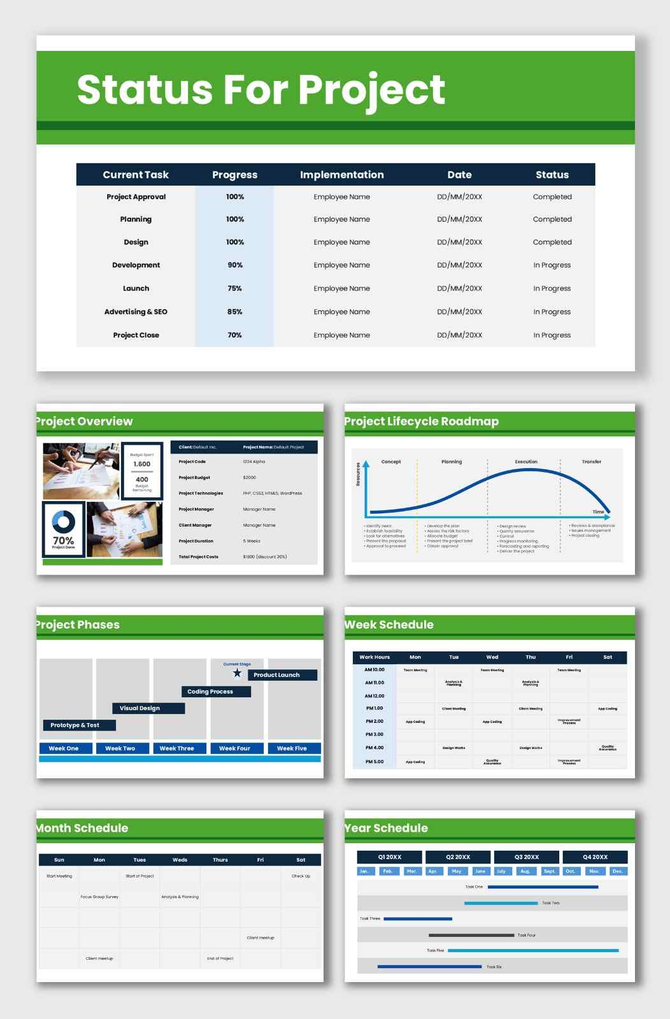
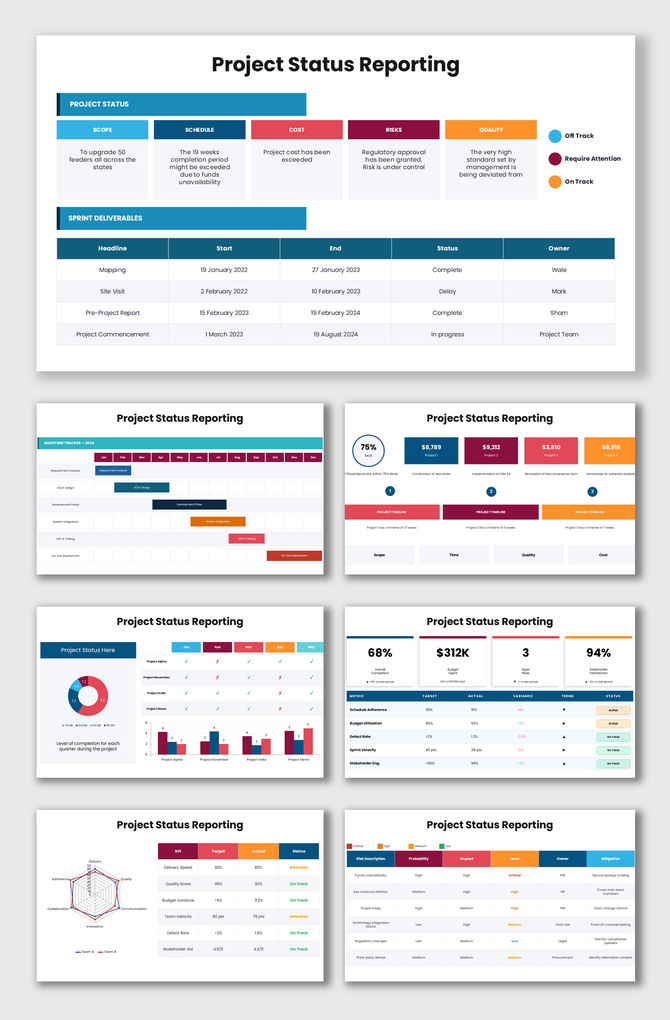
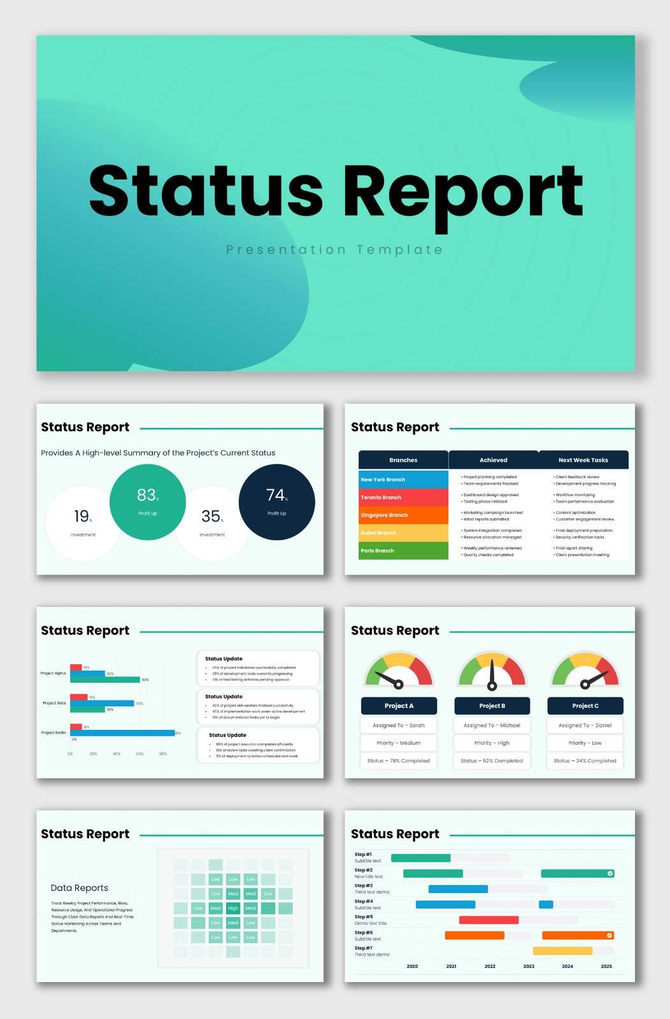
How to Choose the Right Project Status Template for Your Team
A project status update is only as useful as its ability to reach the right audience quickly. Before downloading a template, it is worth knowing which type of report your situation actually needs — because a weekly team standup slide looks very different from a board-level executive dashboard, and using the wrong format wastes your audience's time.
Below is a breakdown of the seven most common types of project status templates, the specific situations each one is designed for, and what to look for when choosing between them.
1. Weekly Project Status Report Template
Best for: Project managers and team leads who run recurring stakeholder or client updates every week.
A weekly project status slide typically covers 2 to 4 slides: tasks completed this week, tasks due before the next update, and any blockers the team is currently facing. The most effective weekly templates include a RAG health indicator (Red/Amber/Green) so stakeholders can assess project health without reading every task line. Keep the weekly report concise — your audience should be able to read it in under three minutes.
2. Executive Project Status Report Template
Best for: Board briefings, C-suite reviews, or sponsor updates where your audience has limited time and no need for task-level detail.
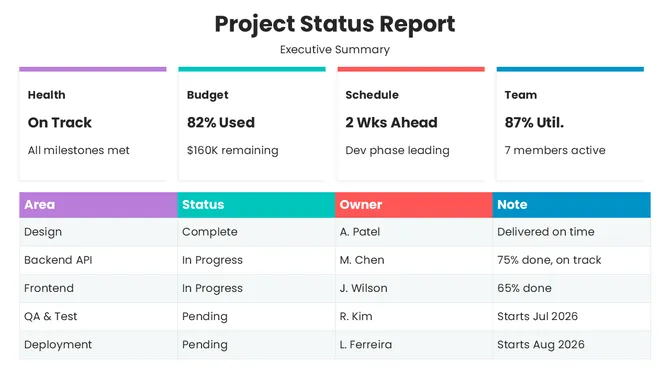
An executive project status report focuses on three questions: Is the project on track to meet its milestones? Is it within budget? What are the top risks that require a decision from leadership? A well-designed executive project status slide can answer all three questions in a single dashboard view. Drop the Gantt chart for an executive audience — replace it with a milestone completion percentage and a traffic-light status bar. Executives read at the strategic level, not the operational one.
3. One-Page Project Update Template
Best for: Email attachments, quick async briefs, or situations where you need to give stakeholders a complete picture in under 60 seconds.
A one-pager consolidates project overview, current status, key accomplishments, upcoming milestones, and active risks onto a single slide. It is the most versatile format in the project manager's toolkit — suitable for email updates, Slack attachments, printed handouts, or opening-slide summaries before a longer meeting. If your stakeholder regularly asks, "just give me the one-slide version," a one-page project update template is the answer.
4. Agile Project Status Report Template
Best for: Scrum Masters, Agile PMs, and product teams reporting sprint outcomes to product owners, clients, or senior stakeholders.
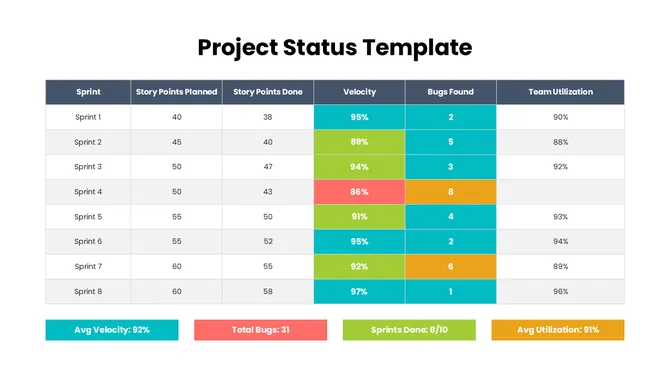
Agile reporting has a different rhythm from traditional project reporting. Instead of phase-based milestones, Agile status reports track sprint velocity, burndown charts, sprint goal completion, and backlog health. A good Agile project status template includes a sprint summary slide (goal, outcome, velocity), a risk and impediment table, and a "next sprint" preview. These reports are typically shared at the end of every sprint — every one to four weeks — and need to be fast to update and easy for non-technical stakeholders to interpret.
5. Project Status Dashboard Template
Best for: Program directors, portfolio managers, and operations leads who manage multiple active projects simultaneously.
A project status dashboard consolidates the most important data from all active projects into a single visual view. A strong project status dashboard slide typically includes a project health summary table (showing RAG status for each project), a combined timeline or Gantt overview, resource allocation across teams, and a financial summary showing budget vs actuals. Portfolio dashboards are most valuable in monthly leadership reviews where decision-makers need to compare performance across their entire project portfolio in one session.
6. IT Project Status Report Template
Best for: Technology project managers and software delivery leads reporting to non-technical business stakeholders.
IT project status reports often need to translate technical progress — test pass rates, defect counts, code deployment readiness — into language that a business stakeholder can understand and act on. An effective IT project status template includes a test coverage dashboard, a defect resolution trend chart, a UAT (User Acceptance Testing) completion table, and a deployment readiness checklist. If your audience does not know what "critical defect severity P1" means, your template should provide the context without burying the key message.
7. Monthly Project Status Report Template
Best for: Long-duration projects — construction, product development, infrastructure rollouts — where weekly reporting is excessive but monthly check-ins are necessary.
A monthly status report is broader and more analytical than a weekly update. It covers the full month's achievements, a comparison of planned versus actual delivery for the month, an updated risk register, a financial summary for the reporting period, and a forward-looking 30-day plan. Monthly reports are typically more detailed than weekly updates and benefit from a clean multi-slide layout — an executive summary slide first, followed by supporting detail slides for stakeholders who want to go deeper.
What Every Project Status Slide Deck Should Cover
Regardless of which template type you choose, a strong project status report presentation always covers six core areas. Think of these as the non-negotiables that every slide deck should answer before leaving your desk:
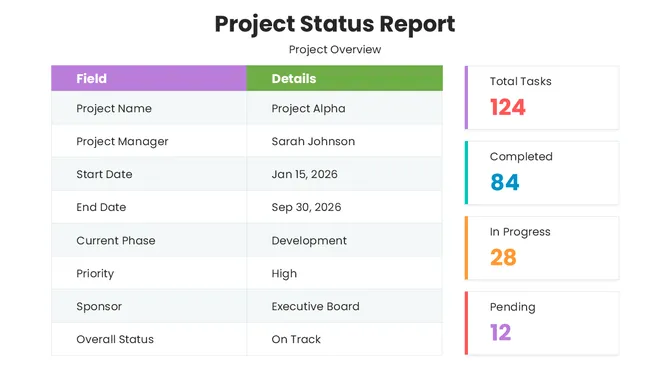
- Project overview and reporting period: Project name, owner, the dates covered, and a one-sentence overall status statement.
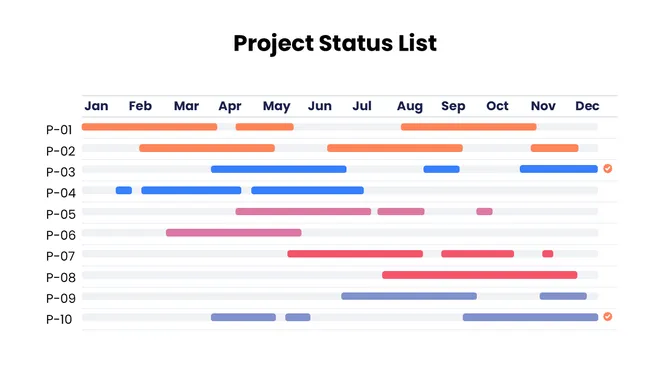
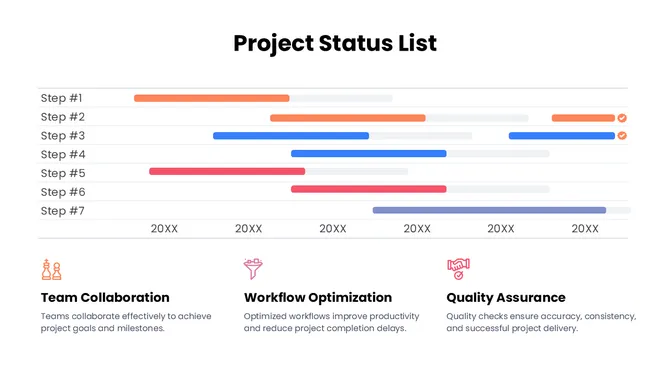
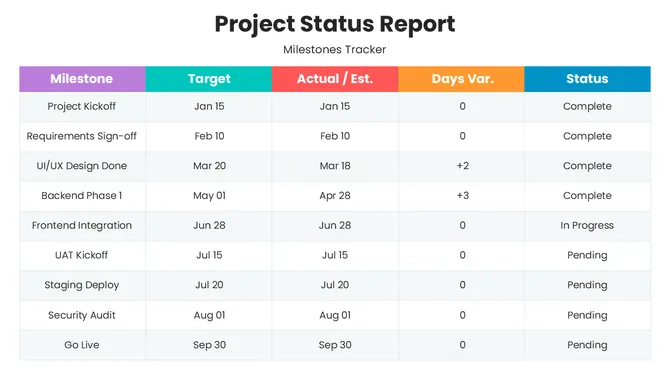
- Milestone progress: A visual comparison of planned milestones versus actual delivery. Use color coding to separate completed, in-progress, and overdue items.
- Key accomplishments: Two to five specific achievements from this reporting period. Keep each point factual and measurable.
- Upcoming tasks and next steps: What will be delivered before the next update, who owns it, and the deadline.
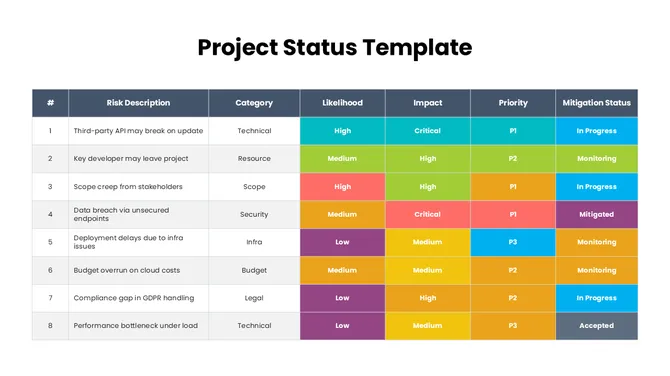
- Risks, issues, and blockers: Any active or emerging threats to the timeline, budget, or scope. Rate each by likelihood and impact, and use a RAG indicator for fast stakeholder scanning.
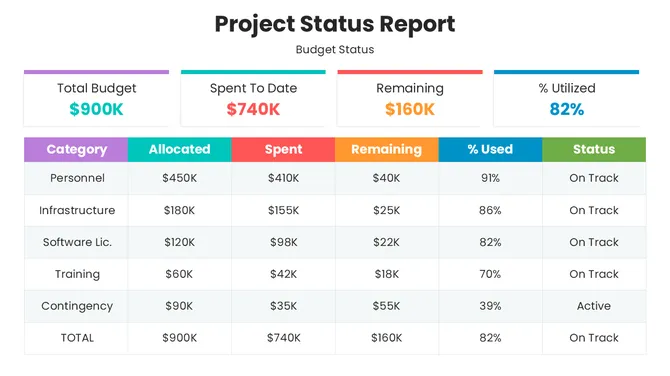
- Budget status: Planned spend versus actual spend to date, with a cost-to-complete forecast. Even if financials are healthy, showing budget data builds stakeholder confidence and prevents last-minute surprises.
How to Use a Project Status Template in PowerPoint or Google Slides
All SlideEgg project status templates are fully editable in both PowerPoint and Google Slides. Here is the fastest way to turn a downloaded template into a finished status update:
- Start by choosing the template type that matches your audience: weekly for teams, executive for leadership, or one-pager for email.
- Download the .pptx file for free and open it in PowerPoint. To use it in Google Slides, click download > Google Slides to open it there. All layouts and editable elements are preserved. For Canva users, look for templates labelled specifically for Canva in the collection.
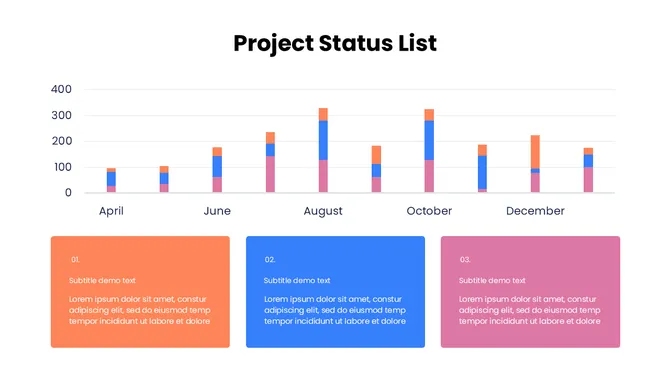
- Once open, replace the placeholder text with your project name, dates, and status summary. Click on any chart to update the underlying data table with your actual values.
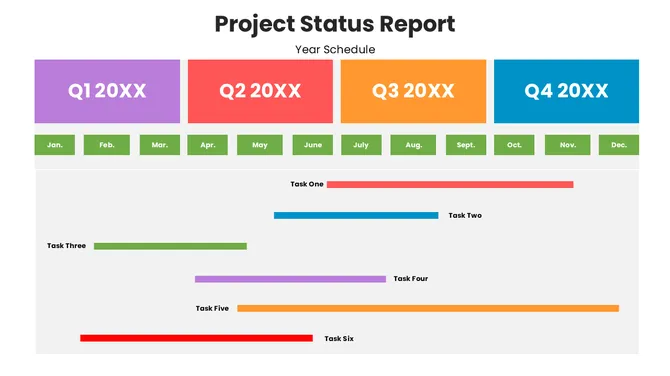
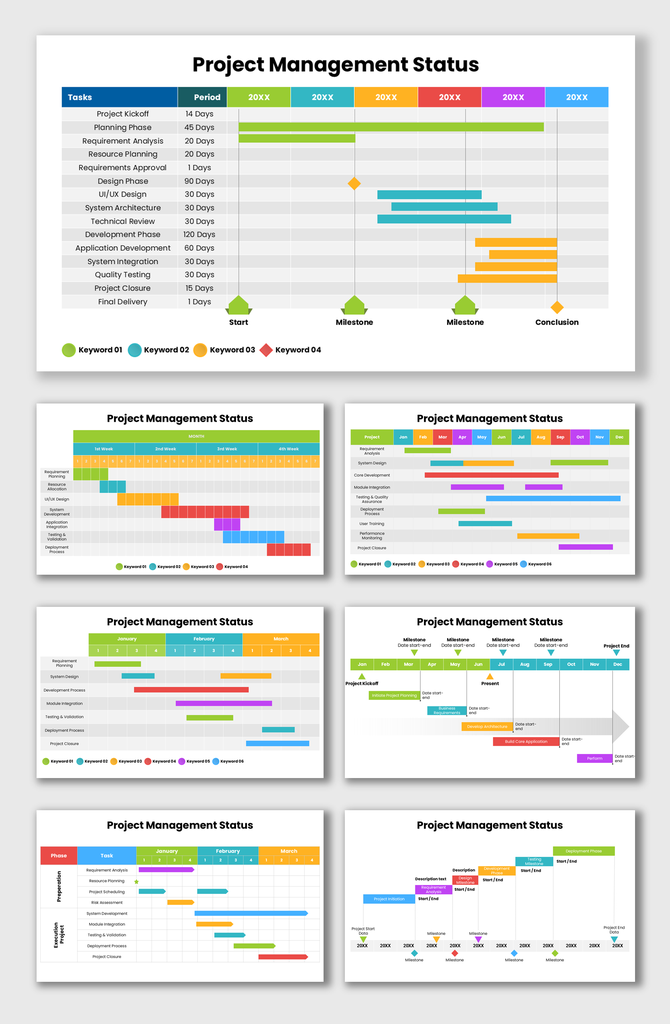
- Drag the Gantt chart bars to reflect your real timeline. Apply RAG color indicators — Green, Amber, or Red — to each milestone or workstream based on its current health.
- Save the file as your master template and duplicate it each reporting period so the structure stays consistent and preparation time stays minimal.
Project Status Report vs Project Progress Report — Is There a Difference?
These two terms are often used interchangeably in practice, and the distinction is subtle. A project status report focuses on the current state of the project — where things stand, which risks are active, and which decisions need to be made today.
A project progress report emphasizes movement over time — how much has been achieved since the last report and whether the project is tracking ahead of or behind the original schedule.
In most project management environments, a single template serves both purposes. The slides show current status (what is happening now) alongside progress data (how far the project has come).
Browse the full collection of free project status templates now!
Frequently Asked Questions
What is a project status report?
A project status report is a structured summary that tells stakeholders where a project stands right now — what has been completed, what is in progress, what risks exist, and what comes next. It typically covers milestone progress, completed tasks, upcoming deadlines, active blockers, and budget tracking. Most reports also include a RAG status indicator (Red/Amber/Green) so stakeholders can assess project health at a glance.
How many slides should a project status presentation have?
For most project status updates, 4 to 6 slides is the right length. A concise deck typically includes: an overall status summary (1 slide), milestone and timeline progress (1–2 slides), key accomplishments and upcoming tasks (1 slide), and risks or blockers (1 slide). Executive audiences need fewer slides — sometimes just one dashboard view. Weekly team standups can work with 2 slides. The goal is to give stakeholders exactly what they need to make a decision, nothing more.
What should a project status report include?
A well-structured project status report should include six elements: (1) project overview and reporting period, (2) milestone progress — planned vs actual, (3) key accomplishments from the period, (4) upcoming tasks and who owns them, (5) risks, issues, and blockers with a RAG status rating, and (6) budget — planned spend vs actual spend. SlideEgg's templates have a slide layout for each of these sections, already built in.
Where can these project status slides be used?
Project status slides are used in any setting where progress needs to be communicated clearly and quickly. Common use cases include weekly team standups, client progress reviews, executive and board briefings, Agile sprint retrospectives, IT delivery check-ins, construction site updates, and multi-project portfolio reviews. If you need to show stakeholders where a project stands — in a meeting, by email, or on a screen — a project status template is the right format.
How do I create project status slides in PowerPoint?
Download a free template from SlideEgg and open it in PowerPoint. Replace the placeholder text with your project name, dates, and status summary. Click any chart to update the underlying data, and drag the Gantt bars to reflect your actual timeline. Apply RAG status indicators — Green, Amber, or Red — to each milestone. Save it as your master file and duplicate it each reporting period. Total preparation time: under 15 minutes.
Who can use project status templates?
Anyone responsible for communicating project progress to others — project managers, Scrum Masters, IT delivery leads, construction and site managers, marketing managers, and freelancers or consultants. If you regularly report progress to a client, a manager, or a leadership team, a project status template will save you significant preparation time while making your updates look more professional and easier to act on.
What is RAG status in project reporting?
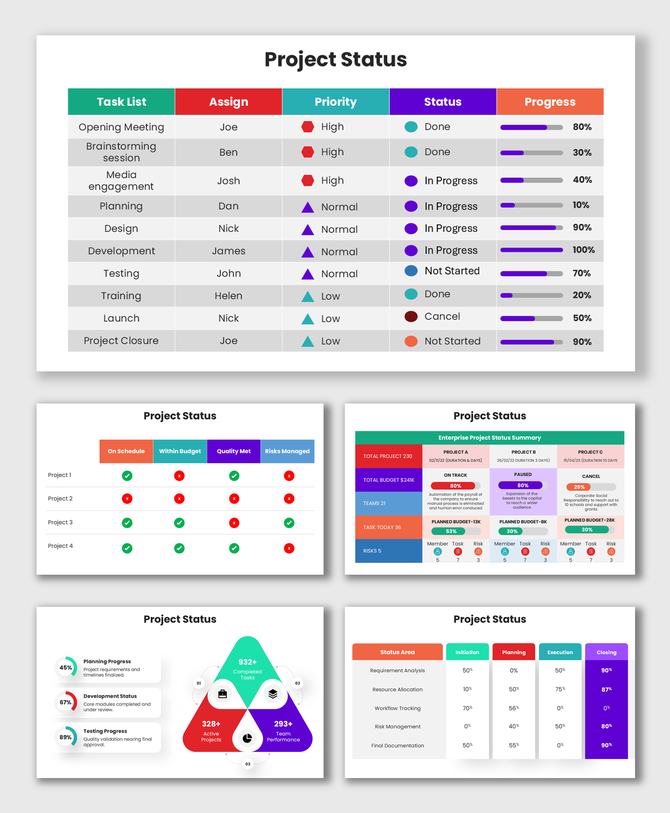
RAG status is a colour-coded health indicator used in project status reports. RAG stands for Red, Amber, and Green: Green means the project is on track; Amber means it is at risk and needs attention; Red means it is off track and requires immediate escalation. RAG indicators allow executives and stakeholders to assess project health across multiple projects at a glance without reading every detail. Most SlideEgg project status templates include built-in RAG badges.
What is the difference between a project status report and a project progress report?
The terms are often used interchangeably, but there is a subtle distinction. A project status report focuses on where the project stands right now — current milestone status, active risks, and open blockers. A project progress report emphasises how much has been achieved since the last report, compared against the original plan. In practice, most templates serve both purposes simultaneously — showing current state and cumulative progress in the same deck.
Can I use these templates in Google Slides or Canva?
Yes. All SlideEgg project status templates are compatible with Microsoft PowerPoint, Google Slides, and Canva. For Google Slides, download the .pptx file, upload it to Google Drive, and open it with Google Slides — all layouts are preserved. For Canva, look for templates labelled "Canva Slides" in the collection — these open directly in your Canva account. Free templates download without sign-in. Multi-slide premium packs require a SlideEgg subscription.
Why should I use a project status presentation instead of a written report?
A visual presentation communicates the same information faster and in a format that is easier to act on. A single dashboard slide with a RAG indicator, milestone bar, and risk table can be read in under 30 seconds. Charts and KPI visuals show trends instantly — without the mental effort of reading prose. A consistent template also means stakeholders always know where to look, reducing meeting time and follow-up questions. For recurring updates, slide-based reports are significantly faster to prepare than written documents.