240+ Free Artificial Intelligence PowerPoint Templates
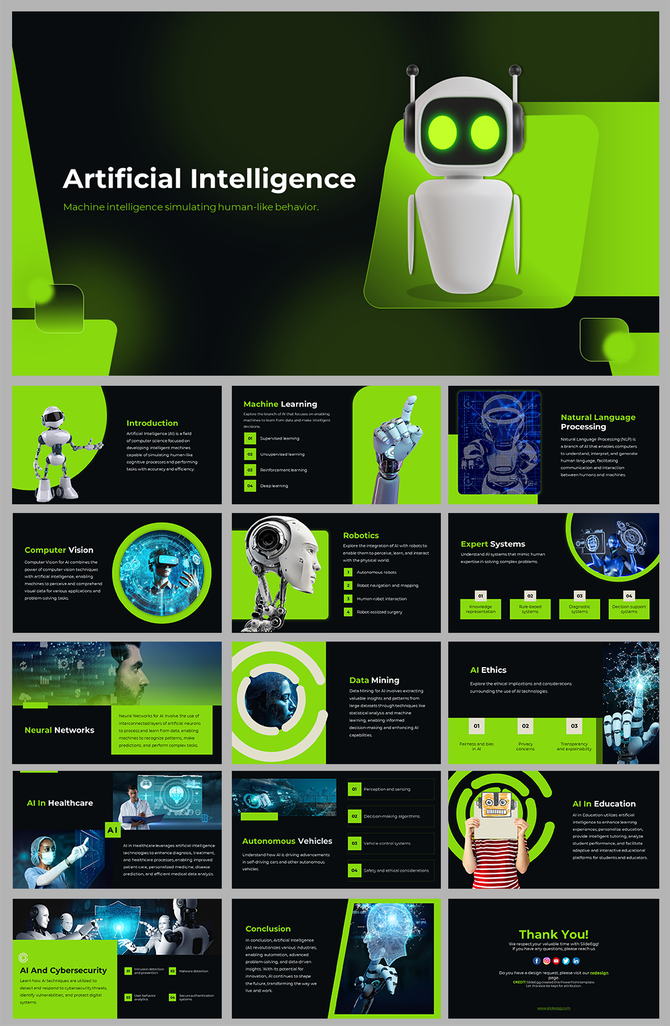
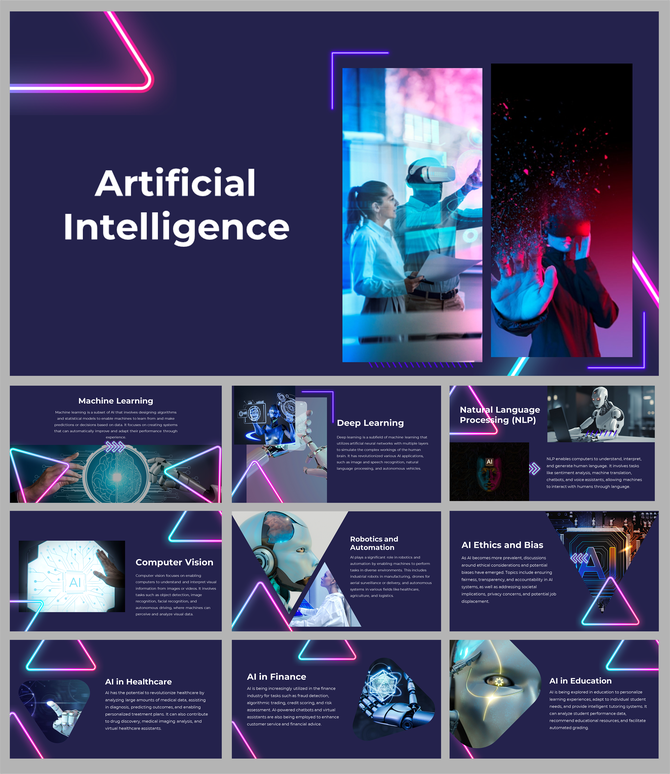
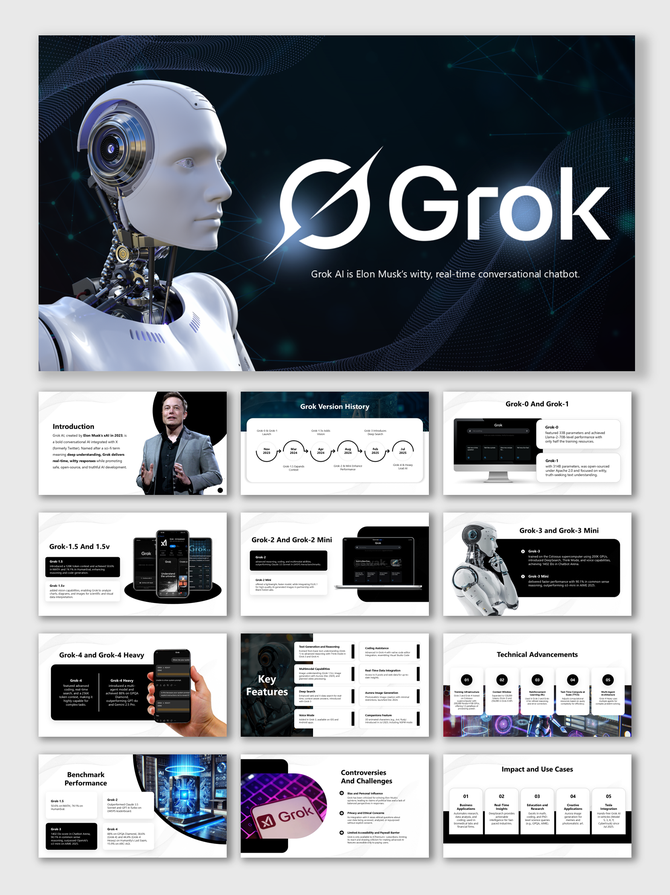
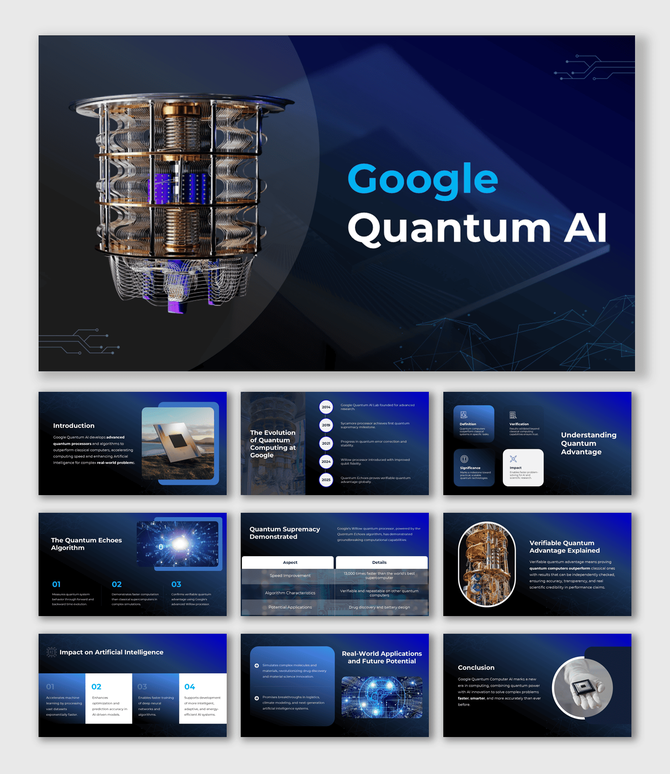
Browse 240+ free Artificial Intelligence presentation templates for PowerPoint, Google Slides, and Canva. Our collection covers machine learning, generative AI, ChatGPT, robotics, AI ethics, and more. All are fully editable, royalty-free, and ready to download. Built for professionals, educators, and students.
Editor's Choice (1 of5)

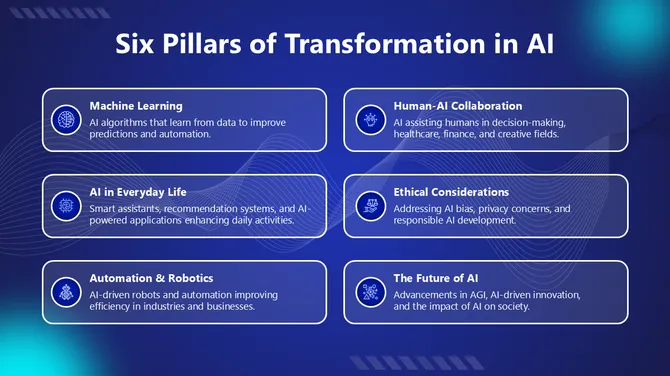
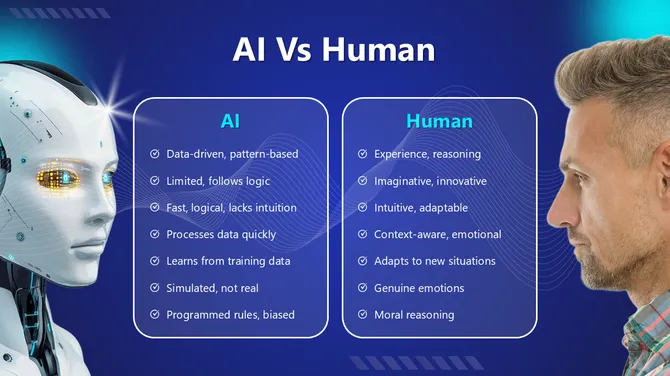
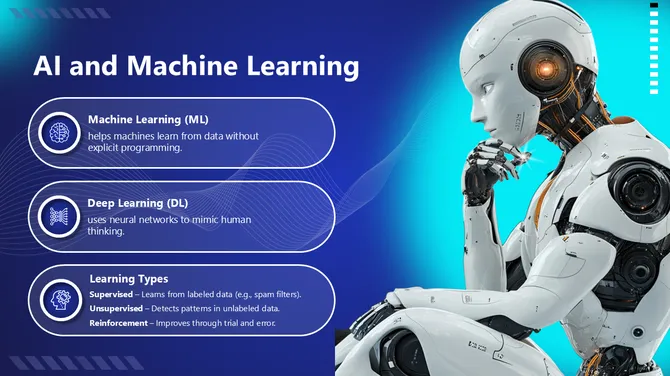

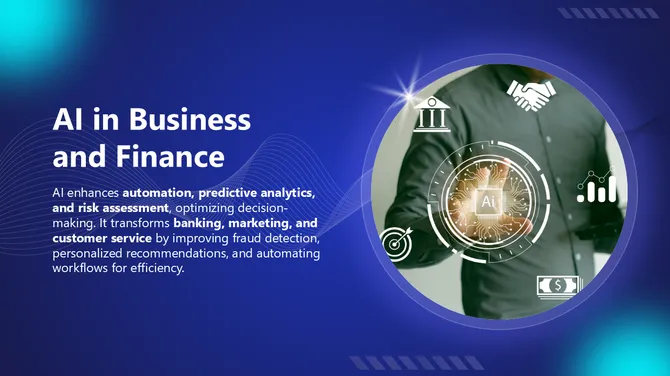
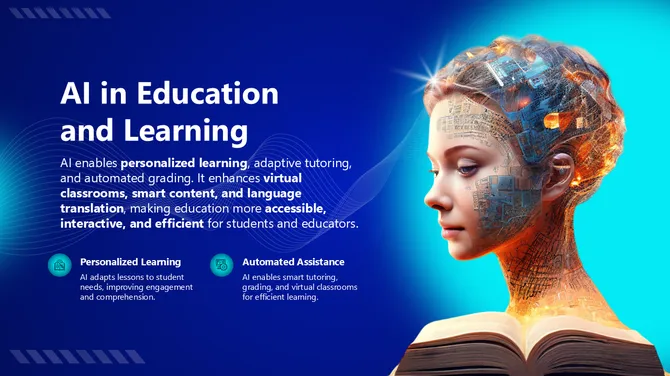
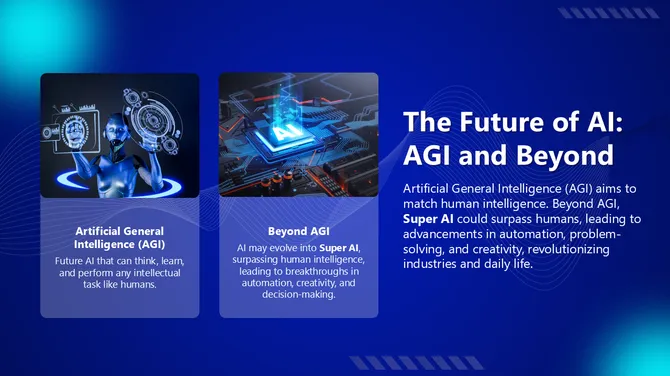
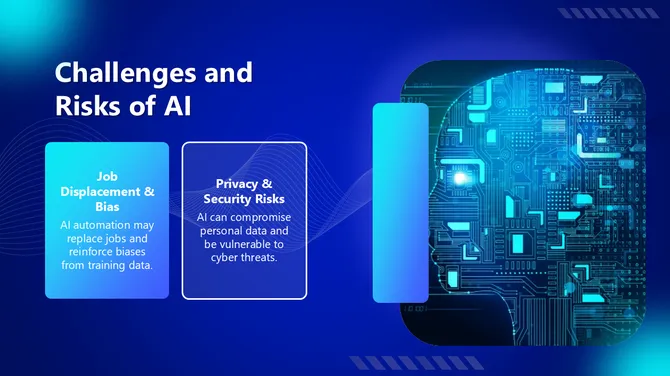





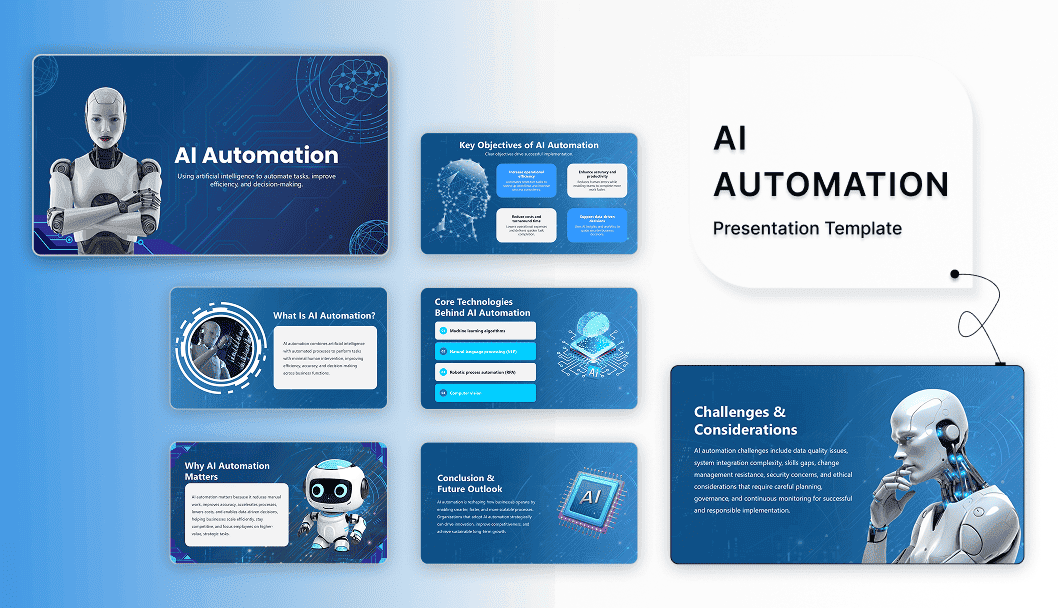



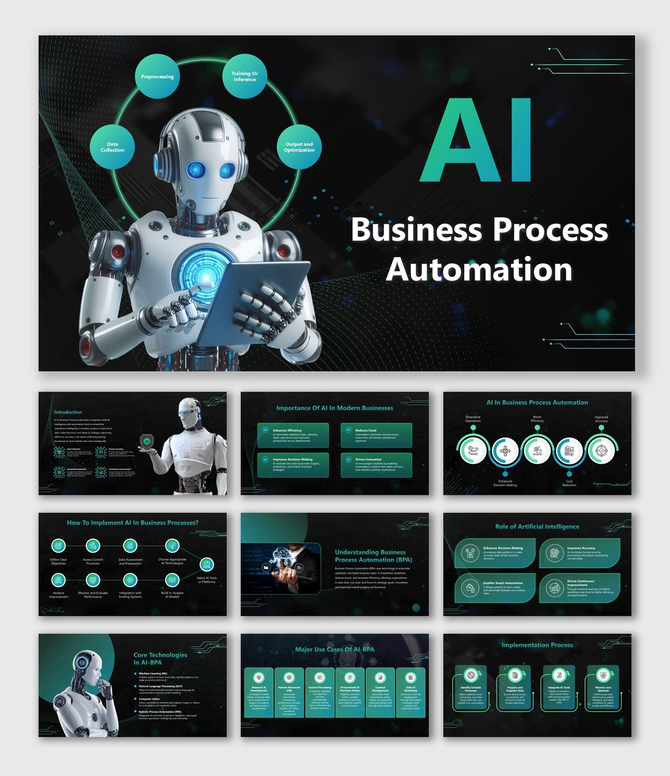
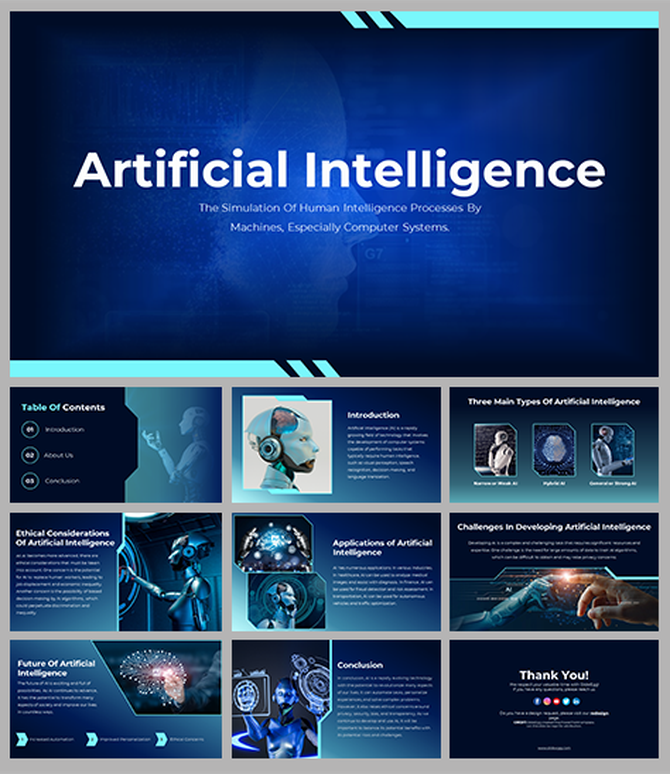
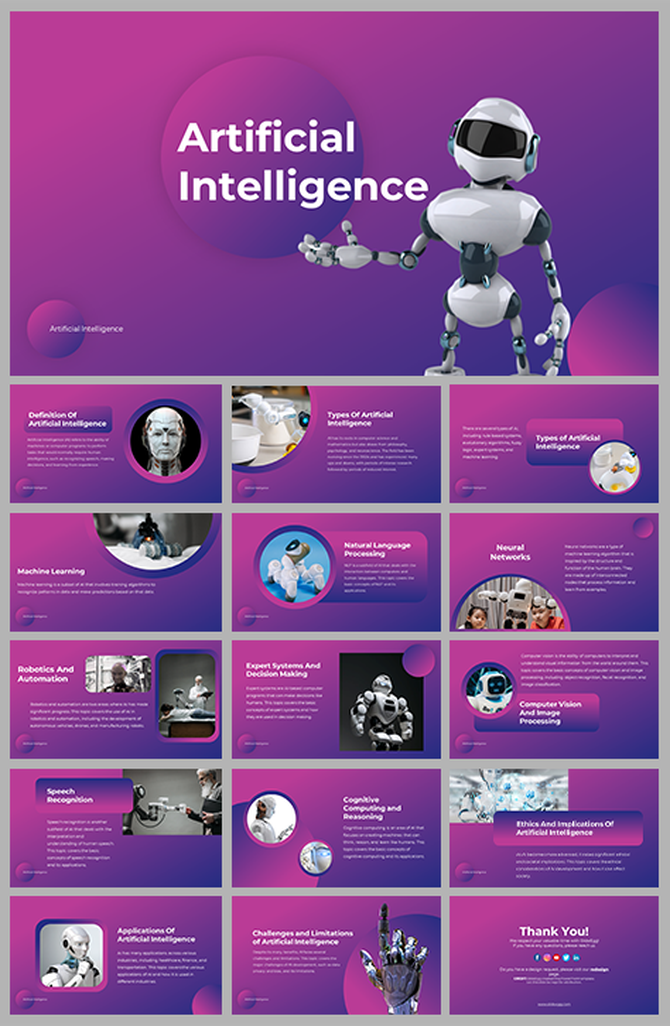
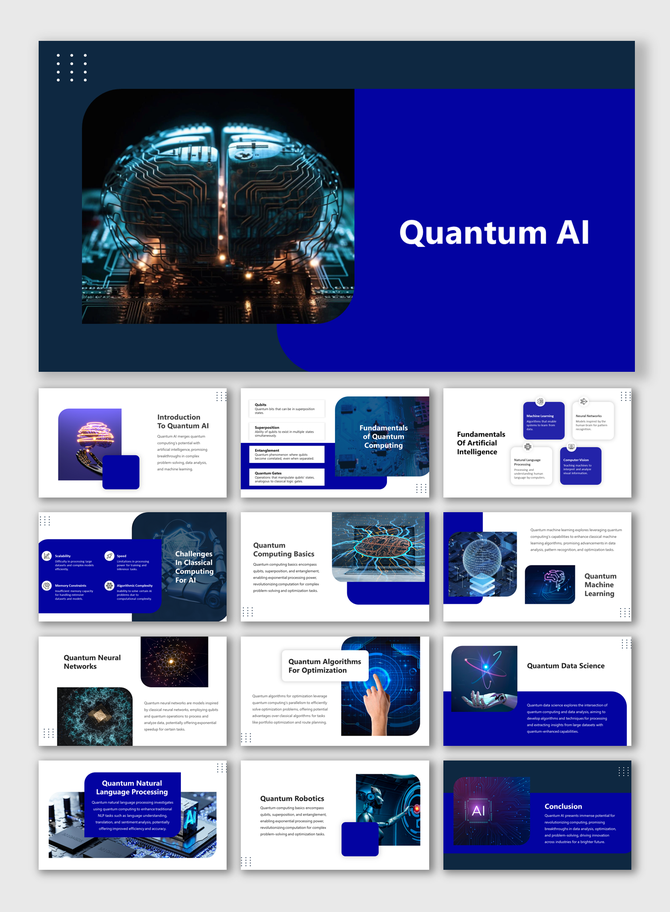
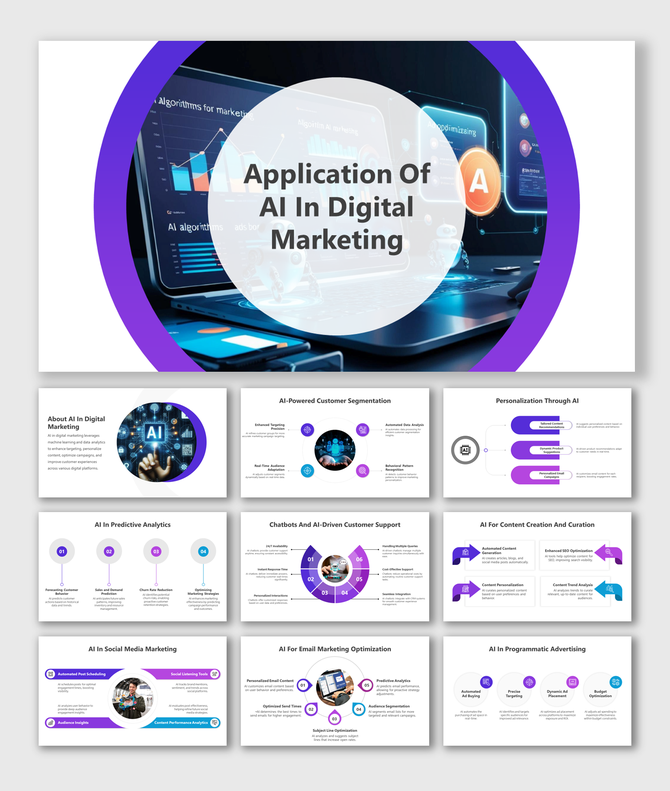

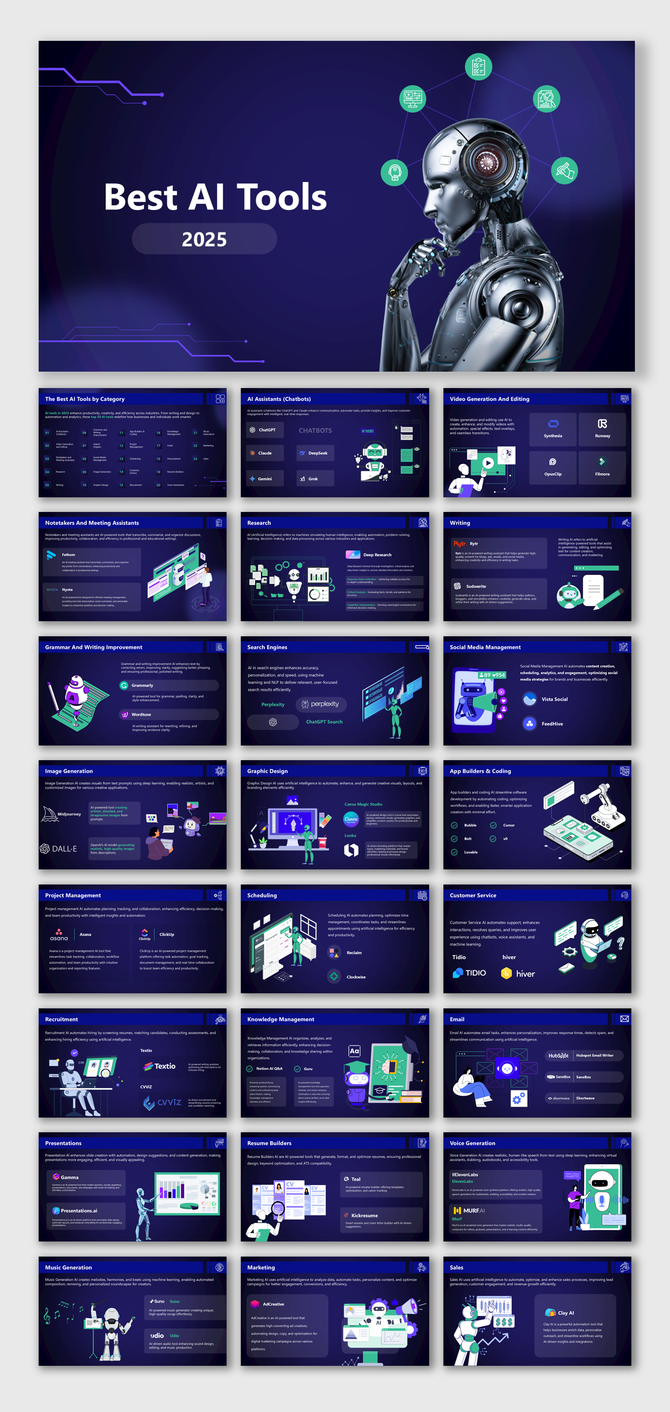
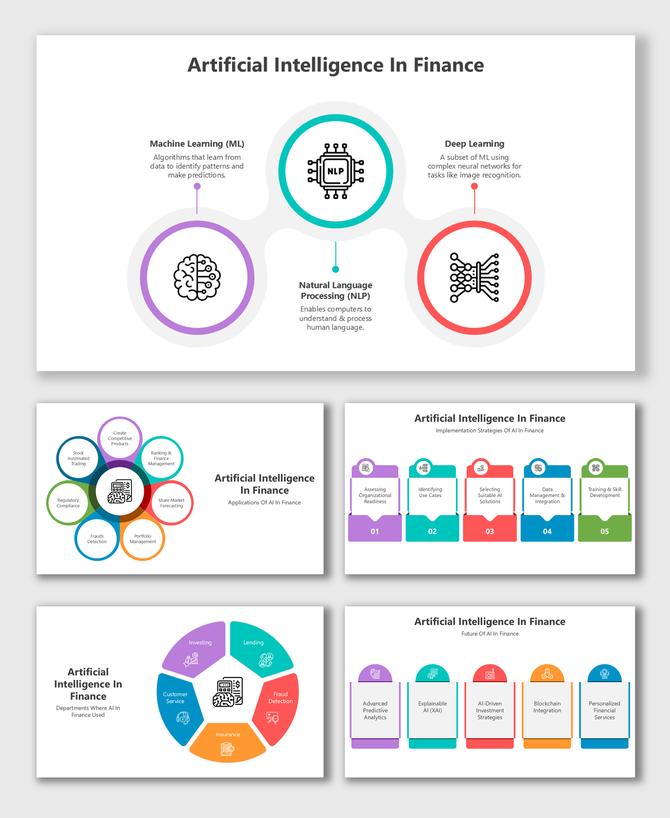

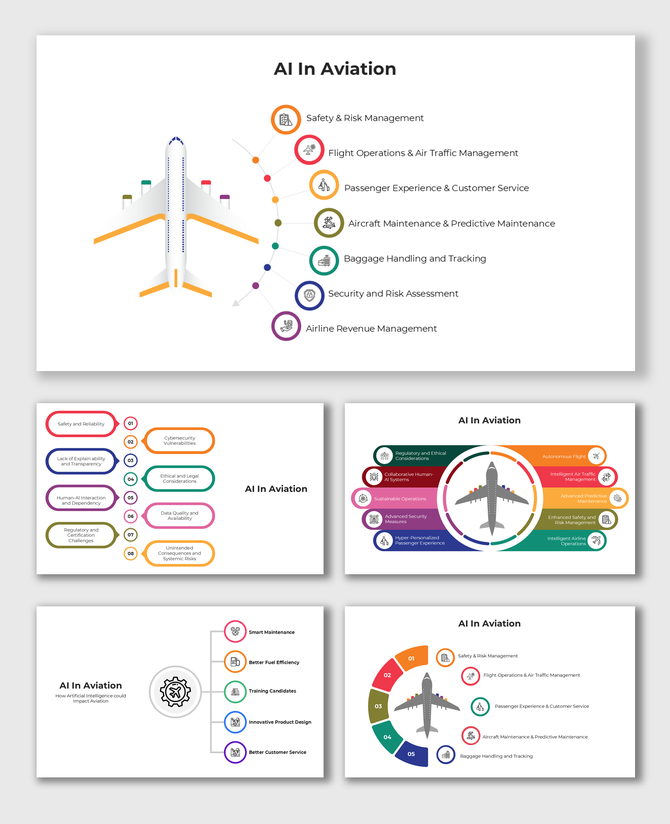
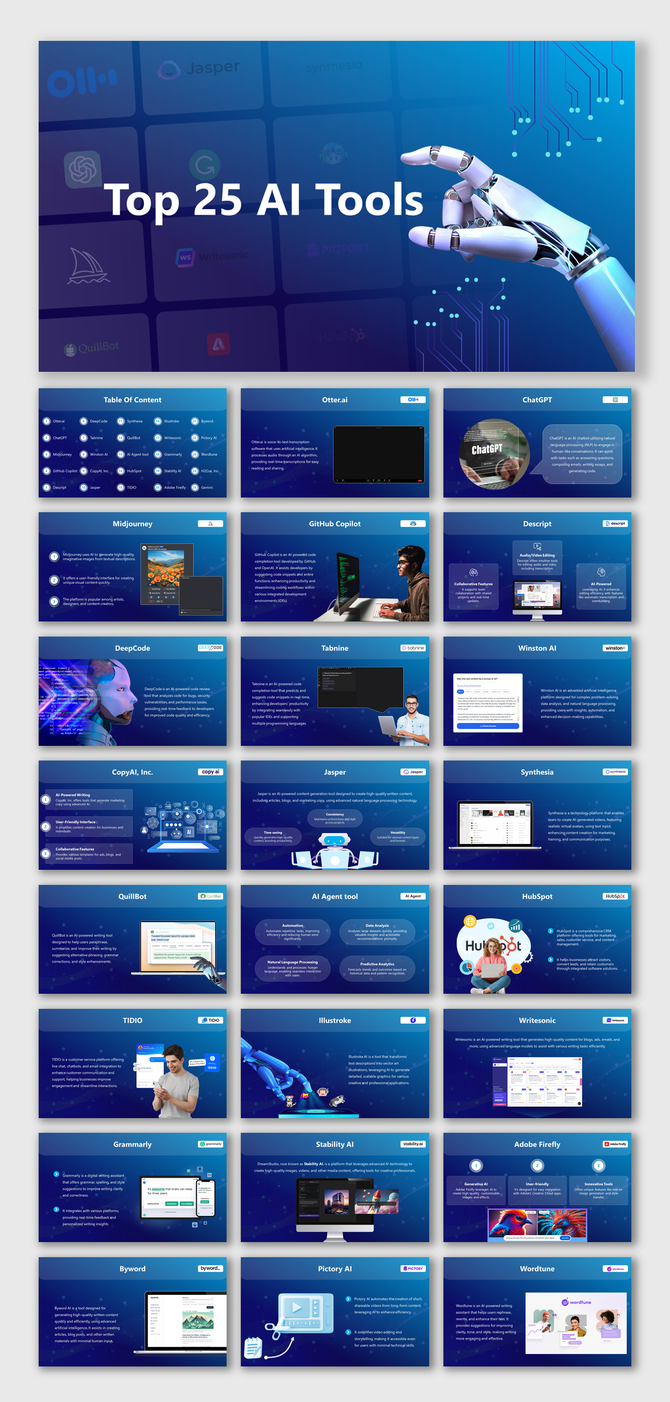
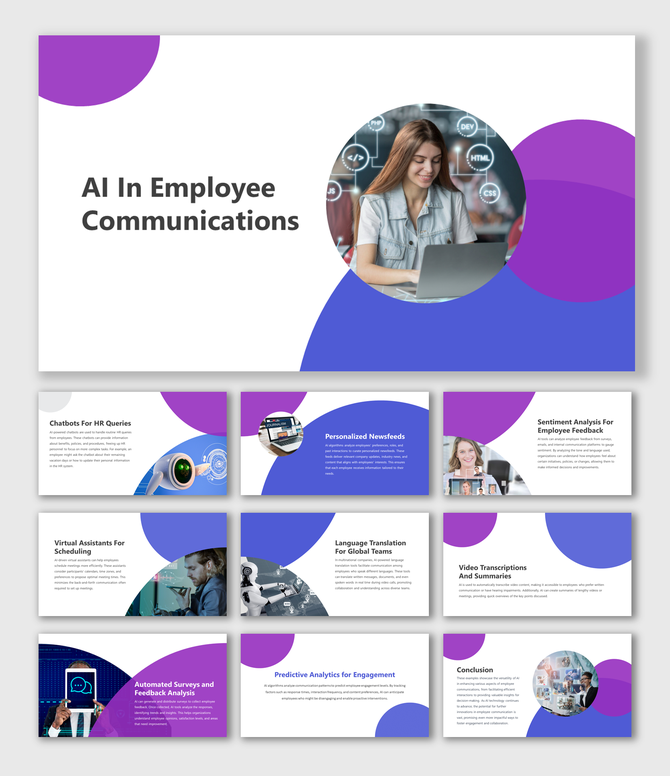
Everything You Need for an AI Presentation — Free Templates for 2026
What Topics Does This Collection Cover?
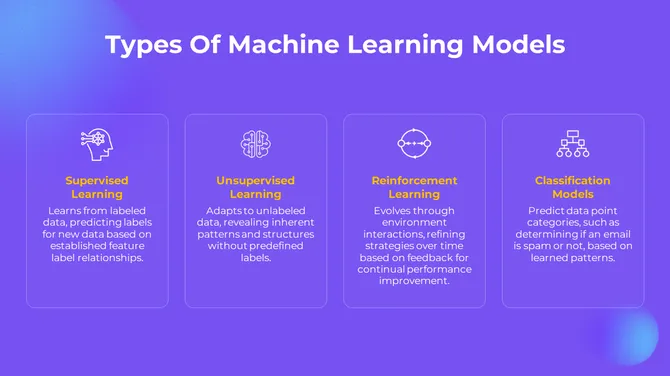
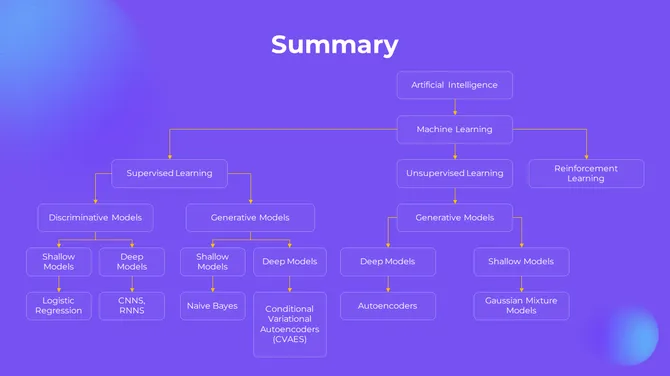
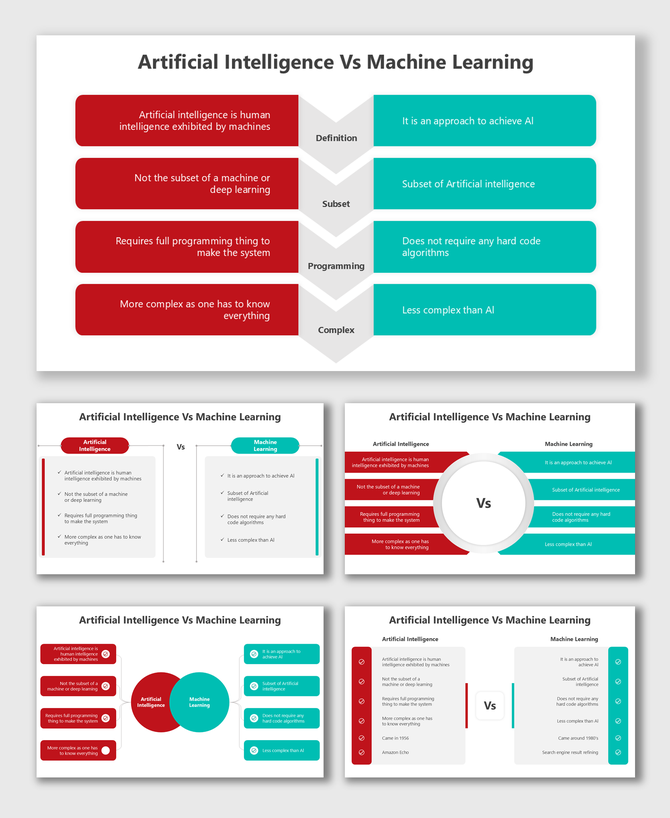
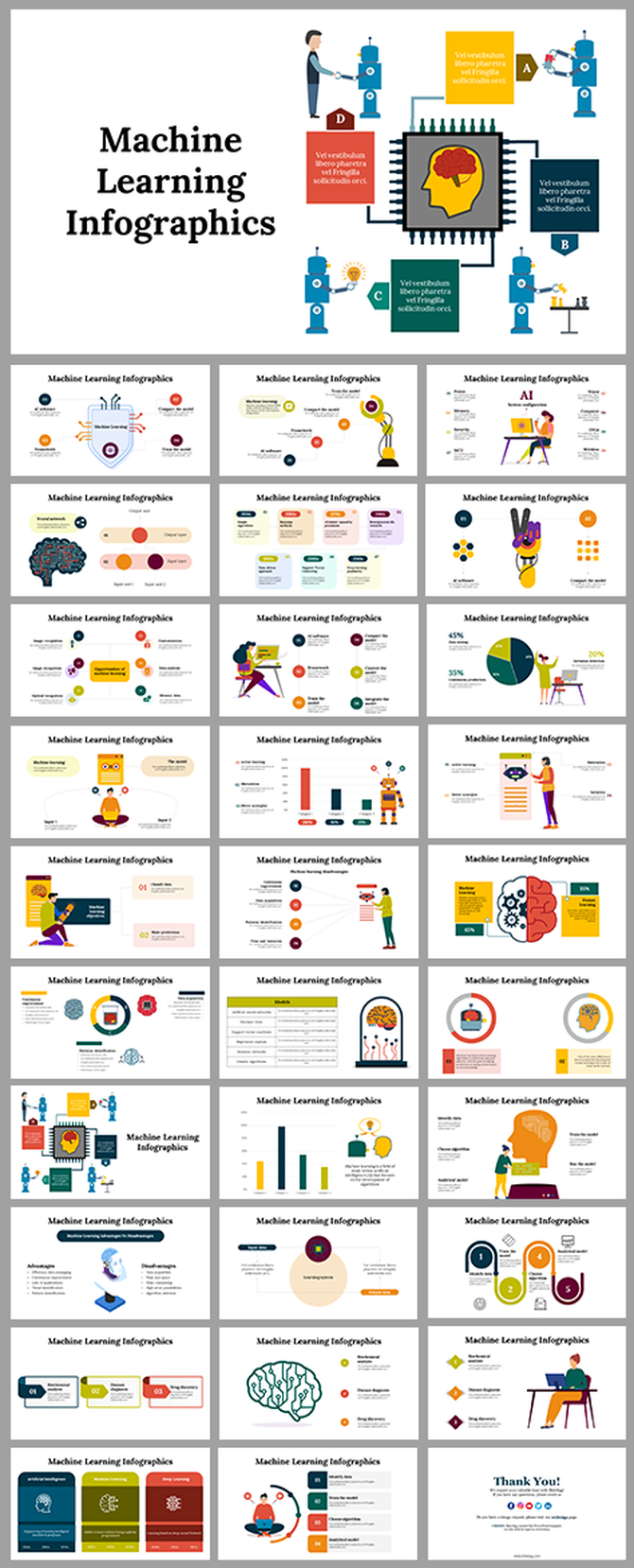
- Machine Learning & Deep Learning: Visualize training data, model architecture, and performance metrics with slides built for technical and non-technical audiences alike. Our machine learning PowerPoint templates include infographic layouts, comparison tables, and flow diagrams.
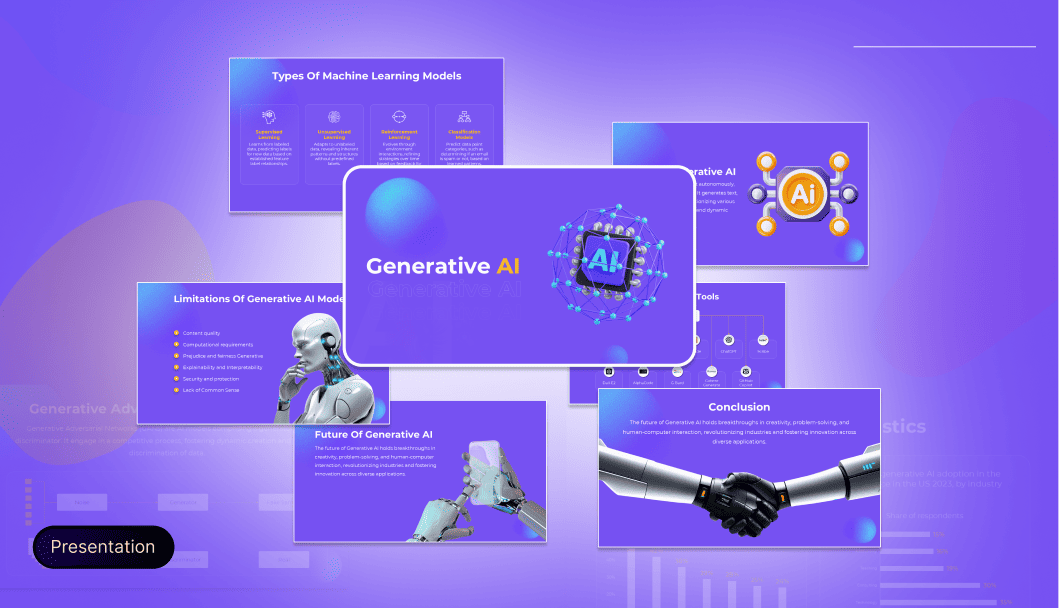
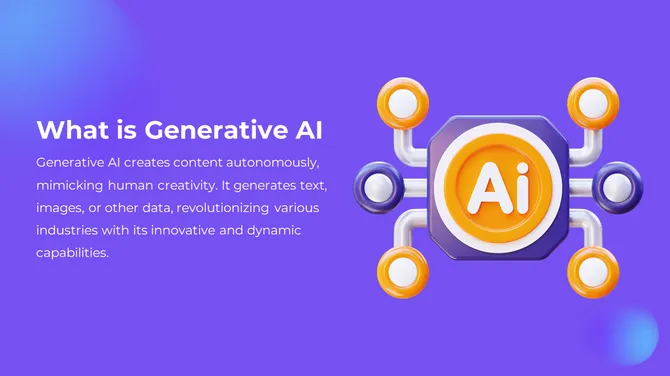
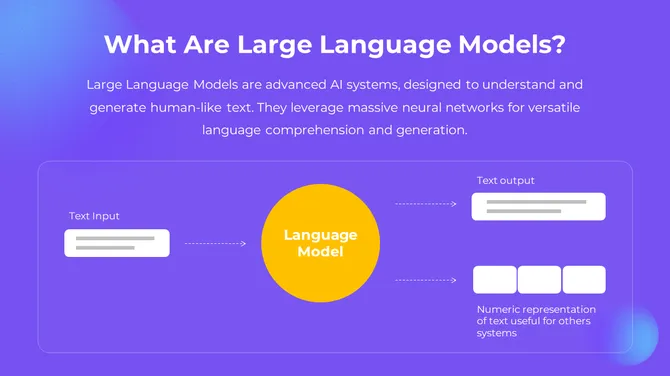
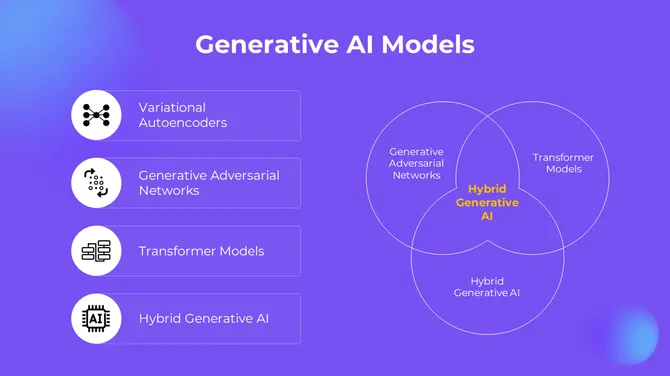
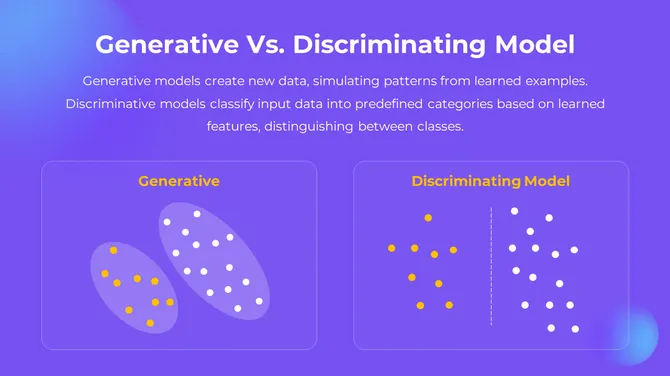
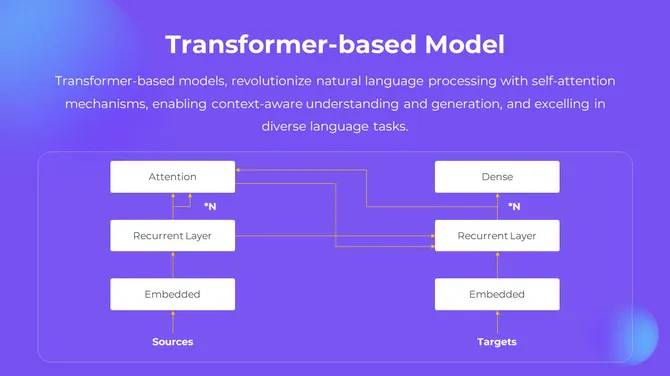
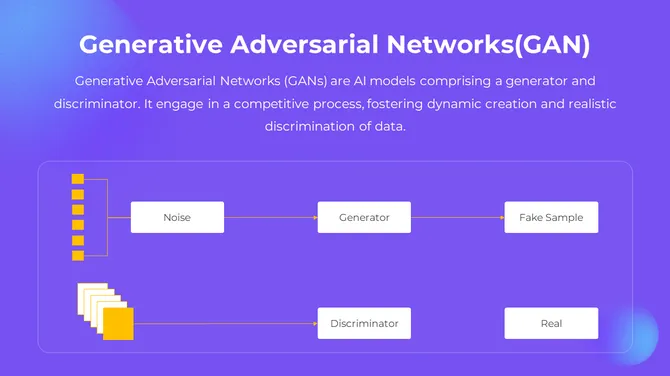
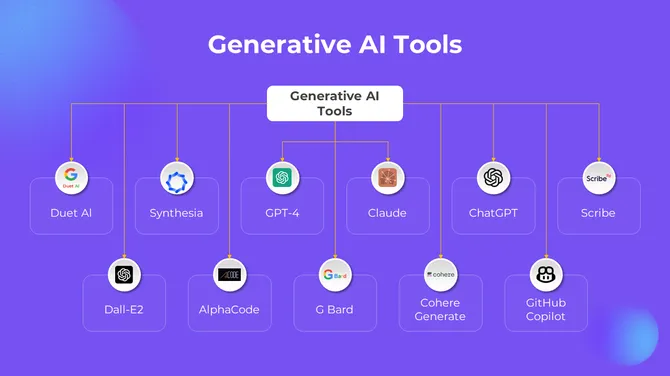
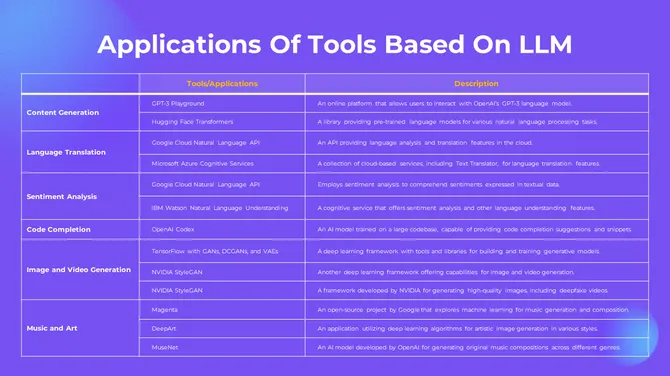
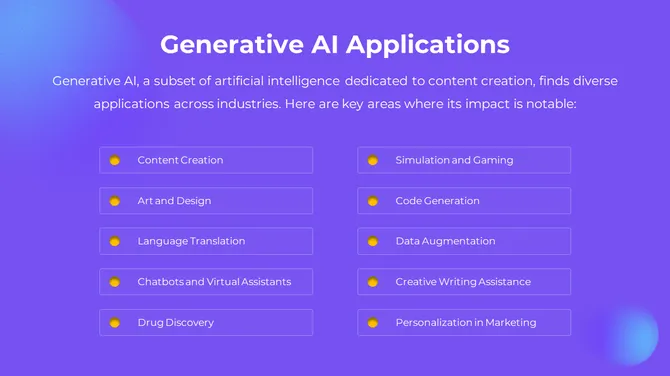
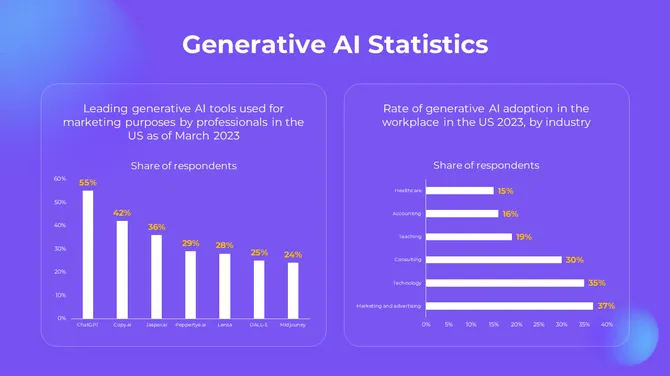
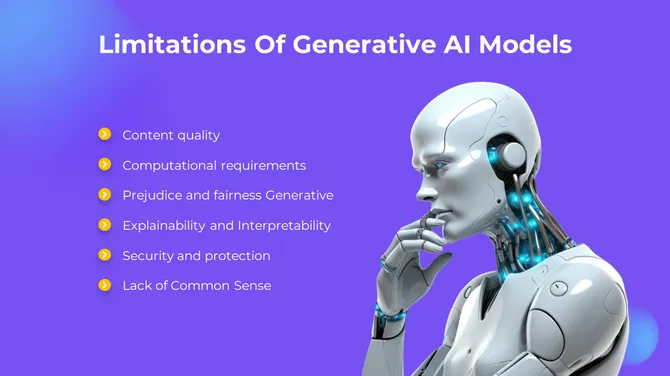
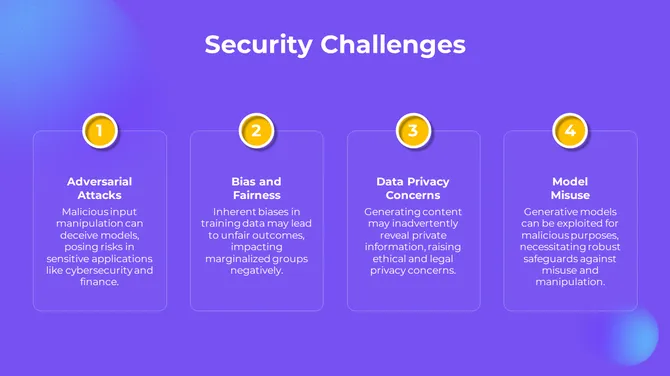
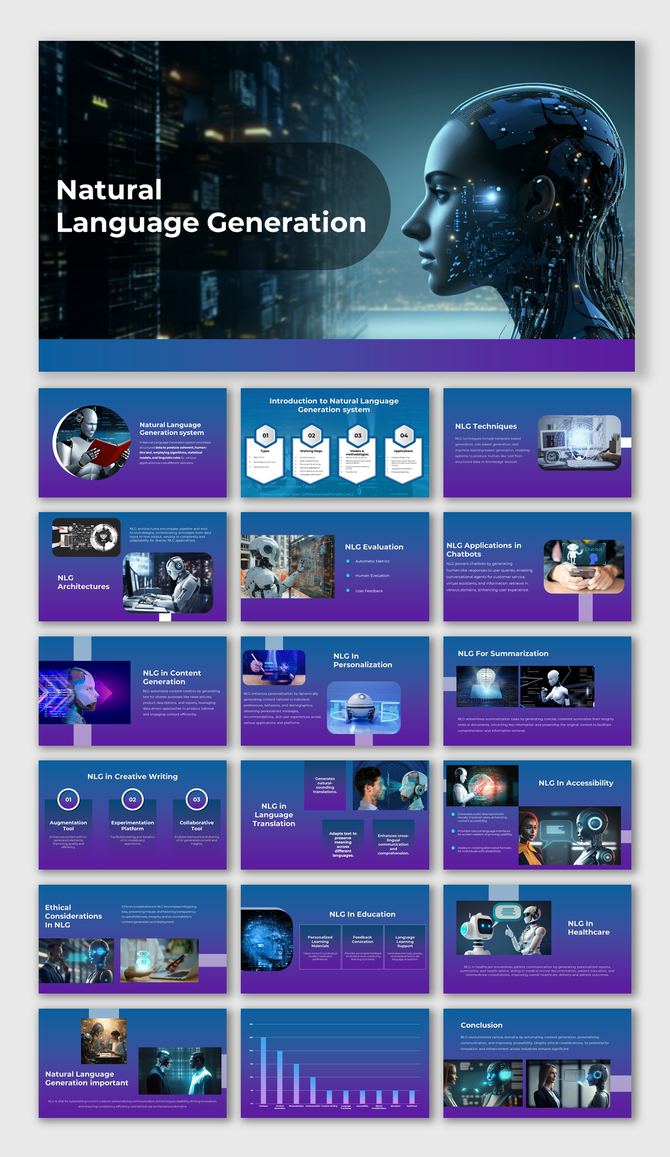
- Generative AI & Large Language Models: Explain how GPT models, image generators, and multimodal AI systems work. The Generative AI Presentation Slides pack is one of the most comprehensive in the collection.
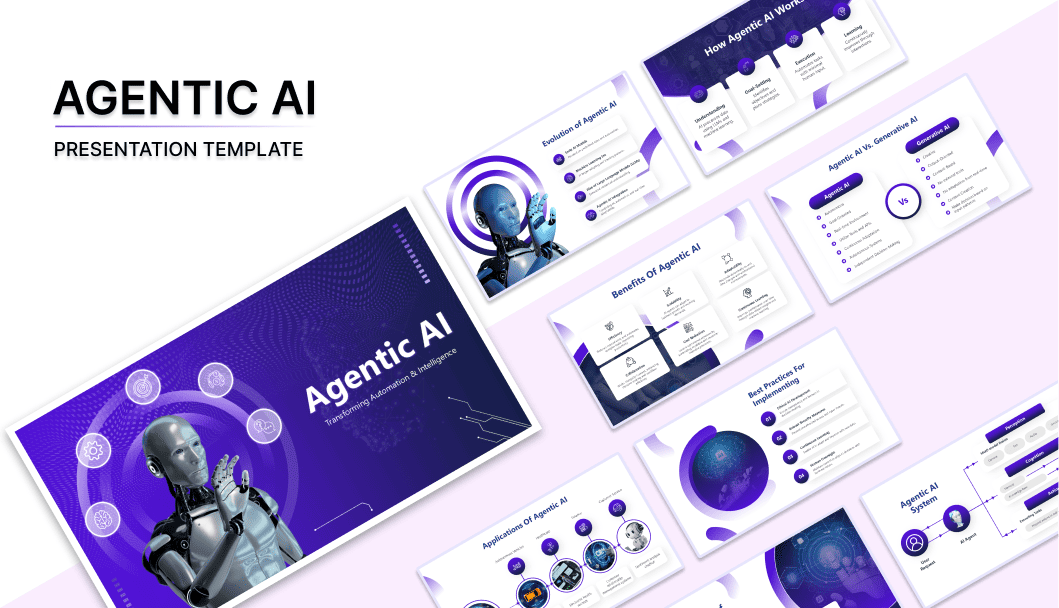
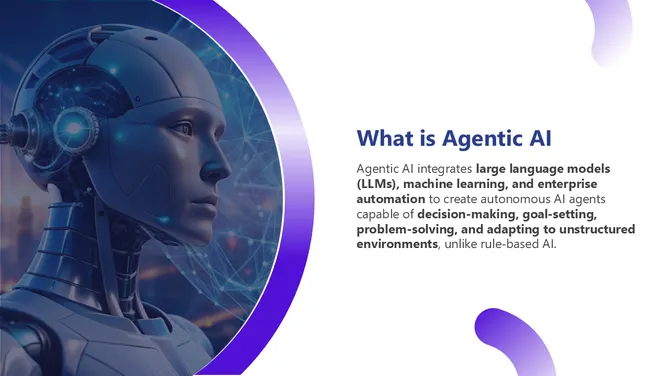
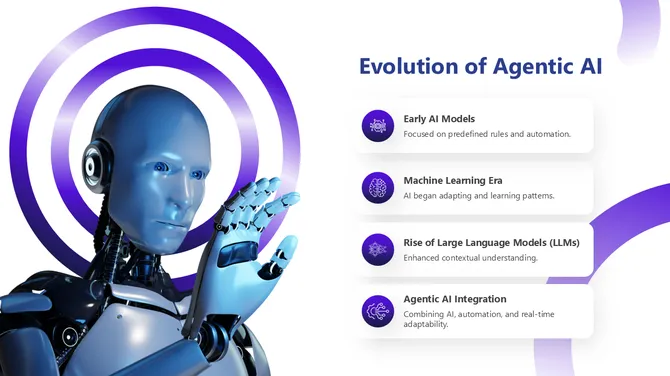
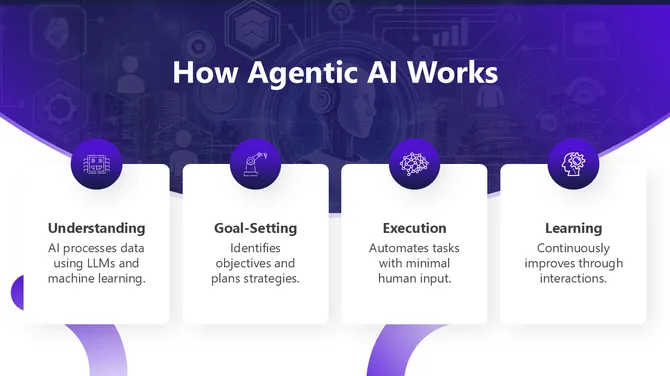
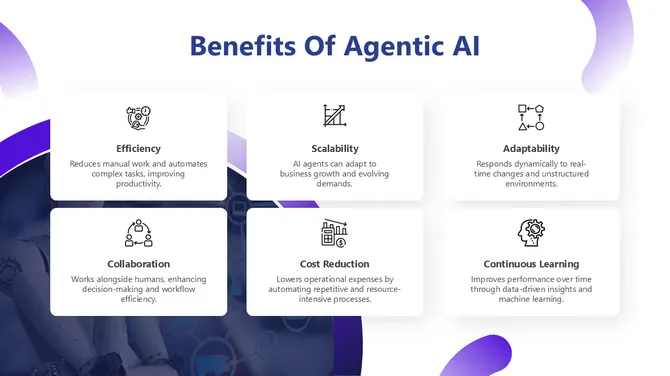
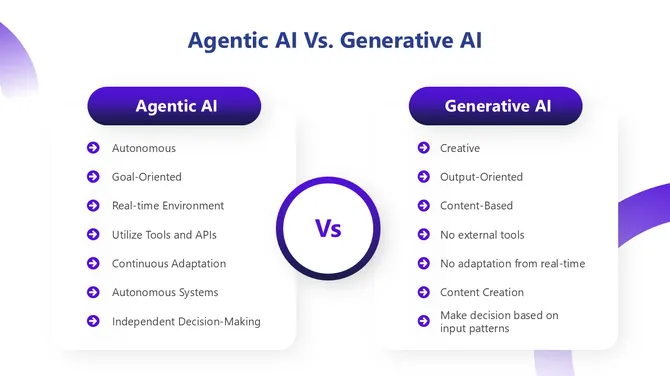
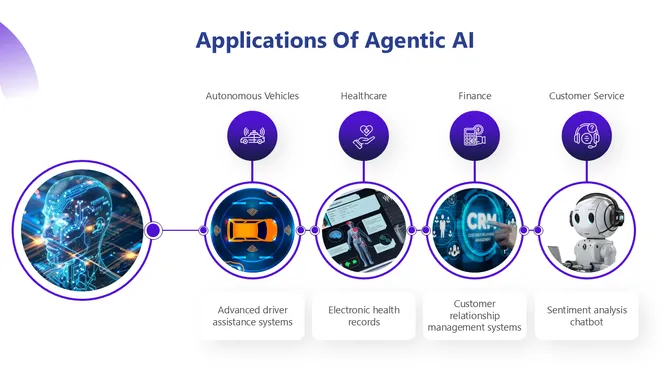
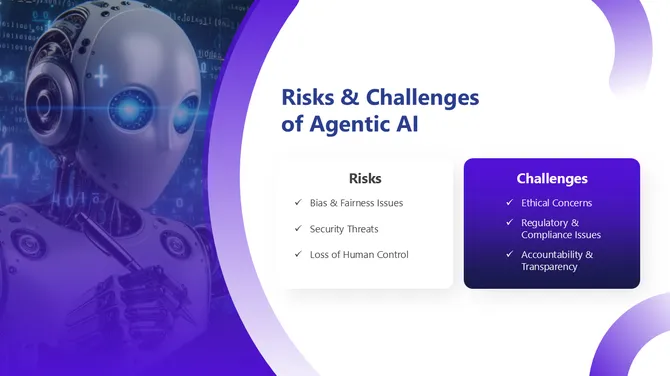
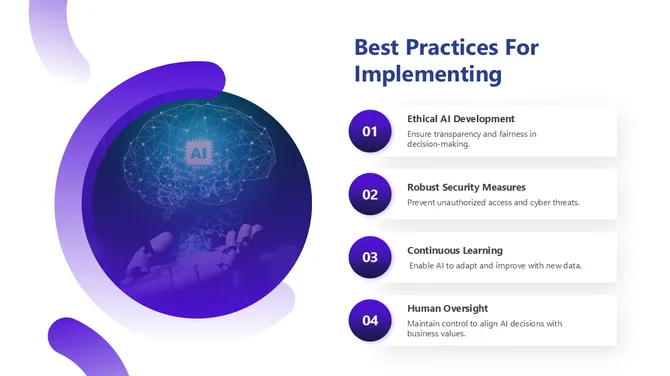
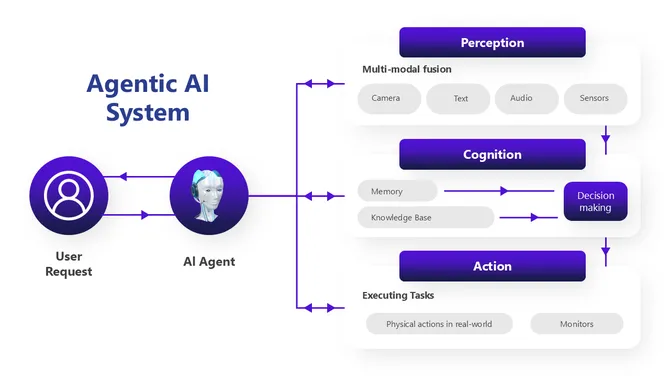
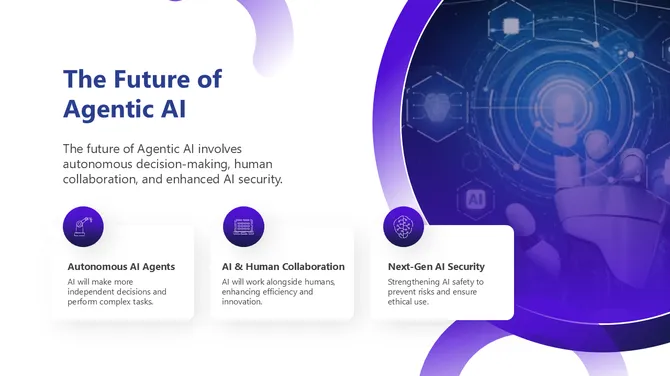
- Agentic AI & Autonomous Systems: Cover the frontier of AI agents, multi-agent architectures, and real-world agentic workflows. The Agentic AI PowerPoint Presentation is built for technology leaders and AI researchers.
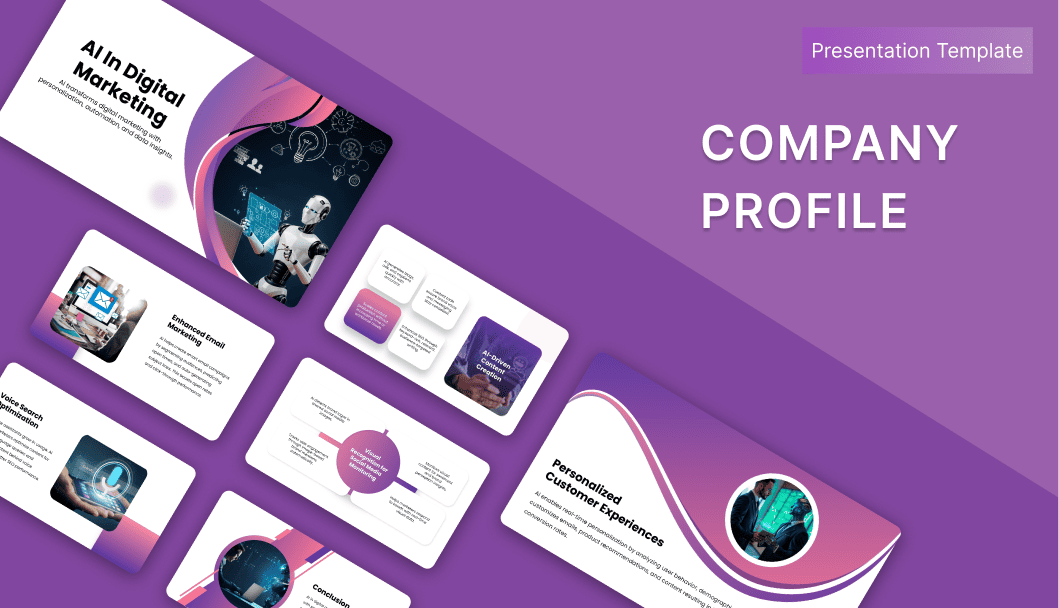
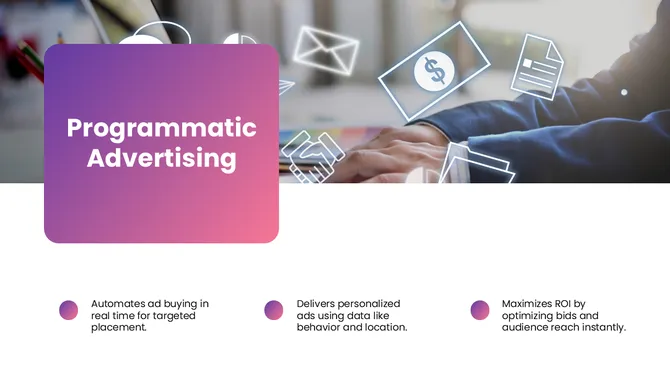
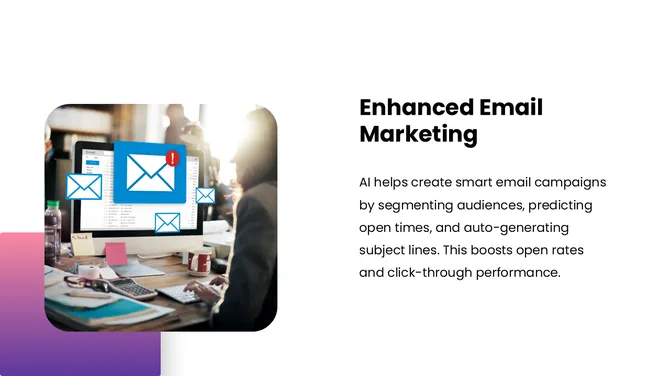
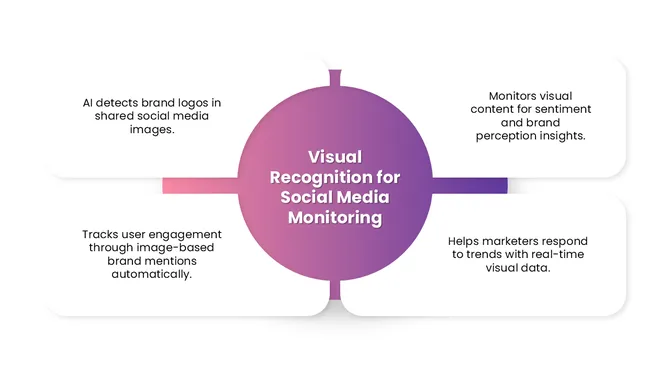
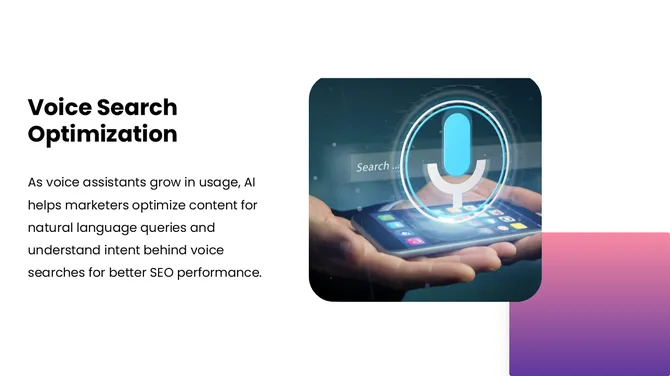
- AI in Business & Digital Marketing: Show how AI is reshaping operations, marketing automation, customer personalization, and predictive analytics. Use the AI in Digital Marketing deck for client presentations and internal strategy sessions.
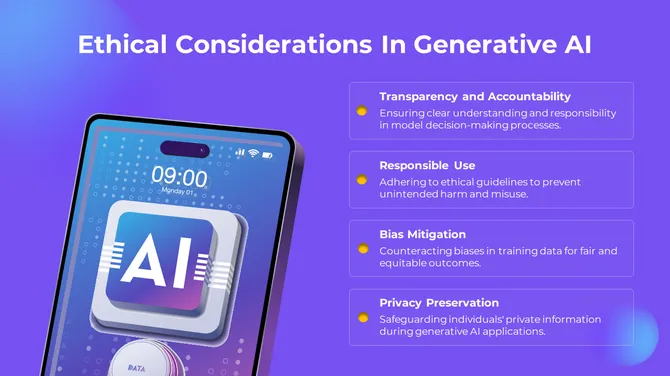
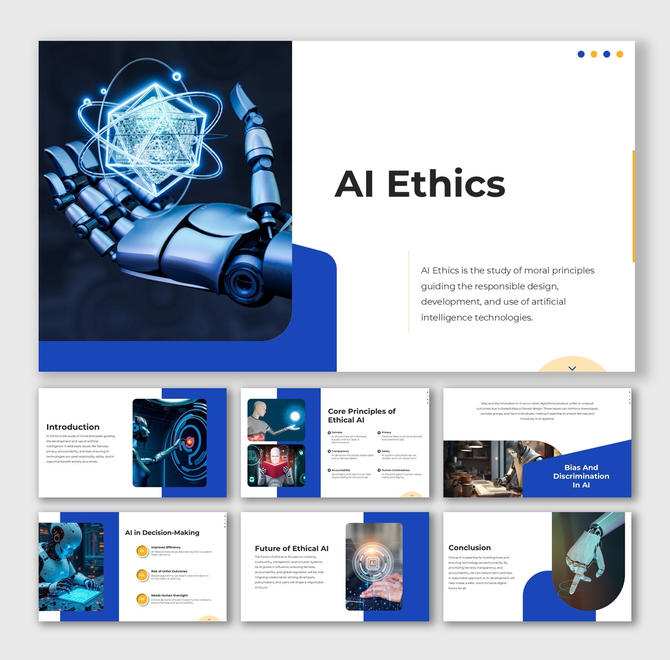
- AI Ethics & Governance: Present responsible AI ethics bias in machine learning, fairness frameworks, and regulatory considerations — topics increasingly required in corporate and academic settings.
- Robotics, Quantum AI & Emerging Tech: From robotic process automation to quantum computing, the collection includes specialized templates that make cutting-edge topics accessible.
Who Uses These Templates?
- Business Professionals use them to pitch AI strategies, present the ROI of automation tools, and educate non-technical stakeholders.
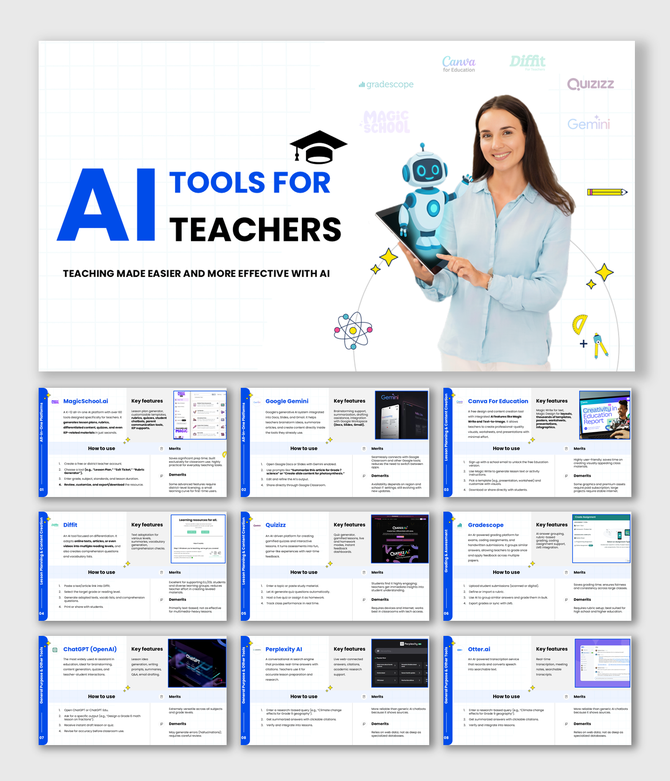
- Educators and Professors use them to teach AI concepts, from introductory machine learning to advanced deep learning, with visual clarity.
- Students and Researchers rely on them for thesis defences, seminar presentations, and academic conferences.
- Consultants and Agencies use them to deliver AI readiness assessments, digital transformation roadmaps, and client workshops.
- Tech Companies and Startups use them for investor decks, product demos, and team onboarding on AI tools.
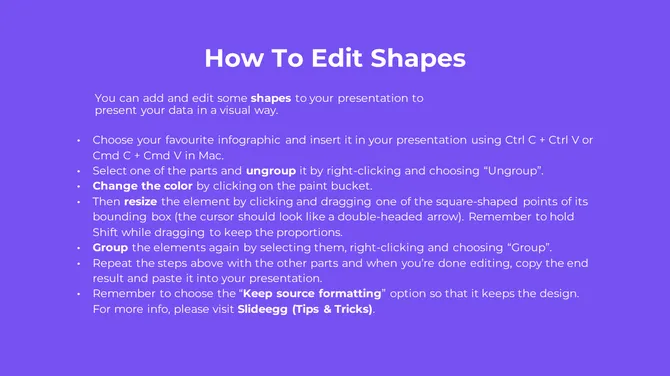
How to Customize Your AI Template
Free vs. Premium — What Is the Difference?
Licence & Usage Rights
Frequently Asked Questions
Do I need to create an account to download a free AI template?
Yes. A free SlideEgg account is required to download any template. Sign-up takes under a minute and gives you access to all free templates instantly.
Can I open these templates without Microsoft Office?
Yes. Download the .pptx file and open it directly in Google Slides, Canva, LibreOffice Impress, or Keynote — no Microsoft Office subscription needed. Most layouts, visuals, and text transfer cleanly across all four.
Which template works best for a non-technical audience?
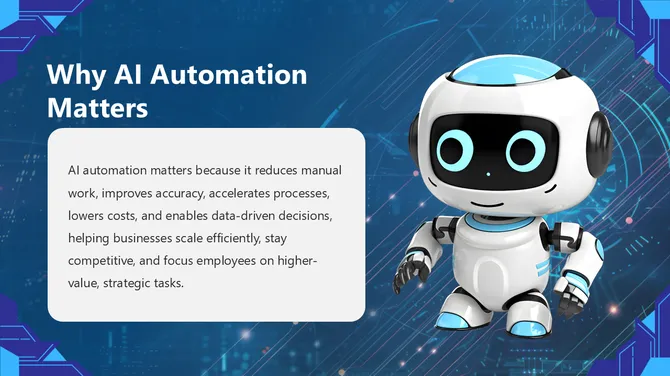
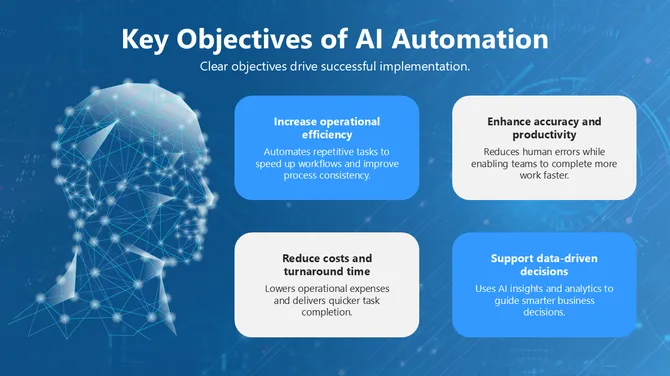
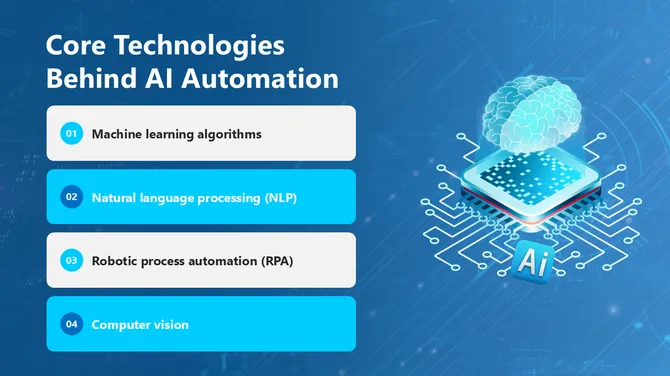
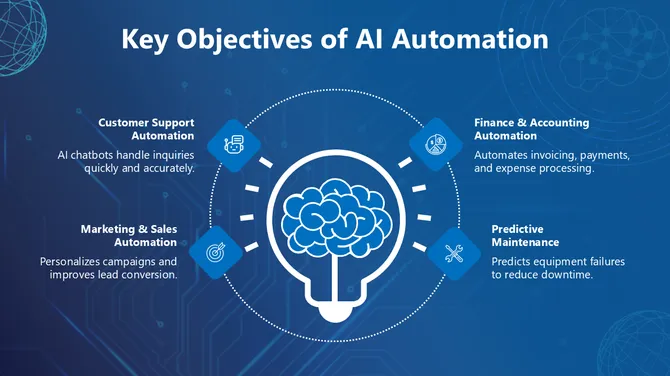
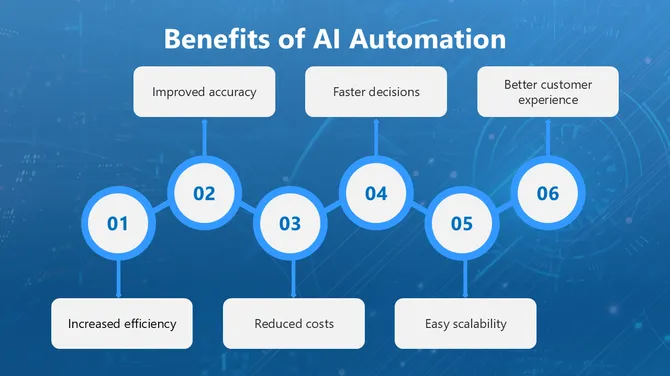
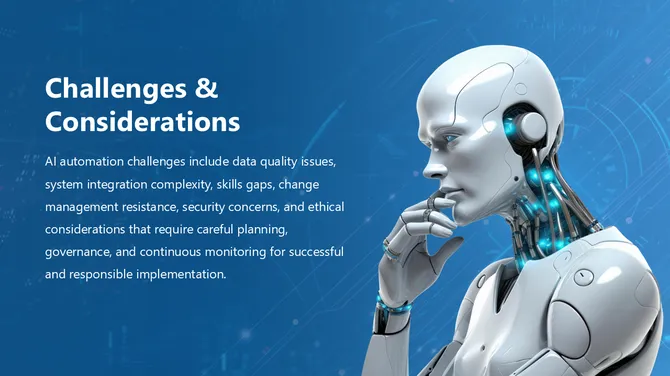
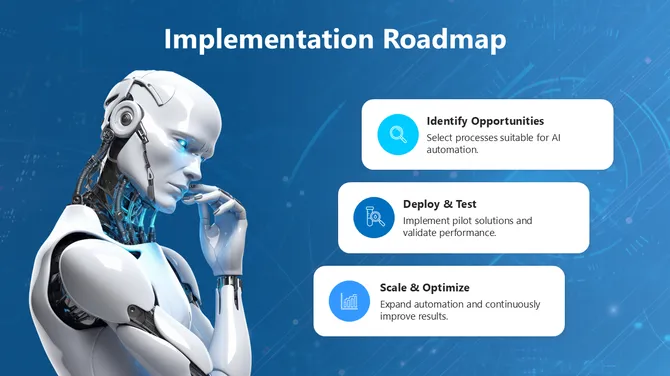
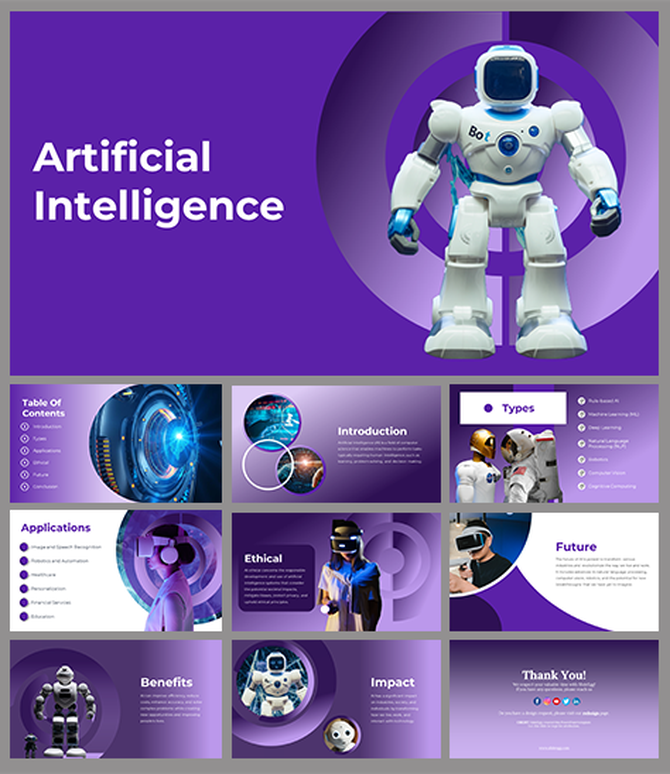
Use the AI in Digital Marketing, AI Automation, or introductory Artificial Intelligence PPT packs. They use icon-based layouts and plain language. Avoid the Agentic AI or Machine Learning Infographics packs — those assume existing AI knowledge.
Are these templates AI-generated or human-designed?
Human-designed. Every template is built by SlideEgg's in-house design team. The AI Customize button is an editing tool — it does not generate the base templates.
Can I use these templates in paid or commercial work?
Yes. The royalty-free licence covers client deliverables, online courses, investor decks, and commercial presentations. You cannot resell the template files themselves. Attribution is never required.
What does the "AI Customize" button do?
It edits the slide content — text, labels, and structure — to fit your specific topic, so you are not manually updating every placeholder. You use it inside SlideEgg's editor, separately from the standard download.
How do I apply my brand colors and logo across all slides at once?
In PowerPoint: View → Slide Master. In Google Slides: Slide → Edit Theme. Changes made there apply to every slide simultaneously.
The template I downloaded doesn't have enough slides. What can I do?
Duplicate any slide by right-clicking it in the slide panel. You can also copy slides from other SlideEgg AI packs into the same file — the layouts are compatible across the collection.
Will these templates work on a Mac?
Yes. The .pptx files open in PowerPoint for Mac, Keynote, and Google Slides. For the most consistent experience across devices, Google Slides removes compatibility variables entirely.
My topic isn't covered in the collection. What are my options?
Most AI sub-topics map to an existing pack used as a base — swap the placeholder content for your own. For a genuinely specialized topic, the Hire an Expert service builds a custom deck to your content and brand.