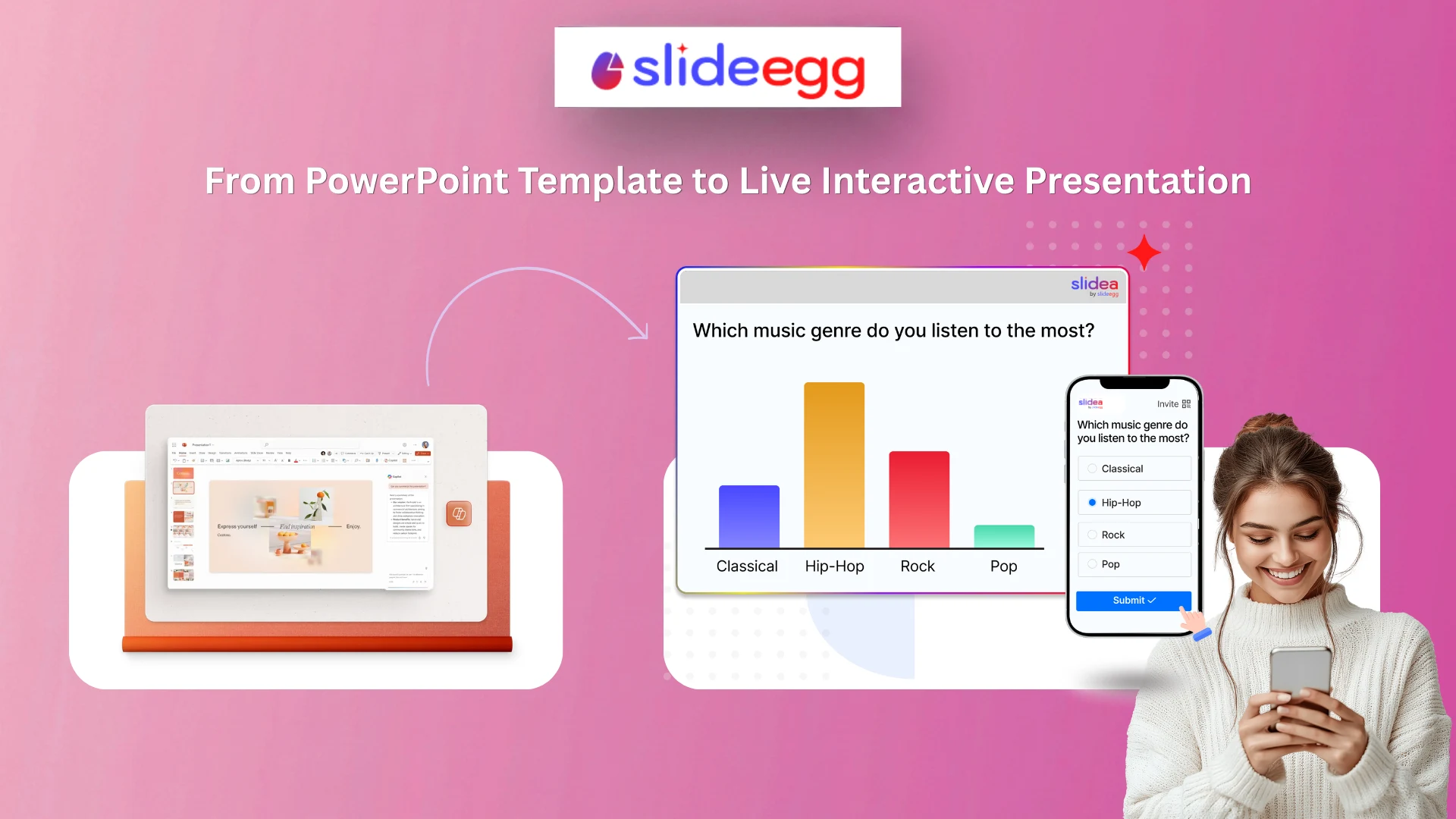
You found the perfect PowerPoint template. It looks clean, professional, and just right for your presentation. But here’s the thing: a great-looking slide deck is only half the battle. The other half? Keeping your audience awake, interested, and actually engaged.
What if you didn’t have to choose between a beautiful presentation and an interactive one?
With SlideEgg and Slidea working together, you don’t have to. You can turn any SlideEgg template into a fully interactive presentation in just a few clicks.
Here’s how it works, and why it matters.
Why Static Presentations Fall Short
Think about the last presentation you sat through. Was it a wall of bullet points? A bunch of slides that the speaker read aloud? Chances are, your mind wandered at some point.
That’s not your fault or even the speaker’s fault. Static presentations are designed for one-way communication. The speaker talks. The audience listens. And in most cases, the audience forgets most of what they heard within hours.
Research consistently shows that people retain information better when they actively participate, not just passively watch. This is why interactive presentations are becoming the new standard in classrooms, boardrooms, and conference stages around the world.
But making a presentation interactive used to mean starting from scratch with a whole new tool. Not anymore.
SlideEgg + Slidea: Better Together
SlideEgg has always been your go-to place for stunning PowerPoint, Google Slides, and Canva templates. If you need a business pitch deck, an educational slide, a marketing plan, or a creative portfolio, there are thousands of templates ready to download and use.
Now, SlideEgg takes things one step further.
Every template on SlideEgg comes with an “Edit” button. When you click it, something powerful happens: your chosen template opens directly inside the Slidea presentation editor.
No copying. No reformatting. No starting over. Your SlideEgg template lands right in Slidea, ready for you to work with.
What Is Slidea?
Slidea is an interactive presentation platform that turns regular slides into two-way conversations with your audience.
Think of it like this: PowerPoint and Google Slides let you talk to your audience. Slidea lets your audience talk back.
With Slidea, you can add live interactions directly to your slides — things like:
- Live Polls Ask your audience a question and watch the results come in real time
- Word Clouds Let everyone share a word or idea, and see what the group thinks collectively
- Quizzes Turn your content into a fun, competitive learning experience
- Live Q&A Open the floor for questions without the awkward hand-raising
- Open-Ended Questions Let your audience express their thoughts freely
- Rankings Have your audience rank options and see where everyone stands
- Annotation Draw, highlight, and mark up your slides live during the presentation to emphasize key points
- Profanity Filter Keep audience responses clean and professional, especially during open-ended questions or large public sessions
- Remote Control Control your slides from anywhere in the room using your phone or another device
These aren’t just fun extras. They’re powerful tools that keep your audience focused, give you real-time insights, and make your presentation something people actually remember.
How It Works: Step by Step
Here’s the simple process of going from a SlideEgg template to a fully interactive presentation:
Step 1: Pick Your Template on SlideEgg
Browse the SlideEgg library and find a template that fits your needs.
Step 2: Click “Edit”
On the template page, look for the Edit button. Click it.
That’s it. Your template will open directly in the Slidea editor. No downloads, no uploads, no hassle.
Step 3: Edit Your Slides Just Like PowerPoint
Inside Slidea’s editor, you’ll find familiar editing tools. You can:
- Change text, fonts, and colors
- Swap out images
- Rearrange or resize elements
- Add or remove slides
- Customize the layout to match your brand or topic
It feels just like editing in PowerPoint or Google Slides but with something extra waiting for you.
Step 4: Add Interactive Slides
This is where the magic happens.
Once your content is ready, you can add interactive slides from Slidea like live polls, quizzes, word clouds, Q&As, and more. Drop them in between your regular slides wherever it makes sense.
For example:
- Start with a word cloud to warm up your audience
- Pause mid-presentation for a live poll to check understanding
- End with a quiz to reinforce key takeaways
- Close with a Q&A slide for open discussion
Your audience joins the session instantly with no app download needed. They just scan a QR code, enter the joining link or click a simple link, and they’re in.
Step 5: Present and Engage
When you go live, your interactive slides come to life. You’ll see responses roll in real time. Your audience stays on their toes. And instead of a one-sided session, you’re having a real conversation.
Who Is This For?
This workflow works for almost everyone who presents:
Teachers and Educators Make lessons more engaging. Use quizzes to check comprehension, polls to spark debate, and word clouds to kick off a topic. Students stay focused because they’re part of the presentation, not just watching it.
Business Professionals For running a team meeting, a client pitch, or a company all-hands, interactive slides help you read the room, collect feedback, and make every participant feel heard.
Trainers and HR Teams Employee training doesn’t have to be boring. Add quizzes to reinforce learning, surveys to gauge sentiment, and live polls to drive participation across in-person and remote teams.
Event Speakers and Conference Presenters Stand out from the crowd. Most speakers show up with static slides. When you invite your audience to participate live, you create a moment they won’t forget.
Students and Researchers Presenting a project or thesis? Make your presentation a discussion, not a monologue. Ask your audience what they think, test their knowledge, or gather opinions right on the spot.
Why This Combination Works So Well
There are plenty of interactive presentation tools out there. And there are plenty of template libraries. But very few bring both together so seamlessly.
Here’s what makes SlideEgg + Slidea different:
You start with something beautiful. SlideEgg templates are professionally designed and ready to use. You’re not building from a blank canvas.
You edit with familiar tools. Slidea’s editor feels like PowerPoint. There’s no steep learning curve.
Everything lives in one place. You don’t need to juggle multiple tools or export files back and forth. The template, the editor, and the interactivity are all under one roof.
A Real-World Example
Let’s say you’re a marketing manager presenting your Q3 strategy to your team.
You head to SlideEgg and find a sharp-looking Sales Strategy template. You click Edit, and it opens in Slidea. You swap in your company’s data, update the colors to match your brand, and tweak the slides to tell your story.
Then you add a few interactive touches:
- A poll at the start: “Which marketing channel do you think drove the most leads this quarter?”
- A word cloud mid-way: “What’s the one word you’d use to describe our brand right now?”
- A Q&A slide at the end to open the floor
When you present, your team is instantly engaged. They’re not just sitting there, they’re thinking, responding, and contributing. The poll results surprise everyone. The word cloud sparks a conversation you didn’t expect. And the Q&A brings up ideas that actually shape the next quarter’s plan.
That’s the power of an interactive presentation.
Get Started Today
Turning your next PowerPoint presentation into an interactive experience is easier than you think.
- Browse and pick a template you love
- Click “Edit” to open it in Slidea
- Customize your content and add interactive slides
- Present and watch your audience come alive
Your slides are already beautiful. Now it’s time to make them unforgettable.