Creating a presentation used to mean jumping between multiple tools—one for writing content, another for designing slides, and sometimes yet another for adding interaction. Even with AI, the process often feels disjointed. You might generate slides quickly, but then spend extra time fixing layouts, adjusting content, or making them actually usable.
That’s where SlideEgg AI 2.0 truly stands out. It’s not just about creating slides faster—it’s about creating them smarter. It understands how presentations are really built and used, bringing everything into one smooth workflow with easy editing, flexible design, and built-in audience engagement.
This guide will walk you through how we can create presentations that are not only quick to make but also practical, polished, and ready to deliver with confidence.
Step 1: Start with a Prompt That Defines the Outcome
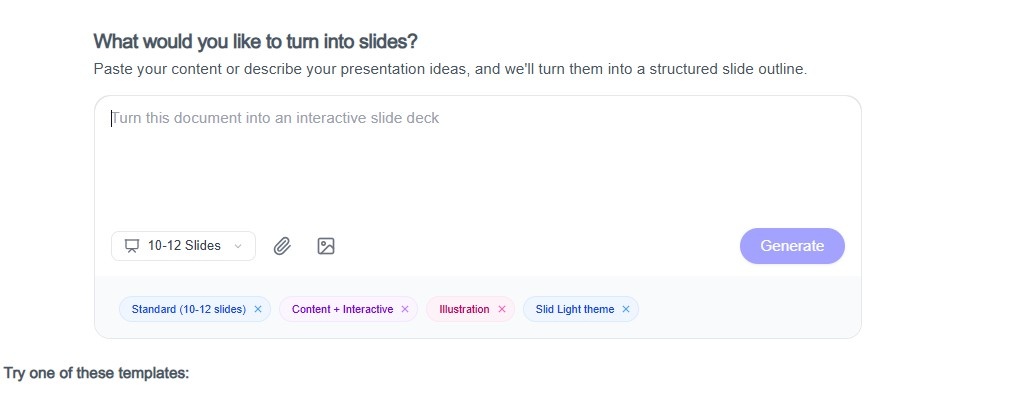
When you open the AI tool, the first step is simple—but critical.
You enter a prompt.
But here’s the difference:
Don’t treat it like a keyword. Treat it like a clear instruction.
Example:
- “Create an interactive business presentation on quarterly sales performance with insights and audience questions.”
- “Build a lesson presentation on climate change with quizzes for student engagement.”
Then select:
- Content type (Content + Interactive)
- Theme (visual style)
- Deck size (number of slides)
- Image style
Once you click generate, it builds:
- Structured slides
- Organized content
- Visual layout
But unlike many tools, this is not a locked output. It’s a fully editable starting point.
Step 2: Work Inside a Native PowerPoint Flow
One of the biggest advantages is that we don’t have to switch to a completely new environment.
Instead of learning a new interface, your presentation is built in a way that works directly with PowerPoint.
What this means for you:
- Slides are fully editable objects
- No broken layouts after export
- No “preview mode” confusion
You can:
- Change text instantly
- Adjust layouts without breaking design
- Customize slides exactly how you need
This removes one of the biggest frustrations in AI tools—fixing what AI generated.
Step 3: Refine Layouts Without Rebuilding Slides
After generating slides, most users spend time fixing alignment, spacing, and formatting.
It eliminates that step with Smart Remix.
What you can do:
- Change slide layouts instantly
- Keep your content intact
- Avoid manual resizing and repositioning
Instead of redesigning slides, you simply remix them.
This is especially useful when:
- You want a cleaner layout
- You need to adjust for different audiences
- You’re preparing multiple versions quickly
Step 4: Combine AI Content with Real Design Quality
AI-generated slides often look repetitive. Same structure, same style, same feel.
SlideEgg solves this by combining AI with a massive template library.
You get:
- Access to thousands of professionally designed templates
- Instant application of design to your slides
- Consistent visual quality across the deck
This ensures your presentation:
- Looks polished
- Feels custom-made
- Avoids the “AI-generated” look
Step 5: Turn Slides Into Interactive Experiences
This is where most presentations fail—not in design, but in delivery.
Static slides = passive audience
Passive audience = low retention
SlideEgg AI introduces an interactive layer inside your presentation.
Add Quizzes and Participation
Instead of just delivering content, engage your audience actively. With interactive presentation tools, you can easily convert your slides into quizzes and add participation-driven elements.
- Convert slides into quizzes
- Add quick knowledge checks
- Reinforce key ideas through interaction
This shifts your presentation from:
Information → Engagement
Start With a Hook, Not a Slide
The first few minutes decide whether people pay attention.
Use:
- Icebreakers
- Audience questions
- Quick prompts
Instead of starting with “Let’s begin…”, you start with participation.
Break the Linear Flow
Traditional presentations follow a fixed path. But real conversations don’t.
SlideEgg allows:
- Jumping between sections
- Adapting to audience questions
- Navigating slides dynamically
Your presentation becomes flexible and responsive, not rigid.
Step 6: Move from Automation to Control
Most AI tools follow a simple model:
Input → Output → Done
It follows a different approach:
Guided Creation
You:
- Control the structure
- Refine the content
- Enhance slides using AI tools
This gives you:
- Better clarity
- Better storytelling
- Better delivery
Step 7: Build a Complete Presentation Workflow
Instead of relying on a single feature, it supports a full workflow:
- Generate structured content
- Convert documents into slides
- Add business frameworks or lesson plans
- Include interactive elements
- Export as a working presentation
Everything happens in one place—no switching between tools.
Step 8: Export and Present Anywhere
Once your presentation is ready:
- Export to PowerPoint
- Share via standard formats
- Edit anytime
The key advantage:
You’re not locked into a platform. You get a presentation you can actually use.
Who Should Use This Approach?
This workflow is ideal for:
Educators
- Interactive lessons
- Student engagement
- Better retention
Business Professionals
- Structured presentations
- Editable slides
- Flexible delivery
Teams & Enterprises
- Consistent workflow
- Scalable presentations
- Collaborative editing
Final Thoughts
Creating a presentation is not about generating slides instantly and stopping there.
It’s about:
- Building structure
- Maintaining flexibility
- Engaging your audience
The real goal isn’t just to create slides faster—it’s to create presentations that actually work.
With SlideEgg AI 2.0, you’re not just speeding up creation.
You’re improving the entire presentation experience—from idea to delivery.
FAQ
1. Does SlideEgg AI work offline?
No, it requires an internet connection since it relies on cloud-based AI for content generation and design suggestions.
2. Can I edit the slides generated by SlideEgg AI?
Yes! Unlike some AI tools that give you static slides, it creates fully editable ones. You can easily change text, images, charts, colors, and layouts directly in PowerPoint or within the editor.
3. Can I make my presentation interactive using SlideEgg AI?
Absolutely. You can add interactive elements like:
- Quizzes and polls
- Clickable navigation buttons
- Animations and transitions
These features help keep your audience engaged and involved.
4. Can SlideEgg AI generate content for my slides?
Yes, it can:
- Summarize content into clear, concise points
- Suggest headings and subheadings
- Provide relevant data, examples, and visuals
You can always customize the content to match your style.
5. How long does it take to create a presentation using SlideEgg AI?
It depends on the complexity of the presentation and the content type selected. On average, generating a basic presentation with structured slides takes less than 5 minutes. However, adding interactive elements or customizing templates may take additional time.