
SlideEgg’s AI Presentation Maker can turn a topic into a full, designed deck in minutes. A few simple tweaks, to your prompt, your parameters, and your editing workflow, make the results even better. Here’s how.
TL;DR
- Treat your prompt like a brief: the more structure you give, the more focused the slides.
- Adjust parameters before generating to match your audience, tone, and depth.
- Generation runs live: each slide appears as it builds, so you see results right away.
- The built-in presentation editor (powered by Slidea) handles the final touches. No need to leave the tool.
The Prompt Is Doing More Than You Think
The prompt is where the AI gets its direction, topic, structure, depth, and visual intent all flow from what you write here. The more context you give, the more focused and useful the output.

A quick one-liner works as a starting point, but a structured prompt with sections, key points per section, and a design note gives the AI a clear brief to follow. The slides reflect that clarity directly.
Here’s a Prompt That Works Well
Create a professional PowerPoint presentation on “Marine Ecosystems” with the following specifications:
STRUCTURE & CONTENT:
- Title Slide – “Marine Ecosystems: Life Beneath the Surface”
- Subtitle: An Exploration of Ocean Biodiversity and Balance
- Include a space for presenter name and date
- What is a Marine Ecosystem?
- Definition and key characteristics
- Difference between marine and freshwater ecosystems
- Coverage: oceans cover ~71% of Earth’s surface
- Types of Marine Ecosystems
- Coral Reefs, Open Ocean (Pelagic Zone), Deep Sea, Estuaries, Mangroves, Seagrass Beds, Polar Seas
- Use a visual layout (icons or image grid per type)
- Oceanic Zones
- Sunlight/Euphotic, Twilight/Dysphotic, Midnight/Aphotic, Abyssal, Hadal zones
- Include a depth diagram showing zones with depth ranges
- Biodiversity – Key Species
- Producers: phytoplankton, seagrass, algae
- Consumers: fish, marine mammals, invertebrates
- Decomposers: bacteria, fungi
- Use high-quality images with labels
(…continue with remaining sections)
DESIGN GUIDELINES:
- Theme: Ocean-inspired (deep blues, teals, coral accents)
- Font: Clean and readable (e.g., Montserrat or Open Sans)
- Use real, high-resolution images of marine life per slide
- Avoid cluttered slides; max 5–6 bullet points per slide
The pattern is straightforward: a title, sections with bullet points, and a design direction at the end. The AI follows that structure slide by slide and the result is a deck that actually matches what you had in mind.
Fine-Tune the Output With Presentation Parameters
Before generating, the Parameters panel lets you shape how the AI approaches your deck, not just the content, but the way it’s framed and presented.
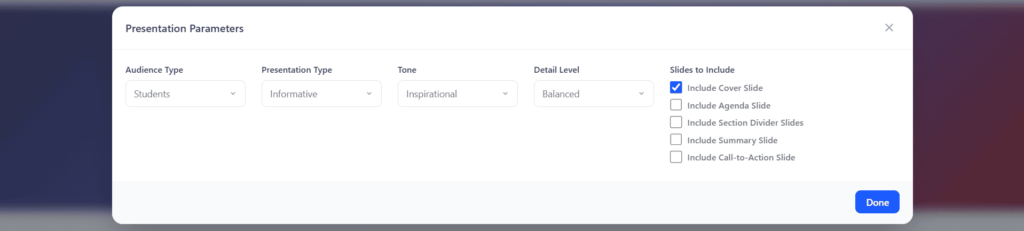
You can set the Audience Type, Presentation Type, Tone, and Detail Level. These shift based on what kind of presentation you’re building, so align them with your use case before hitting Generate. The Slides to Include checkboxes let you add structural slides like a Cover, Agenda, Summary, or Call-to-Action depending on what your deck needs.
A quick pass through these settings goes a long way toward getting output that fits your context right out of generation.
Generation: See It Come Together in Real Time
Hit Generate and the AI gets to work. Slides appear in the panel as they’re built, so you’re not staring at a blank screen waiting for the full deck to finish. The AI sidebar on the right also shows the outline as it takes shape, which is a nice way to stay oriented while the deck comes together.
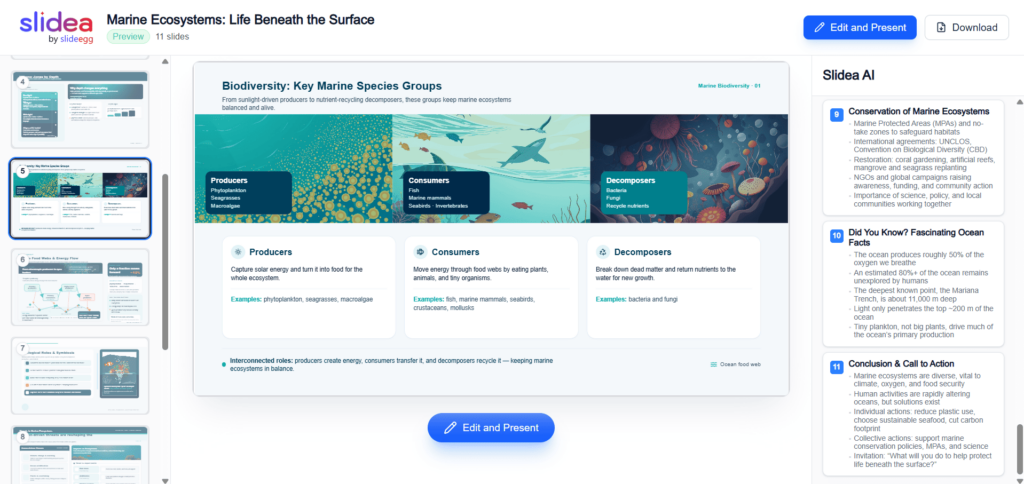
Once generation is done, you can Download the PPT directly or open it in the editor to make any final adjustments.
Edit Without Leaving the Tool
Once the deck is generated, SlideEgg’s built-in editor tool lets you make adjustments – style, layout, animations, slide order – and go straight into presentation mode or export, all from the same place.
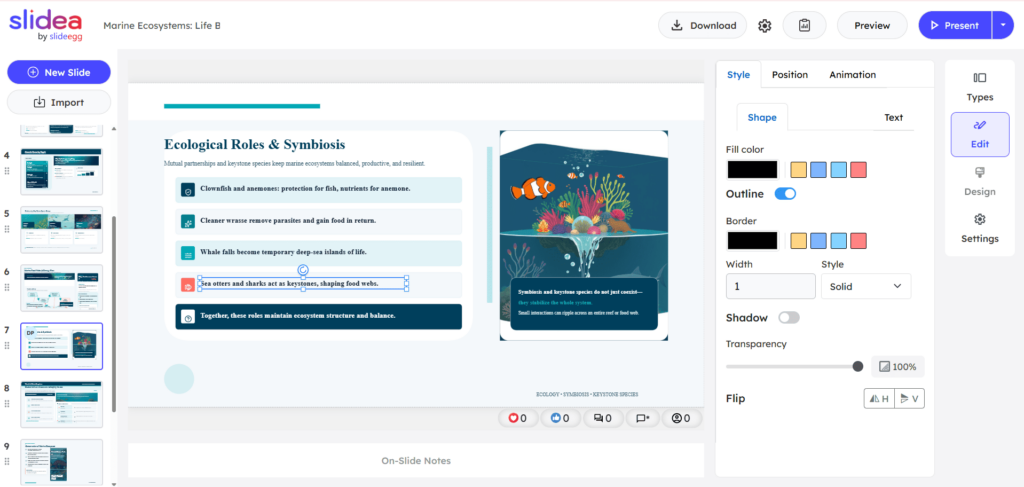
Add slides, tweak the design, preview your deck, and Download the final PPT when you’re ready. No need to jump between apps.
Quick Tips
- Think of your prompt as an outline. The more structure you put in, the more organized the output.
- Balanced detail works well for most decks. Bump it up for in-depth topics where the audience needs more context.
- Pick structural slides that fit the occasion. A Cover and Summary go a long way – not every deck needs an Agenda.
- A thorough prompt on the first try gets the best results. It’s worth taking an extra minute before generating.
Frequently Asked Questions
- How detailed should my prompt be?
- Detailed enough that each section has a heading, key points, and a visual note if relevant. Think brief, not search query. The sample prompt in this guide is a reliable model to follow.
- What file format does the export use?
- PPT (PPTX), compatible with PowerPoint and Google Slides.
- Can I edit slides after the AI generates them?
- Yes, Click Edit and Present to open the full presentation editing tool. You can change text, colors, layouts, add slides, and add animations before exporting.
- Does the AI build slides in real time or all at once?
- Real time. You can watch each slide populate as the generation runs, and the AI sidebar shows its outline as it works.
Give It a Try
SlideEgg’s AI Presentation Generator is built to take the effort out of building decks from scratch. With a good prompt and the right parameters, you can go from idea to a presentation-ready deck in minutes and fine-tune it without ever leaving the tool.
Note: SlideEgg’s AI Presentation Maker is available on the Free Slides page.