Presenting ideas clearly is very important, whether you’re a student, teacher, business person, or content creator. In today’s digital world, tools like PowerPoint and Google Slides have made it much easier for everyone to create, share, and present information.
You don’t need to be a designer or a tech expert. These tools give you everything you need to make your slides look neat, organized, and easy to understand.
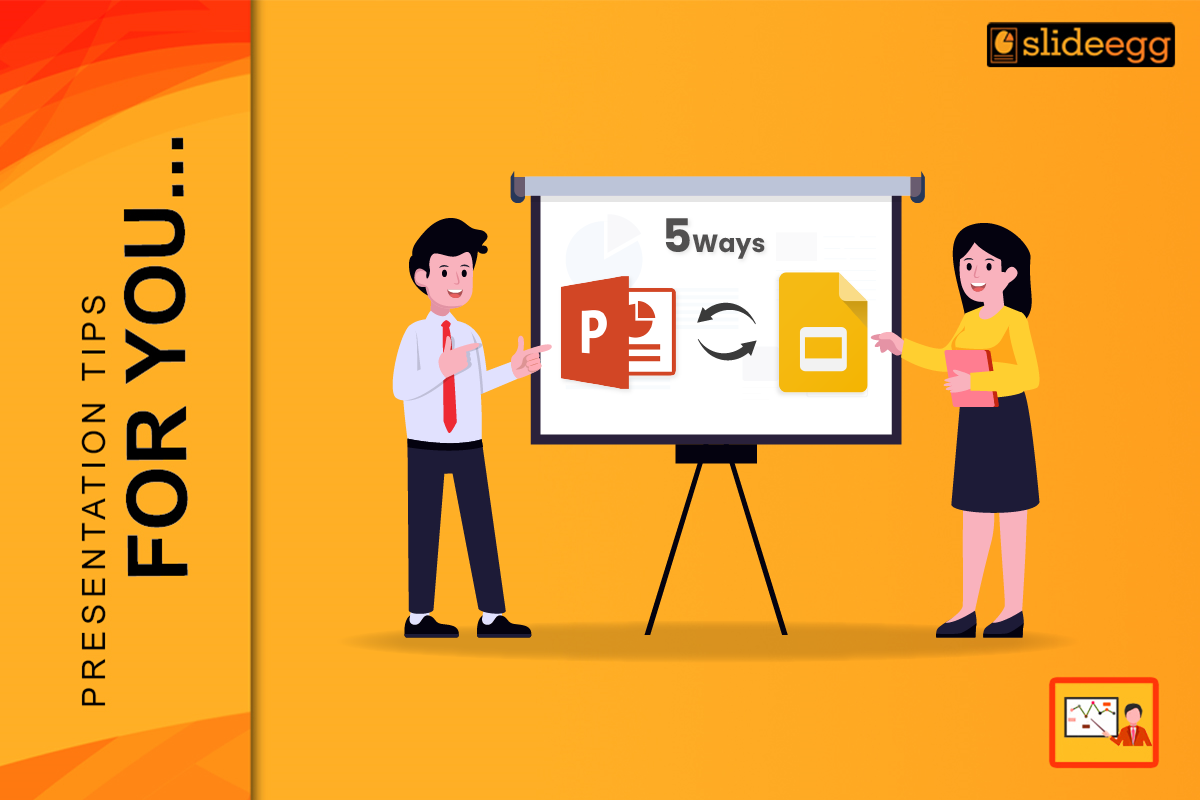
In this blog, we will explore 5 simple and powerful ways PowerPoint and Google Slides help you create better presentations. Let’s see how they can save your time and improve your communication.
✅ 1. Easy-to-Use Templates for Any Topic
Both PowerPoint and Google Slides offer ready-made templates for different needs. You can find templates for school projects, business plans, reports, lessons, and more.
Instead of starting from scratch, just pick a template that suits your topic and start editing. This saves a lot of time and effort.
Benefits of using templates:
- Pre-designed layouts save you time
- Color themes and fonts are already set
- You can focus on your content, not design
- Ideal for both students and professionals
- Ensures your presentation looks clean and professional
✅ 2. Cloud Access and Real-Time Collaboration
One of the biggest advantages of Google Slides is that it’s completely online. PowerPoint now also has a cloud version through OneDrive. This means you can access your slides anytime, from any device.
You can also work with others in real time. For example, if you’re doing a group project, each team member can add their part at the same time, even from different locations.
What this means for you:
- No more worrying about sending files back and forth
- Auto-save protects your work from being lost
- Real-time editing makes group work easier
- Teachers can review and comment instantly
- Great for both online classes and remote business meetings
✅ 3. Simple Design Tools to Make Slides Look Good
PowerPoint and Google Slides have easy tools to make your slides more attractive. You can add images, videos, charts, icons, and shapes without any extra software.
Even if you are not a designer, you can create a beautiful presentation by dragging and dropping elements.
What you can do:
- Add pictures or graphs to explain your ideas better
- Use icons to replace long text
- Change colors and fonts with just a few clicks
- Use animations and transitions to keep it interesting
- Add speaker notes to guide your speech
✅ 4. Sharing and Presenting Is Quick and Easy
After your slides are ready, you can share them easily through email or a link. You can also download them as PDF or PPT. For online meetings like Zoom or Google Meet, you can share your screen and present directly.
This makes it easy to reach your audience whether you’re in the classroom, office, or working from home.
Why this helps:
- Send presentations quickly without file size issues
- Share a view-only or editable link with others
- Easy to present on Zoom, Teams, or Google Meet
- Export as PDF or video for offline sharing
- Access from phone, tablet, or computer
✅ 5. Helps You Stay Organized and Confident
Presenting is not just about slides. It’s also about how clearly you speak and share your message. With tools like speaker notes, slide previews, and presenter view, both PowerPoint and Google Slides help you stay organized while speaking.
You can write notes under each slide to guide your speech, and only you will see them while presenting.
How this builds confidence:
- Use speaker notes to stay on track
- Preview slides ahead so you’re not surprised
- Use presenter mode to manage time and flow
- Practice anytime using slideshow mode
- Focus more on talking, not clicking
Quick Comparison Table – PowerPoint vs. Google Slides
| Feature | PowerPoint | Google Slides |
| Templates | Large variety | Easy access to themes |
| Offline Access | Yes (Desktop App) | Limited, requires internet mostly |
| Real-Time Collaboration | Yes (via OneDrive) | Yes (Built-in with Google Drive) |
| Design Tools | Advanced features | Simple and clean interface |
| File Sharing | PDF, PPT, Video | Link sharing, PDF, PPT |
| Presenter View | Available | Available |
| Best For | Detailed, advanced presentations | Quick, simple, collaborative presentations |
Final Thoughts – Make Presenting Easy and Smart
PowerPoint and Google Slides have changed the way we present. They make it easy to create, share, and show your ideas. Whether you’re a beginner or expert, these tools save time and help you build great presentations without stress.
So, next time you need to present something — for school, work, or a project — try using PowerPoint or Google Slides. They are free, simple, and super helpful!
Start your presentation today with a ready-made template. Make it easy, make it smart.
🙋 Frequently Asked Questions (FAQs)
1. Can I use Google Slides without internet?
Yes, if you turn on offline access in your Google Drive settings.
2. Which is better for school projects – PowerPoint or Google Slides?
Google Slides is better for group projects and sharing. PowerPoint is better for creative designs.
3. Can I use animations in Google Slides?
Yes! Google Slides has simple animation features.
4. Are there free templates for both tools?
Yes. Both offer free templates. You can also find extra templates on websites like SlideEgg.
5. Can I switch between PowerPoint and Google Slides?
Yes. You can upload PowerPoint files to Google Slides and download Google Slides as PPT.