Online presentations are now a big part of our daily life—whether you’re attending a class, speaking at a webinar, or giving a report to your office team. But let’s face it, talking to a screen is not the same as standing in front of people. You don’t always see their faces or hear their reactions. So how can you still make your message clear and exciting?
This blog shares 10 simple but powerful secrets to help you improve your online presentations. By using tools like PowerPoint, practicing your speaking skills, and following these tips, you can create a presentation that your audience will remember.
1. What Should You Do Before the Presentation?
A great presentation starts with great preparation. Before you begin, check everything—your slides, internet connection, and even the room you’re sitting in. A calm mind and a clear plan make a big difference.
Spending time to prepare helps avoid technical issues and gives you more confidence while presenting. Write down key points, keep your notes nearby, and double-check your device settings. Being ready will help you stay focused and relaxed.
Here’s what to do:
- Check your internet connection and battery level
- Test your audio and webcam
- Prepare your PowerPoint or Google Slides
- Choose a clean, quiet spot with good lighting
- Keep water, notes, and a clock nearby
2. How Do You Create Slides That Look Clean and Clear?
Your slides are not just for decoration—they guide your audience. A simple, clear design helps people focus on your message instead of getting distracted.
Use clean fonts, short text, and relevant images. Avoid messy colors or too much information on one slide. A good slide should be easy to read even on small screens like phones or tablets.
Make sure to:
- Use large fonts (24pt and above)
- Keep text short—only 5–6 words per line
- Use 2–3 colors that look good together
- Add high-quality pictures that support your topic
- Leave space between text and images
3. Why Is Body Language Still Important in Online Presentations?
Even when you’re not in the same room, people notice how you sit, move, and express yourself. Your body language helps show that you’re confident and involved in the topic.
It’s not just about words. The way you smile, look at the camera, or move your hands adds life to your presentation. Small movements can make a big impact when done correctly.
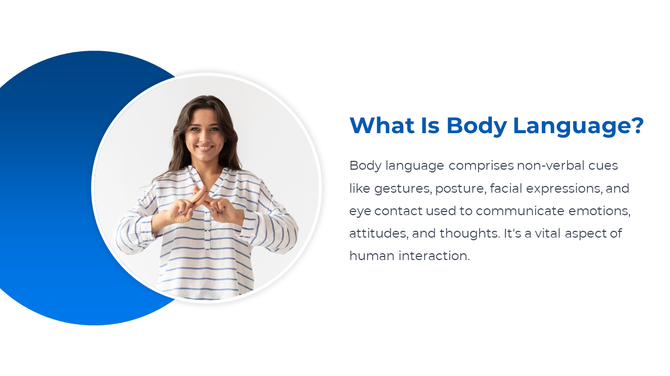
To show good body language:
- Sit up straight and avoid slouching
- Use hand gestures to explain points
- Nod or smile to show interest
- Don’t lean too far away from the camera
4. How Do You Start an Online Presentation Strongly?
The first 60 seconds of your presentation matter the most. This is when your audience decides whether to keep listening or not.
Start with something that grabs attention—a short story, a question, or a surprising fact. Tell your audience what they’ll learn and why it matters to them. A strong start sets the mood for the entire presentation.

Here are good ways to begin:
- Ask: “Have you ever wondered why…?”
- Share a personal story or experience
- Say what the audience will gain by the end
- Start with a short, powerful quote
5. What Are the Best Tools for Online Presentations?
Using the right tools makes your work easier and more professional. These tools help you create slides, talk to your audience, and even share files easily.
PowerPoint is the most used tool because of its easy design features and wide choice of templates. Google Slides is good for teamwork. Use Zoom or Microsoft Teams for video calls.
Useful tools include:
- PowerPoint – Easy, professional, and full of features
- Google Slides – Great for teamwork and free access
- Zoom / MS Teams / Google Meet – Host and manage your presentation
- Canva – For creative slide designs
- Loom – To record and share pre-made presentations
6. How Do You Keep Your Audience Interested?
Online, people can get distracted quickly. They might check their phone or browse other tabs. That’s why your content and voice must keep them interested.
You can use small tricks to hold their attention. Add short polls, ask questions, or change the pace of your talk. A little energy goes a long way.
Ways to engage your audience:
- Ask simple questions they can answer in chat
- Share real-life stories or examples
- Use polls or short quizzes
- Include colorful and changing visuals
7. Why Is Voice Tone Important in Online Presenting?
Your voice carries your emotions. When you speak with energy, people will listen. When your voice sounds flat, people will lose interest—even if your content is good.
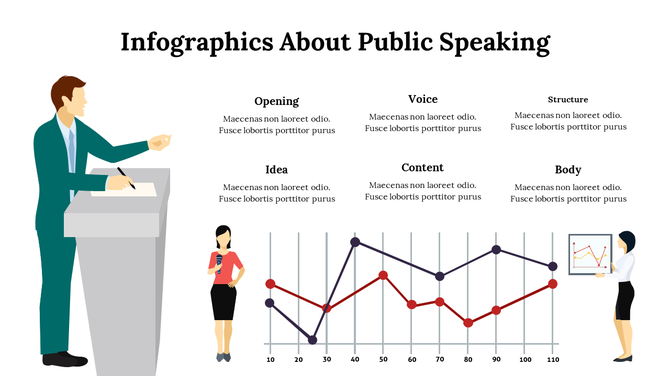
Vary your tone depending on the topic. Sound excited when sharing good news and calm when explaining serious points. Practice speaking clearly and slowly.
Tips to improve your tone:
- Use changes in pitch to show emotion
- Pause after important points
- Don’t speak too fast
- Smile—it makes your voice sound friendly
8. What Mistakes Should You Avoid?
Small mistakes can affect your whole presentation. Many people add too much text, forget to test their microphone, or talk without making eye contact.
Avoiding simple errors can make your presentation look clean and professional. Always review your slides and rehearse your timing.
Avoid these mistakes:
- Using small fonts or too many words
- Not practicing before going live
- Not checking your background or lighting
- Reading every word from your slides
- Talking too fast or in a dull tone
9. How Do You End Your Presentation Strongly?
A good ending helps people remember your main message. Don’t just say “That’s it.” Instead, wrap up with a clear summary and give a final thought to leave an impact.
You can also include a call to action or a simple thank you. A strong ending feels complete and satisfying.
Ideas for strong endings:
- Repeat your key message in a short sentence
- End with a quote or a final question
- Share what the audience should do next
- Thank everyone and invite questions
10. What Should You Do After the Presentation?
After your talk ends, your work is not over. A good presenter always follows up. This helps build trust and improve future presentations.
Ask for feedback, share your slides if needed, and take notes on what went well or what can be better next time.
Post-presentation actions:
- Thank the audience again through email or message
- Share slides or resources
- Ask for comments or suggestions
- Save the recording for future use
- Make small notes for improvement
What’s the Best Tool for Webinars?
Many tools are available, but PowerPoint slides remains one of the best tools for creating and delivering presentations. It works smoothly with Zoom and other platforms, offers ready-made templates, and is easy to use—even for beginners.
If you’re a student, teacher, or business presenter, PowerPoint gives you everything you need to make your slides clear and professional.
✅ Final Thoughts – Speak with Confidence and Make an Impact
Online presentations don’t need to be boring. With the right approach, they can be powerful, fun, and memorable. All you need is a good plan, simple slides, a strong voice, and the right tools like PowerPoint to help you shine. Use these 10 tips as your guide, and you’ll not only speak better—you’ll make your audience feel connected and inspired.
No matter where you present or who’s watching, remember this: keep it simple, speak with heart, and always stay true to your message.
🙋 Frequently Asked Questions (FAQs)
1. Can beginners also give great online presentations?
Yes! Anyone can present well with good practice and simple tools.
2. Is PowerPoint better than Google Slides for webinars?
PowerPoint offers more design options, so it’s often better for webinars.
3. How long should an online presentation be?
Try to keep it between 15–20 minutes. Keep it short and focused.
4. Should I use notes while presenting?
Yes, but don’t read everything. Use short points to help you remember.
5. Where can I find free online presentation templates?
Websites like SlideEgg offer thousands of free templates you can use anytime.