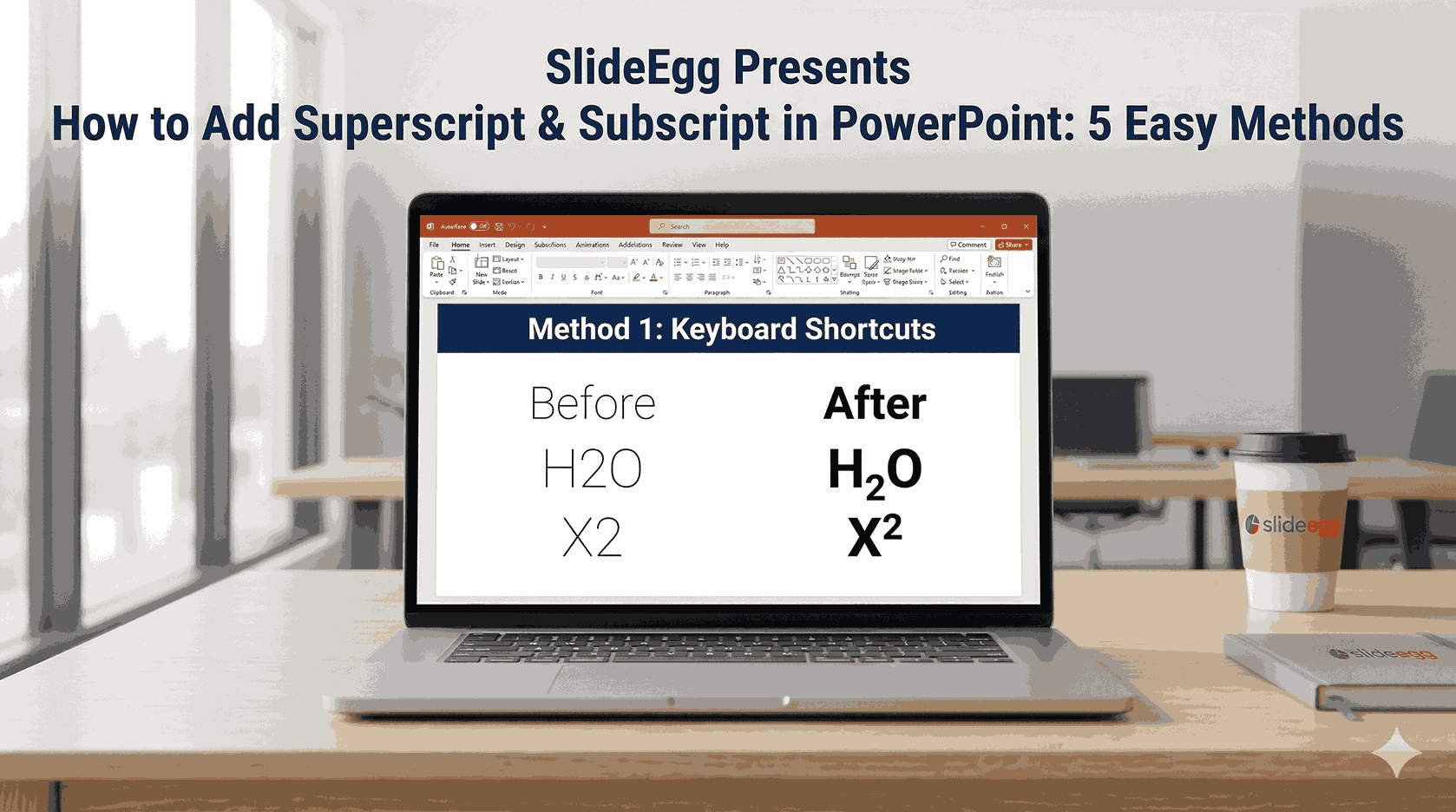
Whether you’re typing a chemical formula like H₂O, a maths exponent like X², a trademark symbol like ™, or a footnote reference, superscript and subscript formatting make your slides look precise and professional.
PowerPoint doesn’t show these buttons front and centre, which is why so many users struggle to find them. This guide covers 5 methods — pick the one that fits your workflow best.
What Are Superscript and Subscript?
Superscript — text raised slightly above the normal line. Examples: X², 1st, ™
Subscript — text lowered slightly below the normal line. Examples: H₂O, CO₂, log₁₀
Method 1: Keyboard Shortcuts — The Fastest Way
The quickest way — no menus, no clicking. Just select your text and press the shortcut.
| Action | Windows Shortcut | Mac Shortcut |
|---|---|---|
| Superscript (e.g. X²) | Ctrl + Shift + + | ⌘ Cmd + Shift + + |
| Subscript (e.g. H₂O) | Ctrl + = | ⌘ Cmd + = |
💡 Tip: To remove superscript or subscript, select the text and press Ctrl + Spacebar (Windows) to return it to normal.
Method 2: Font Dialog Box
Great if you prefer using menus over shortcuts. Works on all versions of PowerPoint.
- Select the text you want to format (e.g., the ‘2’ in H2O).
- Right-click the selected text and choose ‘Font’ from the context menu. Or go to Home tab → Font group → click the tiny arrow in the bottom-right corner.
- In the Font dialogue box, look under the Effects section.
- Check the box for either ‘Superscript’ or ‘Subscript’.
- Optionally adjust the font size for better readability, then click OK.
Method 3: Add Buttons to Your Toolbar — Never Forget a Shortcut Again
This is the most underrated tip in any PowerPoint tutorial. Instead of memorising shortcuts, add Superscript and Subscript as permanent one-click buttons. Set it up once, use it forever. There are two places you can add them:
Option A: Quick Access Toolbar (above the ribbon)
- Right-click anywhere on the top ribbon.
- Select ‘Customize Quick Access Toolbar…’
- In the ‘Choose commands from’ dropdown, select ‘All Commands’.
- Scroll to Subscript, click it, and hit ‘Add >>’. Repeat for Superscript.
- Click OK. Both buttons now appear at the very top of your window.
Option B: Customize the Ribbon (inside the Home tab)
- Right-click any icon on the ribbon and select ‘Customize the Ribbon…’
- Under ‘Choose commands from’, select ‘All Commands’.
- Create a new custom group in the Home tab by clicking ‘New Group’.
- Scroll to Superscript and Subscript, and click ‘Add >>’ for each.
- Click OK. Your buttons now live inside the Home tab alongside Bold and Italic.
💡 Tip: Which should you choose? The Quick Access Toolbar is faster to set up. Customize the Ribbon is better if you want the buttons grouped with other text formatting tools. Either way, this saves you effort every single time you open PowerPoint.
Method 4: Insert Symbol — For Special Characters
Use this when you need a specific pre-built superscript or subscript character — like ™, ©, ², or ³ — without manually formatting text.
- Click on the slide where you want to insert the symbol.
- Go to the Insert tab and click Symbol.
- In the Font dropdown, make sure ‘(normal text)’ is selected.
- In the Subset dropdown, choose ‘Superscripts and Subscripts’.
- Click the symbol you need, then click Insert, and finally Close.
💡 Tip: Common symbols like ® and ™ are automatically formatted as superscript when inserted via the Symbol menu — no extra steps needed.
Method 5: Equation Editor — For Complex Formulas
When you’re dealing with multi-level equations, the Equation Editor gives you professional-grade formatting with perfect alignment.
- Go to the Insert tab and click Equation (or press Alt + =).
- An equation text box appears. Type your formula using standard notation.
- Use the Equation Design tab that appears in the ribbon to insert superscripts, subscripts, fractions, and more from the visual toolbar.
- Click outside the box when done.
💡 Tip: Best for: Physics, chemistry, engineering, and math presentations where clean, nested formula formatting is critical.
Pro Design Tips: When to Use Which
Knowing how to add superscript and subscript is only half the battle — knowing when and why to use them is what separates a good slide from a great one.
Math & Science Presentations
Use subscripts for chemical bases and molecular formulas (H₂O, CO₂, C₆H₁₂O₆) and superscripts for exponents and powers (10⁶, X², E=mc²). Getting this right instantly signals to your audience that you know your subject — a sloppy ‘H2O’ instead of ‘H₂O’ undermines credibility in technical fields.
Legal & Branding
Always superscript your trademark (™) and registered (®) symbols. It’s not just convention — it’s about keeping your slides visually clean. A full-size ™ disrupts the text flow and looks unprofessional. Superscripting it tucks it neatly beside the brand name without cluttering the slide or distracting your audience.
Footnotes & Citations
Use superscript numbers (¹ ² ³) to reference sources without cluttering your slide with full citations mid-sentence. This is a deliberate cognitive load management technique — your audience reads the main point cleanly, and those who want to dig deeper can refer to the footnote at the bottom.
FAQ & Troubleshooting
1. My keyboard shortcut isn’t working. What do I do?
Make sure you’re clicked inside a text box before using the shortcut — it won’t work if you have the text box selected but haven’t clicked inside it to start editing. For superscript on Windows it’s Ctrl + Shift + +, not just Ctrl + +.
2. Can I superscript text that’s already in subscript?
No — PowerPoint will deactivate the subscript and return the text to normal if you apply superscript on top of it. You’d need to use the Equation Editor for stacked formatting.
3. How do I remove superscript or subscript formatting?
Select the formatted text and press Ctrl + Spacebar on Windows to reset it to normal. You can also open the Font dialog and uncheck the Superscript/Subscript box.
4. Does this work in PowerPoint for Mac?
Yes! All five methods work on Mac. The only difference is keyboard shortcuts — use ⌘ Cmd instead of Ctrl. Everything else is identical.
5. Does this work in PowerPoint Online (web version)?
Yes, but with fewer options. In PowerPoint for the web, click your text, go to the Home tab, click the three-dot ‘More Font Options’ button, and select Superscript or Subscript from the dropdown.
6. The superscript text is too small to read. How do I fix it?
Open the Font dialogue box and increase the font size of the superscript/subscript text. You can also adjust the ‘Offset’ percentage in the Font dialogue to fine-tune vertical positioning.
Final Thoughts
All five methods work well — the best one depends on how often you use these formats. For occasional use, the keyboard shortcut is fastest. For presentations full of equations, add the buttons to your Quick Access Toolbar once and save yourself clicks forever.
If you’re working on Google Slides instead, check out our guide on how to add superscript and subscript in Google Slides on the SlideEgg blog.