| Smart Compose in Google Slides at a Glance ✅ Open Google Slides. ✅ Go to Tools → Preferences. ✅ Turn on Smart Compose. ✅ Start typing in a text box. ✅ Press Tab to accept suggestions. |
Introduction
Smart Compose in Google Slides makes writing fast and easy. It gives you word and phrase ideas as you type. This saves time and reduces typing mistakes.
Whether you are a teacher, student, or business user, Smart Compose helps you write slides in less time. It also makes your text clear and smooth.
What Is Smart Compose in Google Slides?
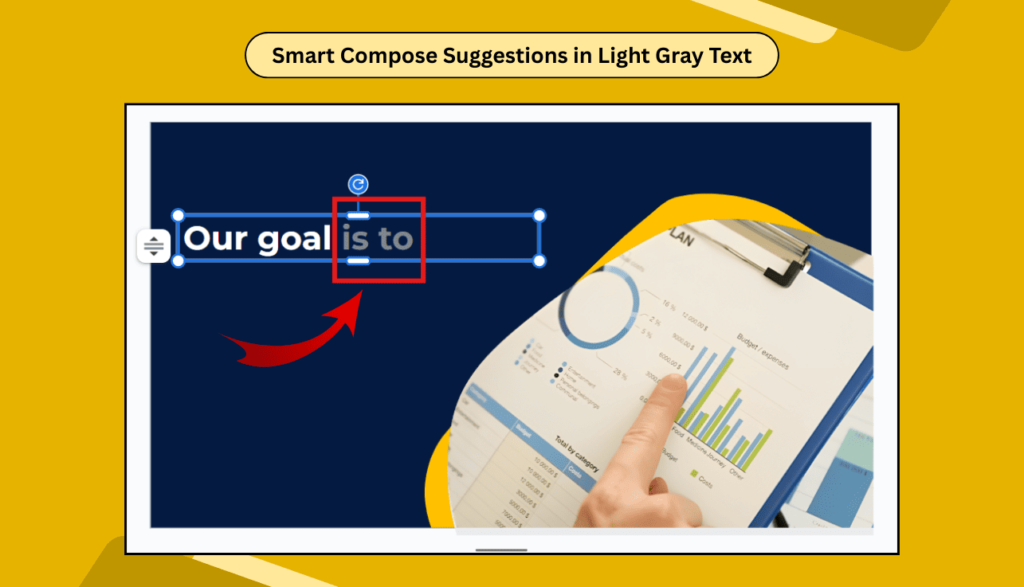
Smart Compose is a built-in tool from Google. As you type, it shows suggestions in light gray text. If you like the suggestion, press Tab or Enter to add it.
Example:
If you type → “Our goal is to”
Smart Compose may suggest → “increase sales this year.”
It feels like a writing partner that gets better with practice.
How Smart Compose Works
- Reads your text as you type.
- Suggests words and short phrases.
- Shows text in gray color.
- You can accept or ignore it.
The more you use it, the more accurate it becomes.
Steps to Turn Smart Compose On
- Open Google Slides.
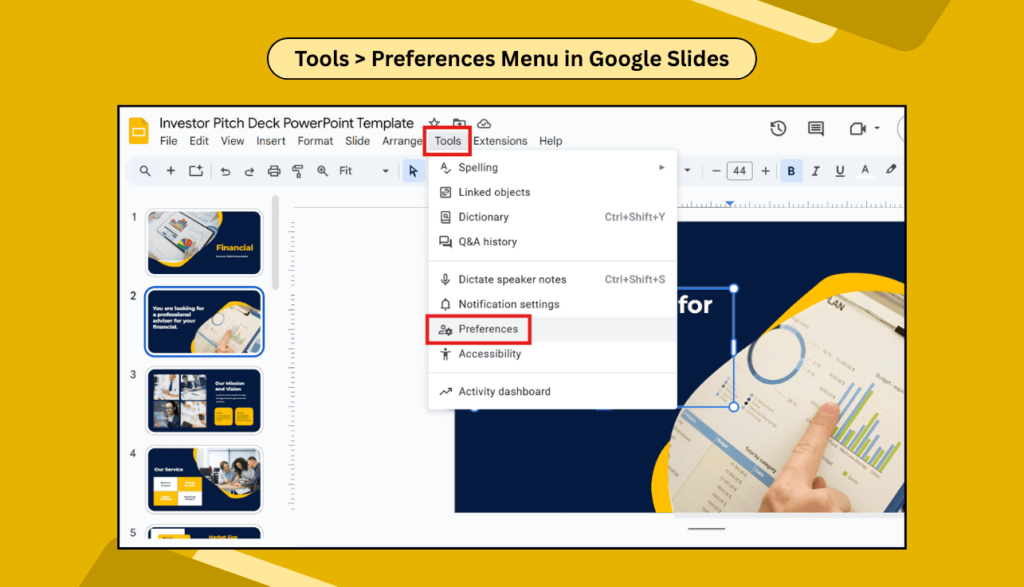
- Click Tools in the top menu.
- Select Preferences.
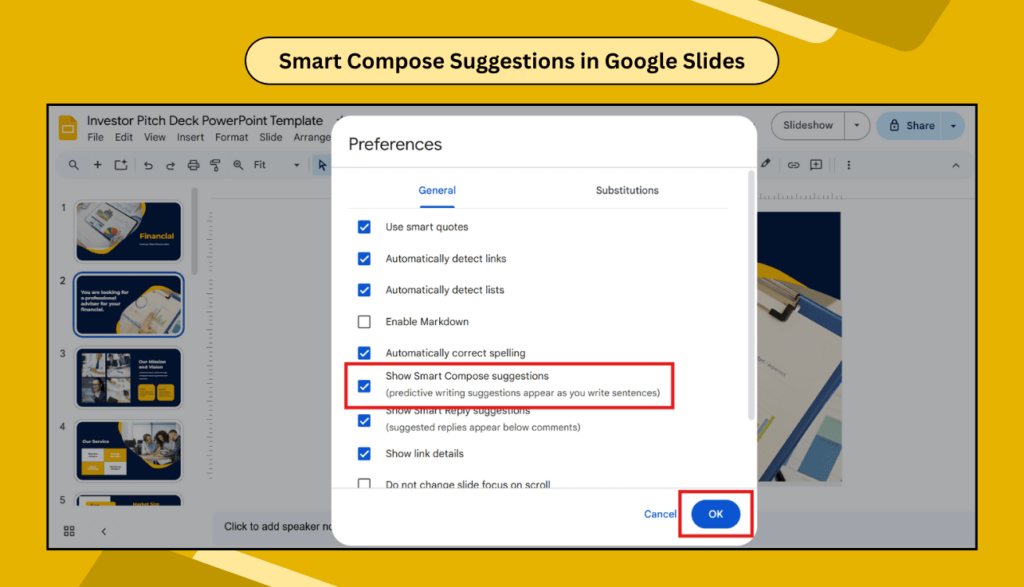
- Check “Show Smart Compose Suggestions”.
- Click OK to save.
Writing with Smart Compose
- Start typing normally in a text box.
- Watch for light gray suggestions.
- Press Tab or Enter to accept.
- Keep typing to get more ideas.
💡 Tip: Write full sentences. It helps Smart Compose give better suggestions.
Tips for Better Results
- Use short, simple sentences.
- Write your main idea first.
- Rephrase if the suggestions don’t fit.
- Keep your language clear and direct.
How Smart Compose Helps on Different Slides
| Slide Type | How It Helps |
| Title Slides | Suggests catchy titles or taglines |
| Bullet Points | Keeps style and tone consistent |
| Content Slides | Improves flow between sentences |
| Conclusion | Suggests clear closing lines or actions |
Settings You Can Change
- Turn Smart Compose on or off anytime.
- Use it in different languages (if enabled).
- Works well for school, office, or personal slides.
- Supports voice typing for faster input.
Troubleshooting Smart Compose
| Problem | Solution |
| Not seeing suggestions | Check your internet connection |
| Suggestions stopped showing | Refresh your browser |
| Logged out of Google | Log back into your account |
| Browser is slow | Clear cache and cookies |
Smart Compose vs Other Tools
It’s easy to confuse Smart Compose with other features in Slides, but each has its own role:
| Tool | What It Does |
| Spell Check | Fixes errors after you type |
| Explore | Suggests design ideas, not text |
| Voice Typing | Lets you speak instead of typing |
| Templates | Give layout, not writing help |
| Smart Compose | Helps write faster while typing |
Why Use Smart Compose in Google Slides?
- Speeds up your work.
- Helps avoid writer’s block.
- Keeps your writing clear and simple.
- Makes slides more polished.
Advanced Uses
- Brainstorming: Type a keyword to see quick ideas.
- Clarity Check: If suggestions seem odd, re-check your sentence.
- Experiment: Try new sentence starters to get fresh ideas.
Frequently Asked Questions (FAQs)
Q: Does Smart Compose work offline?
A: No, it needs the internet.
Q: Can I use it in other languages?
A: Yes, change your Google account language settings.
Q: Does it learn my style?
A: Yes, the more you use it, the better it gets.
Q: Can I turn it off?
A: Yes, go to Tools → Preferences.
Q: Does it work on mobile?
A: Yes, but features are limited compared to a desktop.
Q: Are suggestions always correct?
A: Not always. Review before accepting.
Q: Can multiple users see suggestions in one file?
A: Yes, but each user sees suggestions based on their account.
Q: Will it affect originality?
A: No, it only suggests phrases. Your ideas stay unique.
Final Thoughts
Smart Compose makes writing in Google Slides faster and easier. It won’t replace your ideas—it only helps you write them better. With practice, it becomes a helpful tool for any kind of presentation.