| Easy Steps to Use Pear Deck with Google Slides ✅ Open Google Slides. ✅ Install the Pear Deck Add-on. ✅ Create or open your lesson slides. ✅ Add interactive questions with Pear Deck. ✅ Start the lesson in Instructor or Student mode. ✅ Let students join with a simple code. ✅ See responses live and engage your class. |
Let’s Make Lessons Fun Again!
“A child’s mind is not a container to be filled but a fire to be kindled.” — Dorothea Brande.
That’s exactly what Pear Deck does — it sparks curiosity and gets every student involved.
Whether you’re teaching in a classroom or online, making lessons interactive helps students stay focused. Pear Deck is a free tool that works with Google Slides. It allows teachers to turn boring slide decks into fun, interactive experiences.
In this blog, let’s walk through how you can use Pear Deck with Google Slides, step by step.
What is Pear Deck?
Pear Deck is a tool that makes Google Slides interactive. You can add questions, polls, and even drawing activities to your slides. Students join your lesson from their own devices. They can answer in real time — and you can see their responses instantly. It works great in classrooms, online learning, or even for homework.
Why Use Pear Deck with Google Slides?
- 🎯 Makes learning fun and engaging.
- 🧠 Helps students think and respond.
- 🧑🏫 Teachers can see who understands and who needs help.
- 🌍 Works on any device (phone, tablet, computer).
- 💬 Supports real-time feedback and discussions.
You don’t need to create new slides from scratch. Just use your existing Google Slides and make them better!
Step-by-Step Guide: How to Use Pear Deck with Google Slides
1. Open Google Slides
Go to Google Slides and open your lesson. Or create a new one from scratch.
2. Install the Pear Deck Add-On
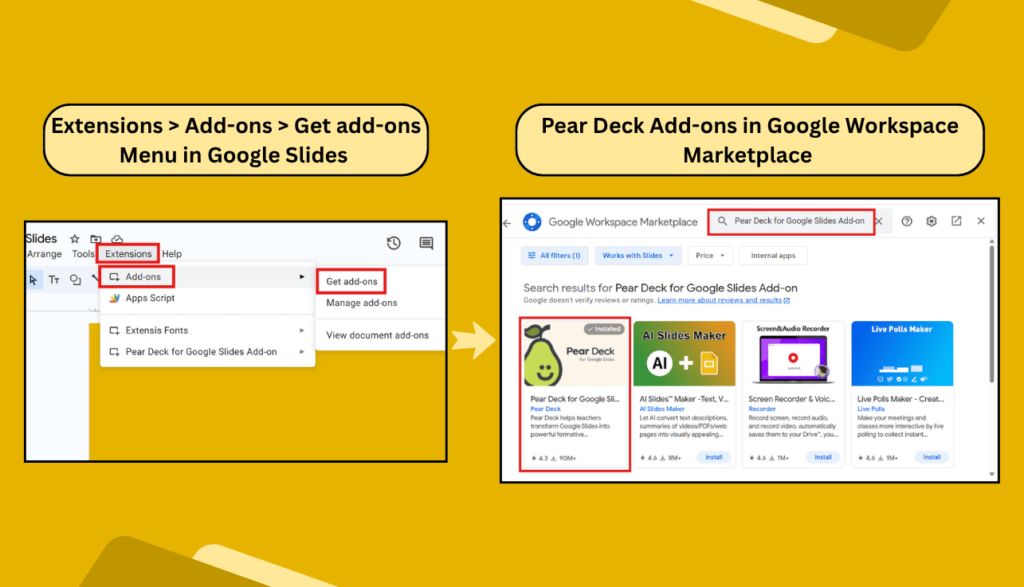
- Click on “Extensions” → “Add-ons” → “Get add-ons”
- Search for “Pear Deck”, then click Install.
Now, Pear Deck will show up under your Extensions menu.
3. Open Pear Deck in Google Slides
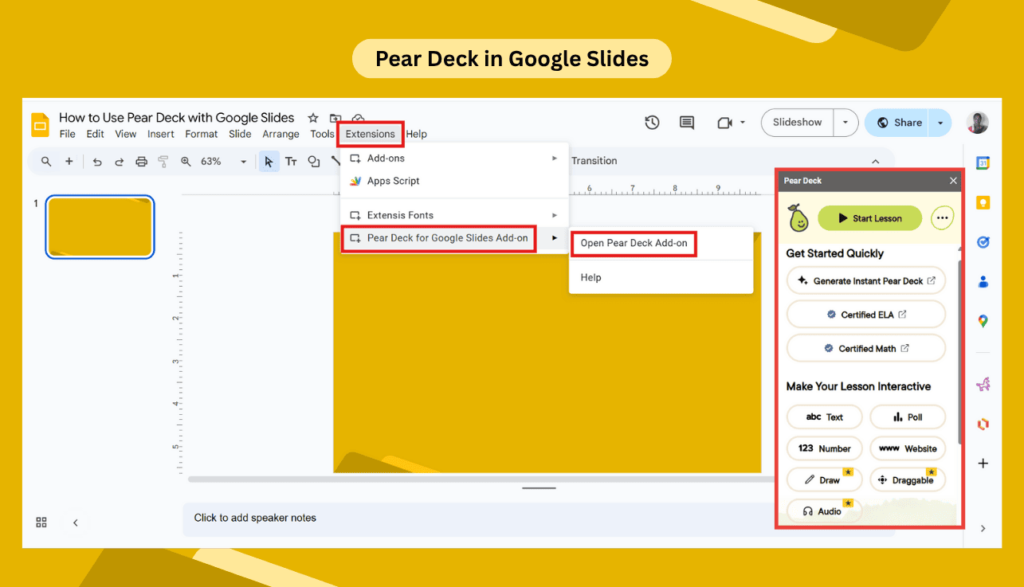
- Click “Extensions” → “Pear Deck for Google Slides Add-on” → “Open Pear Deck Add-on”
A sidebar will appear on the right side of your screen.
4. Add Interactive Questions
In the Pear Deck sidebar, you’ll see options like:
- Text Response
- Multiple Choice
- Number Response
- Website Slide
- Drawing Slide
Click on anyone to insert it into your slide. You can mix and match to keep things fun!
5. Start Your Pear Deck Session
Once your slides are ready, click “Start Lesson” at the top. You can choose:
- Instructor-Paced Mode – You control the pace.
- Student-Paced Mode – Students go at their own speed.
6. Share the Code with Your Students
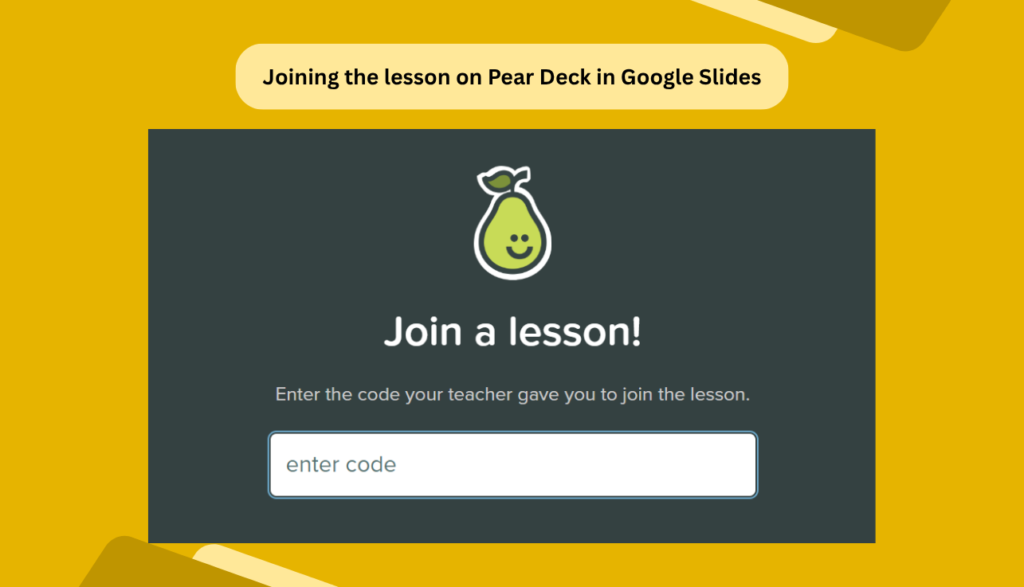
A code will pop up. Ask students to go to joinpd.com and enter the code.
Now everyone’s connected to your lesson!
7. Watch the Magic Happen!
As students respond, you’ll see their answers live. You can show responses (anonymously), pause slides, and even lock screens to keep everyone on track.
Bonus Tips to Use Pear Deck Like a Pro
- 🔒 Use the lock responses feature to avoid last-minute changes.
- 📊 Use the Teacher Dashboard for a better view of student answers.
- 🎥 Record lessons using tools like Loom or Screencastify.
- 🌟 Use templates from Pear Deck’s library for quick ideas.
- 💡 Add audio for younger students or language learners.
Did You Know? There Are Other Tools That Make Slides Interactive Too
While Pear Deck is a popular option for creating interactive lessons in education, it’s not the only solution out there. Some interactive presentation tools available online let you import slides from Google Slides or PowerPoint and turn them into dynamic, engaging experiences — without starting from scratch.
Many of these tools come with pre-made templates and even AI-powered features that allow you to create interactive content simply by typing a prompt. They’re incredibly versatile and can be used in schools, remote meetings, webinars, virtual events, and even business presentations — anywhere you want your audience to stay involved and participate actively.
FAQs About Pear Deck and Google Slides
Can students use Pear Deck on their phones?
Yes! Pear Deck works on any device with a web browser, including phones, tablets, Chromebooks, and computers.
Do students need an account?
Nope! Students don’t need to sign in. They just go to joinpd.com and type the code you give them.
Is Pear Deck free to use?
Yes, there’s a free version with plenty of features. You can also upgrade for extra tools like audio and detailed reports.
Can I use Pear Deck for remote learning?
Absolutely! Pear Deck works great with Google Meet, Zoom, or any video call platform. Just share your screen and start teaching.
How do I know who answered what?
If students are logged in with their school account, you’ll see their names. If not, answers will show up anonymously.
Final Thoughts
Pear Deck makes lessons feel like conversations, not lectures. You don’t need to be a tech expert to use it. If you know how to use Google Slides, you already know half of it!
So next time you’re making a lesson, give Pear Deck a try. It could be the simple change that makes a big difference in your classroom.