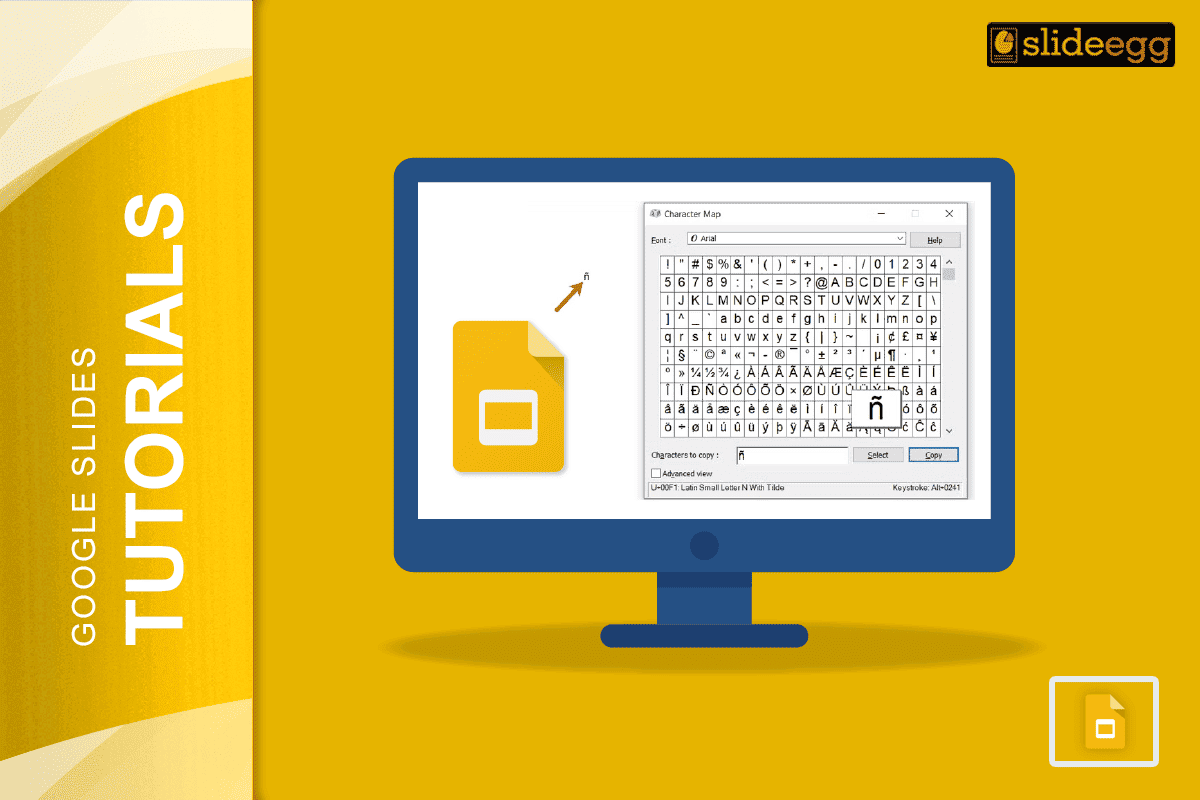
| 🔥 Quick Tips: How to Type Accents in Google Slides ✅ Use Google Docs to type accented letters, then copy-paste into Slides. ✅ Try keyboard shortcuts (Windows: Alt codes, Mac: Option keys). ✅ Use Insert > Special Characters (in Google Docs). ✅ Long-press letters on mobile keyboards to get accents. ✅ Install language keyboards for frequent use. |
✨ Introduction
“Language is power. If you know how to use it right, even a small accent mark can change the whole meaning.”
When you’re making slides for class, work, or a personal project, using the right accent on words like naïve, fiancé, or jalapeño shows you care about details. It also helps your presentation look more professional, especially when you’re writing in or about other languages.
But here’s the thing—Google Slides doesn’t have a built-in accent tool. Don’t worry! There are easy ways to add accents, and you don’t need to be a tech expert.
Let’s look at how you can do it step-by-step. Simple, no fluff, and works for everyone.
🧩 1. The Easiest Way: Use Google Docs First
The most beginner-friendly method? Type in Google Docs first, then copy and paste into Google Slides.
Steps:
- Open Google Docs.
- Go to Insert > Special Characters.
- Search or pick the letter with the accent you need.
- Copy that letter.
- Paste it into your Google Slides text box.
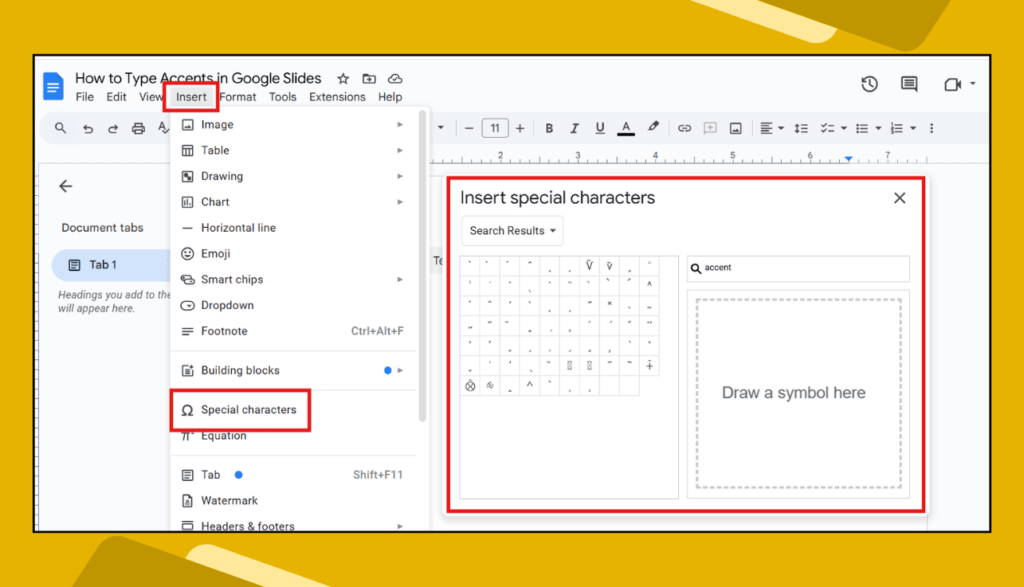
💡 Pro tip: Bookmark the special characters page in Docs for quick access anytime.
⌨️ 2. Use Keyboard Shortcuts for Accents
If you’re on a Windows or Mac computer, you can type accents using keyboard shortcuts.
✅ For Windows (with numeric keypad):
- é = Alt + 0233
- ñ = Alt + 0241
- ü = Alt + 0252
(Hold Alt, type numbers using the number pad)
✅ For Mac:
- é = Option + e, then e
- ñ = Option + n, then n
- ü = Option + u, then u
📌 These shortcuts work anywhere you type—even inside Google Slides.
📱 3. Using Mobile Devices
Typing accents on a phone or tablet is super simple. Just press and hold the letter you want. A small menu will pop up with different versions—like é, è, ê. Slide your finger to the one you want.
This works on:
- iPhones
- iPads
- Android phones and tablets
It’s the fastest way if you’re using the Google Slides app on mobile.
🌍 4. Switch to a Language Keyboard (for frequent use)
If you often type in Spanish, French, or any other language, it’s smart to add that language keyboard to your device.
On Windows:
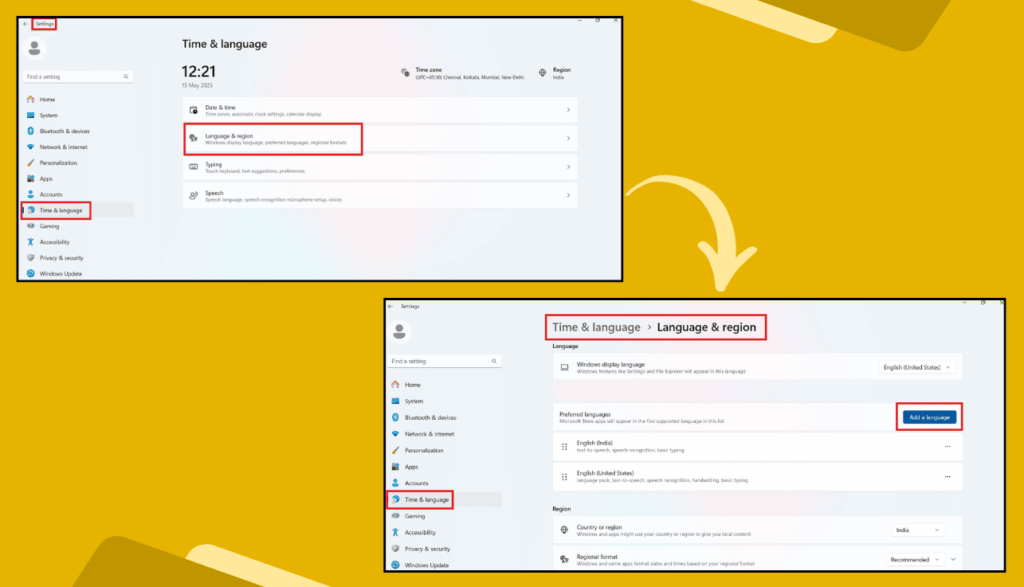
- Go to Settings > Time & Language > Language & Region.
- Add the language you want.
- Switch with Windows + Space.
On Mac:
- Go to System Settings > Keyboard > Input Sources
- Click “+” to add a language
- Use Control + Space to switch
Once set up, accents become part of your normal typing.
🔠 5. Copy Accents from the Web (Quickest Hack)
- You can simply Google the word with the accent and copy it.
- For example, type: “How to write fiancé with accent”
- You’ll see the correct spelling.
- Just copy and paste into your Google Slides.
✅ No setup needed
✅ Works instantly
✅ Great for one-time use
💬 FAQs: Google Slides Accent Marks
❓Can I add accents directly in Google Slides?
No. Google Slides doesn’t have a built-in accent tool. But you can type them using shortcuts or copy from Google Docs or the web.
❓What’s the easiest method for beginners?
Using Google Docs’ Insert > Special Characters is the simplest for anyone new to this.
❓Do mobile keyboards have accents?
Yes! Just long-press the letter on your phone or tablet to see all accent options.
❓Are there Chrome extensions for accents?
Yes, but they’re not needed. The methods shared here are easier and safer without adding anything extra.
❓Why do accents matter?
Accents help show correct spelling and pronunciation. They’re important in names, languages, and even job resumes!
✍️ Final Thoughts
Even though Google Slides doesn’t have a direct tool for accents, there are super simple workarounds anyone can use. Whether you’re typing a Spanish word, adding flair to a name, or writing a proper résumé, these small marks make a big difference.
With these easy tips, you can type accents like a pro—right inside your slides.
Need to add “café”, “Señor”, or “crème brûlée”? Now you know how!