| 👇 Quick Tips: Google Slides Edit History at a Glance ✅ Click the clock icon near the Share button. ✅ Or go to File → Version History → See version history. ✅ Shortcut: Ctrl + Alt + Shift + H (or Cmd + Option + Shift + H on Mac). ✅ Click on any version to preview changes. ✅ Use “Restore this version” to go back. ✅ Use “Name this version” to label important edits. ✅ Google auto-saves every change, no manual saving is needed. |
Every Change Matters—Even the Tiny Ones
Google keeps track of every single change you make in your slides. Yes, every single one! Even that tiny font change you made at 2 AM last week. Amazing, right? This smart feature has saved millions of people from losing their work forever.
Many people don’t know this amazing tool exists in Google Slides. They panic when something goes wrong with their presentation. But you don’t have to worry anymore. Learning to check your edit history is like having a magic undo button that works even after you close your file, across days, weeks, and even months!
🧾 What is Edit History in Google Slides?
Edit history (also known as version history) is a feature that keeps track of:
- ✅ What was changed
- ✅ Who made the change
- ✅ When the change was made
And best of all — you can restore old versions at any time.
It’s like a time machine for your slideshow. And the best part? You don’t have to turn it on. It’s always working in the background.
🔍 How to See Edit History in Google Slides (Step-by-Step)
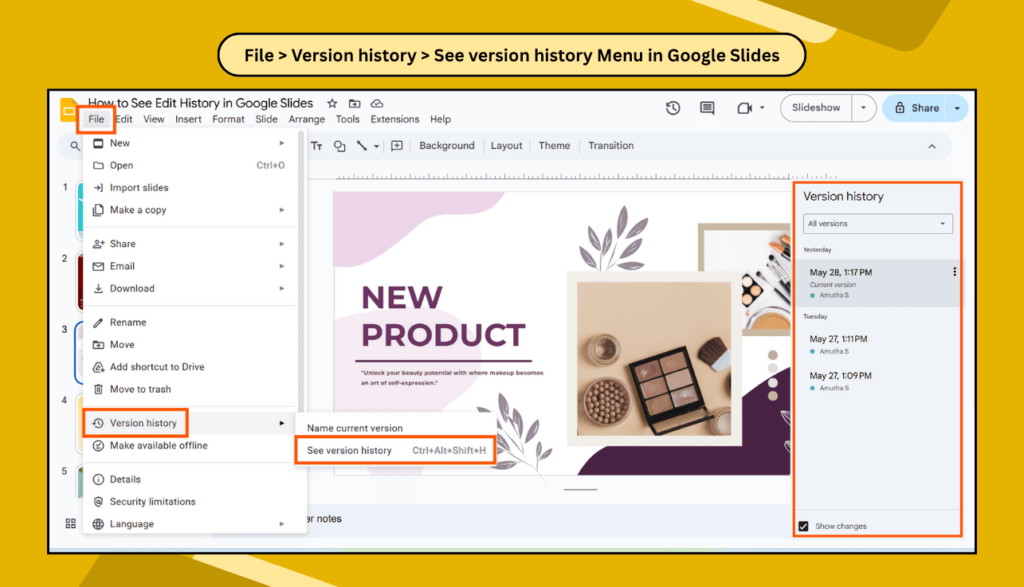
Method 1: The Menu Way
- Open your Google Slides file.
- Click File in the top-left corner.
- Hover over Version history.
- Click See version history.
You’ll see a panel on the right side of your screen with a list of saved versions.
Method 2: The Clock Icon Shortcut
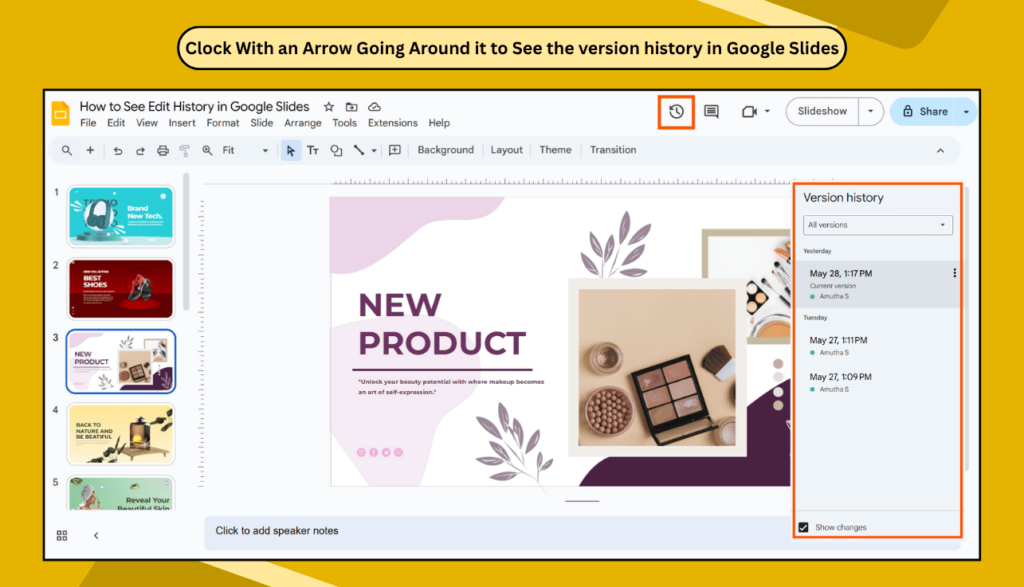
Near the Slideshow button (top-right corner), you’ll see a clock icon with an arrow going around it. Click it. This opens the same version history panel.
Method 3: Use a Keyboard Shortcut
- Windows: Press Ctrl + Alt + Shift + H
- Mac: Press Cmd + Option + Shift + H
Perfect for those who love shortcuts!
🧠 What You’ll See in the Version History Panel
When the panel opens, you’ll notice:
- 🗓️ Date & time when each version was saved.
- 🧑💼 Who made the edits (shows as “You” if it was you).
- 🖼️ A preview of changes, with edits highlighted in colors.
Click on any version to see what your slides looked like back then.
🏷️ How to Name a Version (So You Can Find It Later)
Want to keep track of important versions? Name them!
- In the version panel, click the 3 dots (⋮) next to the version.
- Select Name this version.
- Type something clear like “Client Final” or “Draft Before Review”
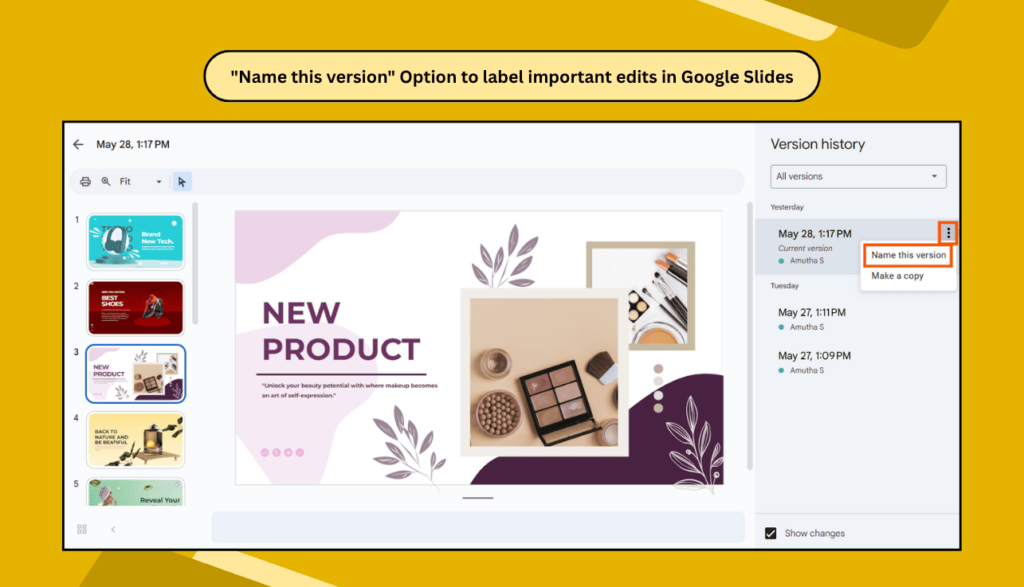
Named versions never disappear, even after months. Regular versions may eventually be cleaned up.
🔄 How to Restore an Older Version
Want to go back to an earlier version? Easy.
- Open version history.
- Click the version you want.
- Hit the Restore this version button at the top.
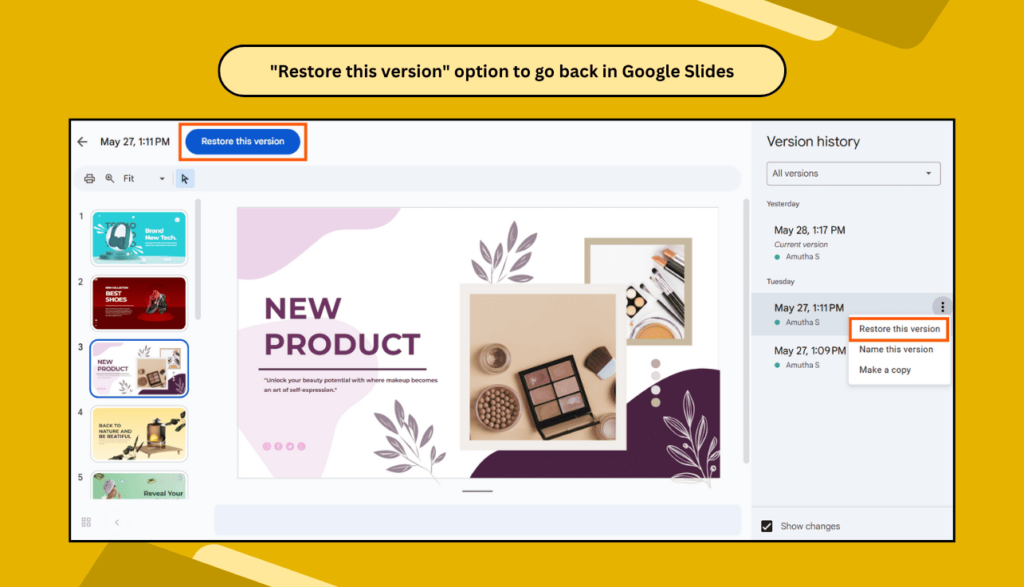
You’re done. Your slides are now back to that state. And yes, you can still go forward again if needed.
💡 Why Edit History is Super Useful
- 🔁 Undo Big Mistakes — Restore deleted slides or content.
- 👫 Track Team Contributions — See who added or changed what.
- 🕵️ Avoid Confusion — No more “Who changed this?”
- 💾 Peace of Mind — Google saves changes automatically, so you never lose your work.
🧰 Tips for Smarter Version Management
- ⭐ Name versions after major changes (e.g., “Final Version”).
- 🗓️ Check history before big meetings.
- 🧑🤝🧑 Ask teammates to leave comments or notes for big changes.
- 👀 Review version history weekly for large projects.
❓ Frequently Asked Questions
Can viewers see the edit history?
No, only people with edit access can see the full version history.
Does Google Slides auto-save versions?
Yes! Google auto-saves every change, usually within seconds. You never need to click Save.
Can I delete the version history?
Nope. You can’t delete individual versions. But you can name key versions to keep track of the important ones.
Is version history available offline?
No. You need to be connected to the internet to view or restore version history.
What if I restore the wrong version?
No worries. Just go back to the version history and restore a newer one. Nothing is lost permanently.
✅ Final Thoughts
Version history in Google Slides is your safety net for presentations. It protects your work, helps with teamwork, and gives you the freedom to experiment without fear. Master this feature and you’ll never lose important work again.