| 🟢 Quick & Easy Method to Save a Google Slide as an Image If you’re in a hurry, here’s the fastest way to download a slide as an image: 📂 Open your Google Slides presentation. 🎯 Select the slide you want to save. 📥 Go to File > Download. 🖼️ Choose your preferred format: JPEG (.jpg), PNG (.png), SVG (.svg). ✅ Done! Your slide is now saved as an image in your Downloads folder. That’s it! But what if you need better quality or want to save multiple slides at once? Let’s dive deeper into all the available methods. |
Introduction
Google Slides is an excellent tool for creating presentations, infographics, and social media content. But sometimes, you may need to save a slide as an image for easy sharing, embedding, or printing.
Saving a Google Slide as an image is super simple! In this guide, I’ll walk you through multiple ways to download slides as PNG, JPEG, or SVG files—including high-quality options and workarounds for saving multiple slides at once.
📸 How to Save a Google Slide as an Image (Step-by-Step Guide)
If you need detailed instructions or want to understand your options better, here’s how to do it properly.
🔹 Method 1: Save a Single Google Slide as an Image
1️⃣ Open Google Slides
Head over to Google Slides and open your presentation.
2️⃣ Select the Slide
Click on the slide you want to save as an image.
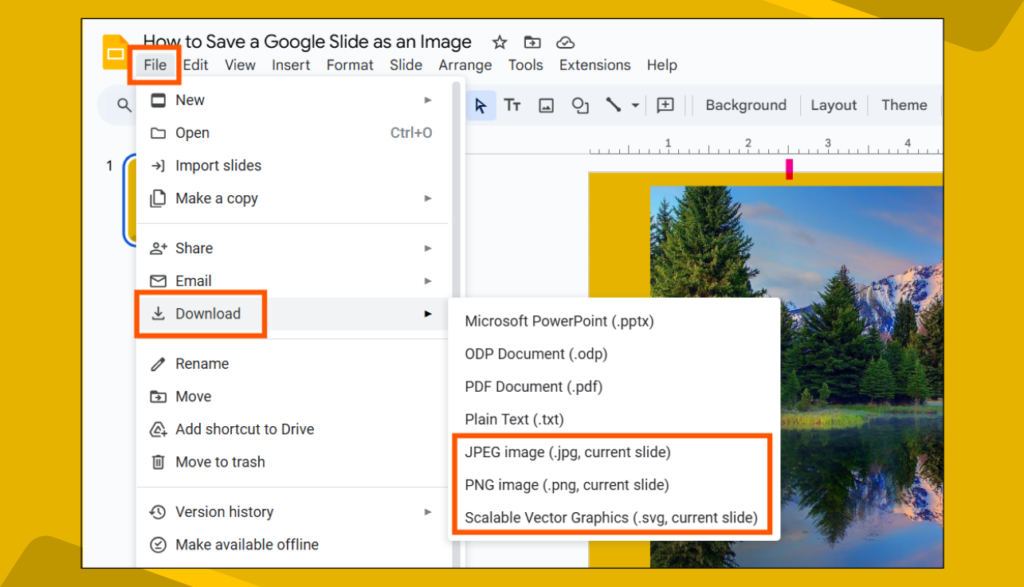
3️⃣ Download the Slide
- Click “File” in the top menu.
- Hover over “Download”.
- Choose from the following formats:
- PNG (.png): Best for high-quality images with transparency.
- JPEG (.jpg): Good for web use and smaller file sizes. Great for photos and general use.
- SVG (.svg): Ideal for vector graphics and design software.
4️⃣ Save the Image
Your slide will download instantly. Check your Downloads folder or the bottom of your browser for the file.
💡 Pro Tip: If you want a transparent background, use PNG format and make sure your slide background is set to transparent before downloading.
📂 How to Save Multiple Google Slides as Images
Google Slides doesn’t allow downloading multiple slides as images at once, but here are some workarounds.
🔸 Option 1: Manually Save Each Slide
If you only have a few slides, you can repeat Method 1 for each one.
🔸 Option 2: Take a Screenshot
For quick results, you can take a screenshot:
🖥️ Windows: Press Windows + Shift + S, then select the slide.
🍏 Mac: Press Command + Shift + 4, then select the slide area.
Crop and save the image manually.
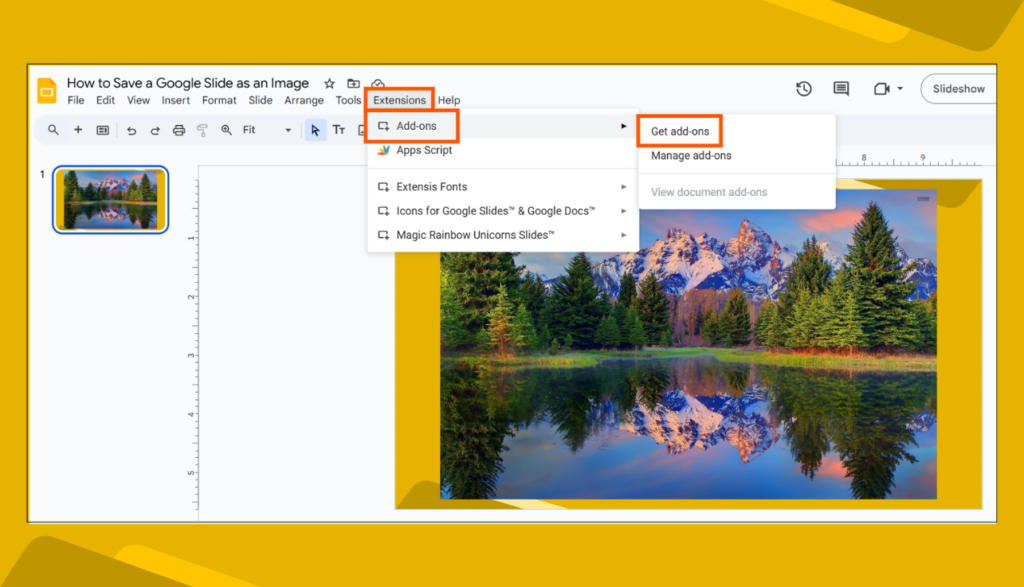
🔸 Option 3: Use a Google Slides Add-On
If you want to download multiple slides at once, try an add-on like Slides to Images from the Google Workspace Marketplace.
To use it:
🔹 Click Extensions in the menu bar.
🔹 Select Add-ons > Get add-ons and search for Slides to Images.
🔹 Install it and follow the instructions to save multiple slides as images.
💡 Pro Tip: Add-ons can help you batch export slides quickly instead of downloading them one by one!
🛠️ How to Improve Image Quality When Downloading Slides
Google Slides exports images at 96 DPI by default, which may not be sharp enough for some projects. If you need higher quality, here are some tips:
🔹 Option 1: Increase Image Quality Before Taking a Screenshot
🔎 Zoom in before taking a screenshot to capture a larger, sharper image.
🔄 Use full-screen mode (F11 in most browsers) for better results.
🔹 Option 2: Convert Google Slides to PowerPoint for Better Export Options
🎯 Go to File > Download > Microsoft PowerPoint (.pptx).
📂 Open the PowerPoint file.
🖼️ Click File > Save As and choose JPEG or PNG with a higher resolution.
💡 Why PowerPoint? PowerPoint allows you to export slides at higher resolutions (up to 300 DPI) compared to Google Slides.
🔹 Option 3: Use Google Drawings for Higher-Quality Images
1️⃣ Copy your slide content and paste it into Google Drawings.
2️⃣ Adjust the layout and design if needed.
3️⃣ Download as PNG or JPEG for a higher-quality export.
🖼️ Why Save a Google Slide as an Image? (Top Benefits)
📌 Easy Sharing – Share images on social media, emails, or blogs.
📌 Insert in Documents – Use the image in Word, Google Docs, or PDFs.
📌 No Editing Restrictions – Unlike slides, images can’t be accidentally modified.
📌 Create Posters & Infographics – Design in Google Slides and save as an image.
📌 Perfect for Social Media – Post slides as images on Instagram, Facebook, or Twitter.
📌 Printable Graphics – Save slides as high-resolution images for posters, flyers, or reports.
FAQs: Saving Google Slides as Images
💬 Can I save all slides as images at once?
🔹 Not directly in Google Slides, but you can use add-ons or convert to PDF and extract images.
💬 What’s the best format to choose?
🔹 PNG for high quality, JPEG for small file size, and SVG for vector graphics.
💬 How do I save a slide with a transparent background?
🔹 Save it as a PNG, but make sure the background is transparent before downloading.
💬 Can I edit the image after saving it?
🔹 Yes! Use Photoshop, Canva, or Google Drawings to edit the image.
🔎 Alternative Methods to Save Google Slides as Images
📑 Convert Slides to PDF & Extract Images
1️⃣ Click File > Download > PDF Document (.pdf).
2️⃣ Use a free tool like Smallpdf or Adobe Acrobat to extract images.
📸 Use an Online Screenshot Tool
Instead of manual screenshots, use tools like Lightshot or Snagit for precise screen captures.
🌐 Use a Chrome Extension
Install the “Full Page Screenshot” extension to take high-quality screenshots of slides.
🎨 Creative Ways to Use Google Slides as Images
🖌️ Social Media Graphics – Save slides as PNGs for Instagram, Facebook, or LinkedIn.
📊 Infographics – Design in Google Slides and export as an image for easy sharing.
📧 Email Headers – Save a slide as an image and use it in newsletters or email graphics.
📃 Printable Flyers & Posters – Export high-quality PNGs for marketing materials.
🌍 Website Graphics – Quickly create custom images for blogs and landing pages.
❗Having Trouble? Here’s How to Fix It
❌ Low image quality?
✔️ Try PowerPoint for higher-resolution exports.
✔️ Zoom in before taking a screenshot.
❌ Can’t save multiple slides at once?
✔️ Use an add-on or convert to PDF and extract images.
❌ Extra white space around the image?
✔️ Adjust the slide size before downloading.
✔️ Crop the image in an editor.
Final Thoughts
Now you know multiple ways to save a Google Slide as an image! Whether you need a single slide, multiple slides, or high-resolution images, these methods have you covered.
Go ahead and try them out!