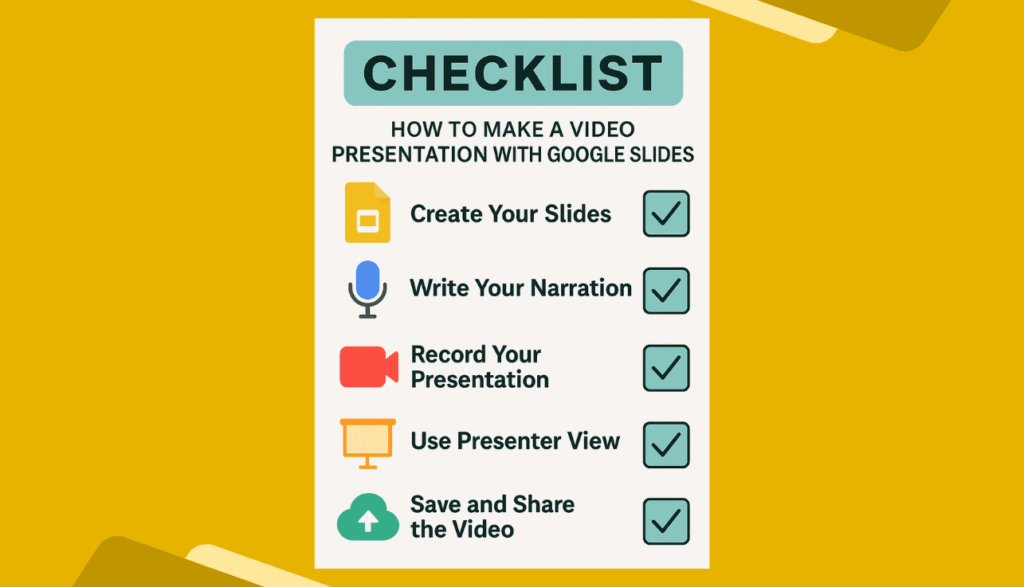
| Quick Tips to Make a Video Presentation with Google Slides 👉 Open Google Slides and create your slides. 🎤 Add voice narration using tools like Screencastify or Loom. 🎥 Record your screen while presenting. 🧰 Use Google Slides Presenter View for a smooth talk. 💾 Save it as a video (MP4 or upload to YouTube). 🔗 Share with your audience via a link. |
Introduction
“People remember 80% of what they see and do.”
That’s what experts say when it comes to learning and communication. So if you want people to really understand your idea, just show them a video instead of sending a long document.
Google Slides is free, easy, and super useful. And, you can even turn your slide deck into a video presentation with voice and everything!
In this blog, I’ll walk you through how to make a video presentation using Google Slides — step by step.
🪜 Step-by-Step Guide
1. 📝 Create Your Slide Deck on Google Slides
Go to Google Slides and start a new presentation.
- Choose a template if you want it to look cool.
- Keep it clean and simple – don’t add too much text.
- Add images, charts, and icons if needed.
- Use large fonts so people can read easily.
👉 Tip: Use no more than 5-6 words per line.
2. 🎤 Write Down What You Want to Say
Before you record anything, plan your talk.
- Write short sentences for each slide.
- Practice reading it out loud.
- Sound like you’re talking to a friend.
📌 Remember: You don’t have to sound perfect. Just be clear and real.
3. 🎥 Record Your Presentation with Screen Recording Tools
You can’t export a video directly from Google Slides but don’t worry. Just record your screen
while you go through the slides.
✅ Free Tools to Use:
| Tool | Works on | Voice Recording | Free Version |
| Loom | Chrome/Windows/Mac | ✅ Yes | ✅ Yes |
| Screencastify | Chrome | ✅ Yes | ✅ Yes |
| OBS Studio | Windows/Mac/Linux | ✅ Yes | ✅ Yes |
4. 📽️ Present Using “Presenter View” in Google Slides
This will help you read your notes without the audience seeing them.
- Go to “Slideshow” → “Presenter View”.
- A new window will open with your notes.
- Share only the main slide screen, not your notes.
Now start recording with your screen recorder. Speak clearly and go slide by slide.
5. 💾 Save Your Video
Once you’re done recording:
- Save it as MP4 or WebM.
- You can also upload it directly to YouTube from tools like Loom.
- Use a catchy title like: “How I Explained Photosynthesis in 3 Minutes”.
🔗 Share the video link with your teacher, friends, and clients, or post on social media!
🔍 Bonus Tips for Better Video Presentations
- Use bold colors and high contrast for text and background.
- Don’t speak too fast.
- Add background music if your voice is clear over it.
- If you’re shy, just use text on slides with background music – still works great!
🤔 Frequently Asked Questions (FAQs)
Q1. Can I record voice directly in Google Slides?
No, Google Slides doesn’t have a built-in voice recorder. But you can use tools like Loom, Screencastify, or OBS Studio to record your voice while showing the slides.
Q2. How do I add audio to each slide?
You can upload an audio file to each slide from Google Drive. Go to Insert → Audio, then pick your sound file.
Q3. Can I download my Google Slides as a video?
Not directly. Google Slides doesn’t have a “save as video” feature. But you can record your screen and then save it as a video.
Q4. What’s the best tool to turn Google Slides into video?
For beginners, Loom and Screencastify are the easiest. Just record, trim, and share.
Q5. Is it free to use Google Slides for video presentations?
Yes, 100% free! All you need is a Gmail account. The screen recorders I mentioned also have free plans.
✨ Final Words
You don’t need expensive software or editing skills to make a great video presentation. Just use Google Slides, record your screen, and talk like you’re explaining it to your best friend. Keep it simple, honest, and fun.
People will love it because it feels real. And that’s what makes it work.