| Simple Steps to Make Google Slides Interactive ✅ Open Google Slides and pick a clean template ✅ Add short texts, simple images, and fun icons ✅ Use “Insert > Link” to connect slides or websites ✅ Add YouTube videos to explain topics ✅ Try Google Forms or Pear Deck for quizzes ✅ Use speaker notes for teacher tips ✅ Share the link with “Anyone with the link can view” ✅ Test your slide in “Present” mode |
Online learning can be a challenge. Kids get bored, teachers feel tired, and lessons don’t always stick. But there’s a simple tool that can make a big difference — Google Slides.
Google Slides isn’t just for showing text and pictures. You can turn it into a fun, interactive learning tool that keeps students interested and helps them learn better.
In this blog, let’s walk through how you can create Google Slides that your students will actually enjoy. Whether you teach young kids or teens, these tips will work for everyone.
1. Start With a Clean and Clear Slide Design
Keep things simple. Use a white background or soft colors. Pick large, easy-to-read fonts. Don’t crowd the slides with too much text. A clean design helps students focus. If you’re teaching young learners, add fun cartoon icons or clip art.
2. Use Clickable Elements
One of the easiest ways to make your slides interactive is by adding links. You can link to:
- Other slides (great for quizzes or choose-your-path stories)
- YouTube videos (helpful for explaining topics)
- Google Forms (for quick feedback or mini-tests)
- Educational websites (for more practice)
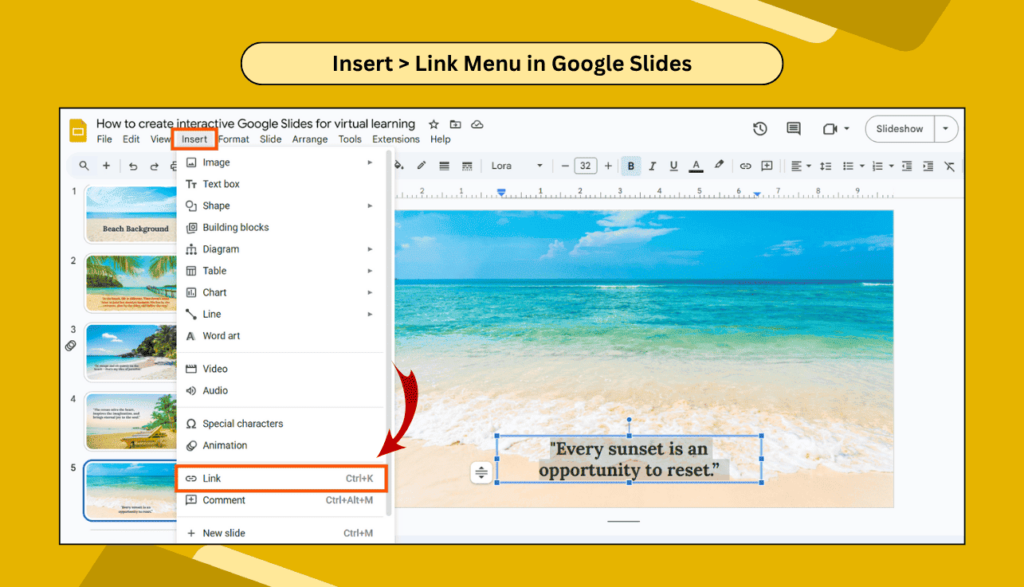
To add a link, select the text or picture, then go to Insert > Link, and paste the URL or choose another slide.
3. Add Questions That Make Students Think
Don’t just give answers. Add questions after every topic. You can do this by:
- Inserting a text box with a question
- Asking students to discuss in the chat (for live classes)
- Letting them type in a shared Google Doc or Jamboard
This helps with active learning, where students think, respond, and take part — not just listen.
4. Embed Short Videos and Audio Clips
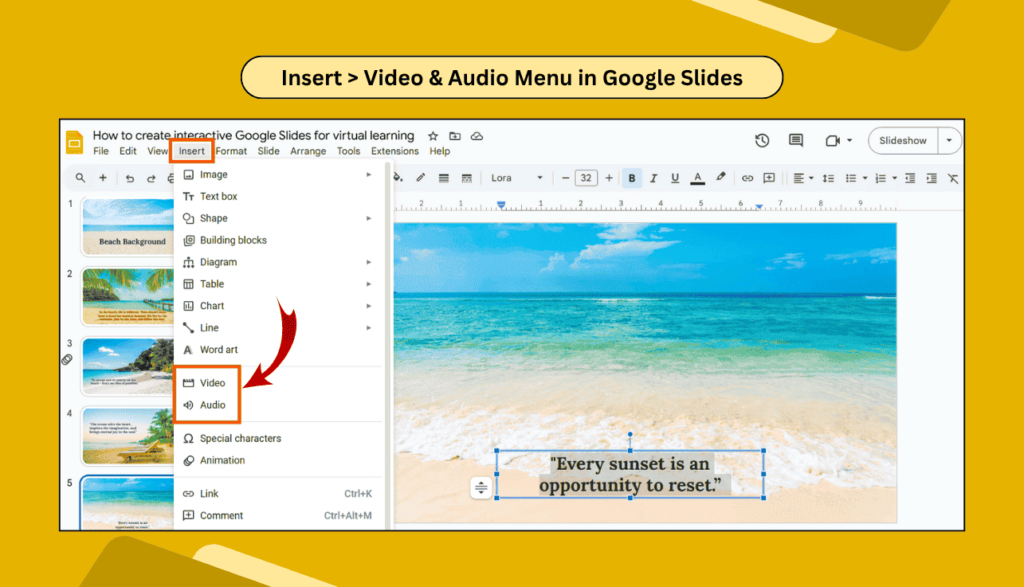
Sometimes a quick video can explain better than long paragraphs. You can add YouTube videos by going to Insert > Video.
For audio, record your voice or use free tools. Upload the file to Google Drive, then insert it with Insert > Audio. This helps students who learn better by listening.
5. Use Pear Deck or Nearpod for Real-Time Slides
Want to make your lesson feel like a live game? Try free add-ons like:
- Pear Deck – Lets students respond on their own devices
- Nearpod – Offers polls, quizzes, drawings, and more
Both tools work seamlessly with Google Slides and can turn a dull lesson into an engaging, interactive experience. You can also explore other interactive presentation tools online that add live quizzes, polls, Q&As, and more — perfect for keeping virtual classes fun and lively.
6. Make Learning Visual with Diagrams and Drag-and-Drop
Try using shapes or images that students can drag and place. For example:
- Match pictures with words
- Label parts of a diagram
- Group items into categories
This kind of hands-on learning works well, especially for younger students. To do this, make a copy of the slide for each student, or use platforms like Google Classroom to share.
7. Add Teacher Notes and Tips
Use the Speaker Notes section at the bottom of each slide. Write quick tips for yourself or your co-teacher. It helps keep your flow smooth during class and saves time later.
8. Test Everything Before Sharing
Always click “Present” and test the slide:
- Are all the links working?
- Is the text clear and big enough?
- Can students move the items easily?
- Is the video or audio playing fine?
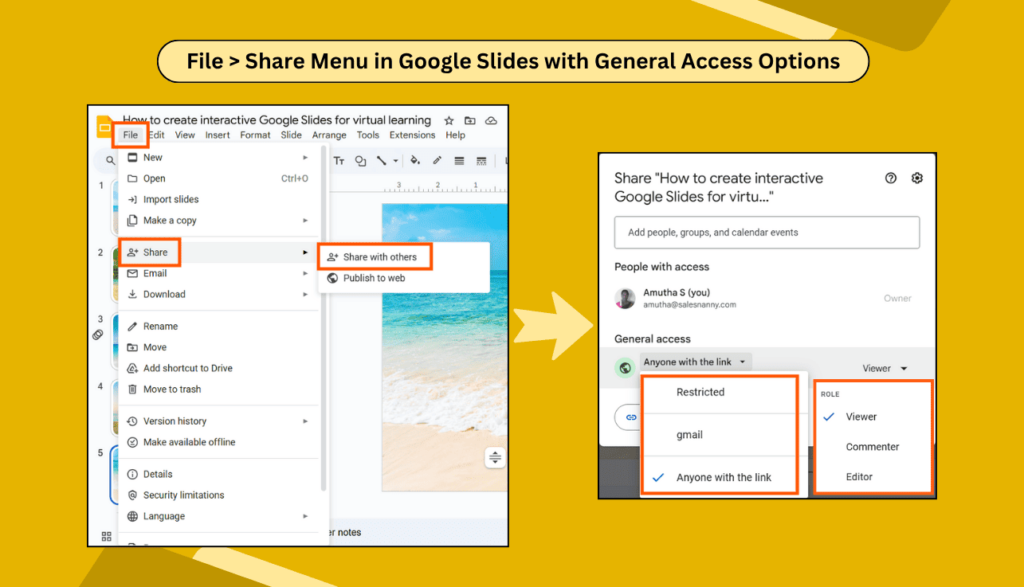
After testing, go to File > Share, and set it to “Anyone with the link can view.” You can also give students edit access to specific slides if they need to interact directly.
FAQs About Interactive Google Slides for Teaching
1. Can I use Google Slides for live online classes?
Yes! You can present your slides over Zoom, Google Meet, or any video platform. Add live questions, polls, and links to keep students involved.
2. How do I stop students from editing everything?
Set your share settings to “View Only.” If they need to move items, give them a copy with File > Make a copy.
3. Are there any free add-ons for interactive slides?
Yes, tools like Pear Deck, Mote (for voice), and Bitmoji are free and easy to use.
4. Can I use Google Slides offline?
Yes, you can enable offline mode in Google Drive settings. But some features, like videos or Forms, might need the internet.
Final Thoughts
Interactive Google Slides are more than just digital worksheets. They bring energy, color, and creativity into online teaching. With just a little effort, you can turn your lessons into something students actually look forward to. Follow these steps and let your lessons speak clearly and confidently—slide by slide.