| ✅ Quick Tips to Make a Virtual Bitmoji Classroom in Google Slides 👉 Use Google Slides to build your classroom layout. 👉 Get your Bitmoji from the Bitmoji Chrome Extension. 👉 Add fun furniture and classroom items from free image sites. 👉 Use transparent PNGs for a clean look. 👉 Link books, videos, or websites for students to click. 👉 Keep your layout simple and easy to navigate. 👉 Save and share your classroom with a shareable Google Slides link. |
“Learning should feel like an adventure, not a chore.” That’s why teachers everywhere are loving virtual Bitmoji classrooms! These digital rooms are fun, colorful, and super easy to make. The best part? You can do it all in Google Slides — no fancy tech skills are needed!
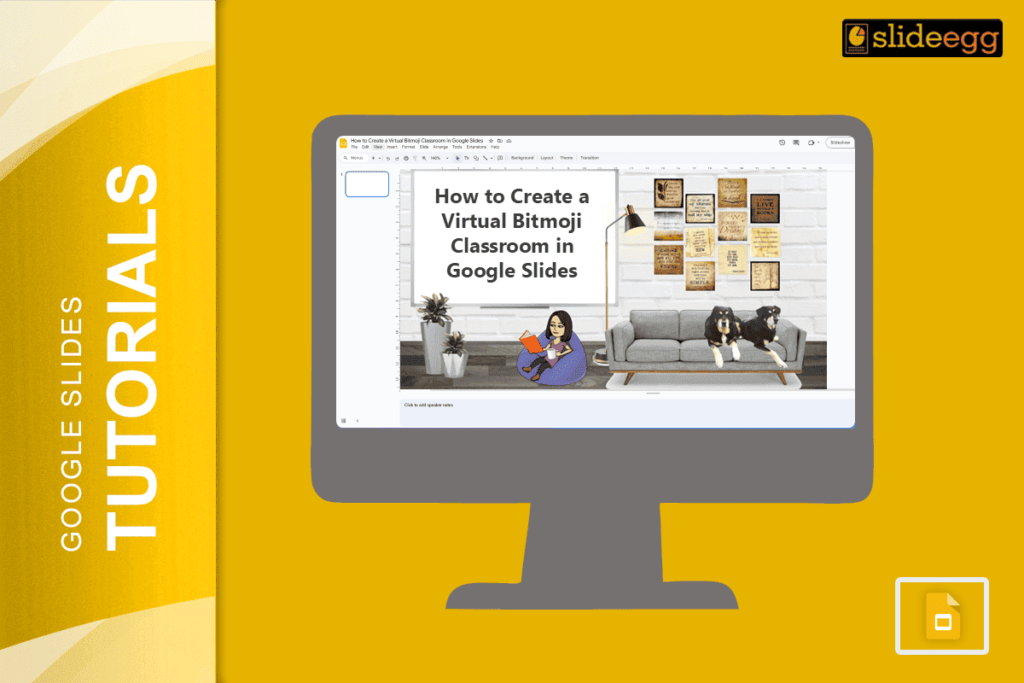
A virtual Bitmoji classroom is like your real classroom but on your screen. It’s a creative way to stay connected with students, even when you’re teaching online. You can add your Bitmoji, pictures of books, learning tools, fun posters, and even clickable links to videos or lessons.
Let’s break it down step by step in the simplest way possible.
🧩 Step-by-Step: Make Your Virtual Bitmoji Classroom
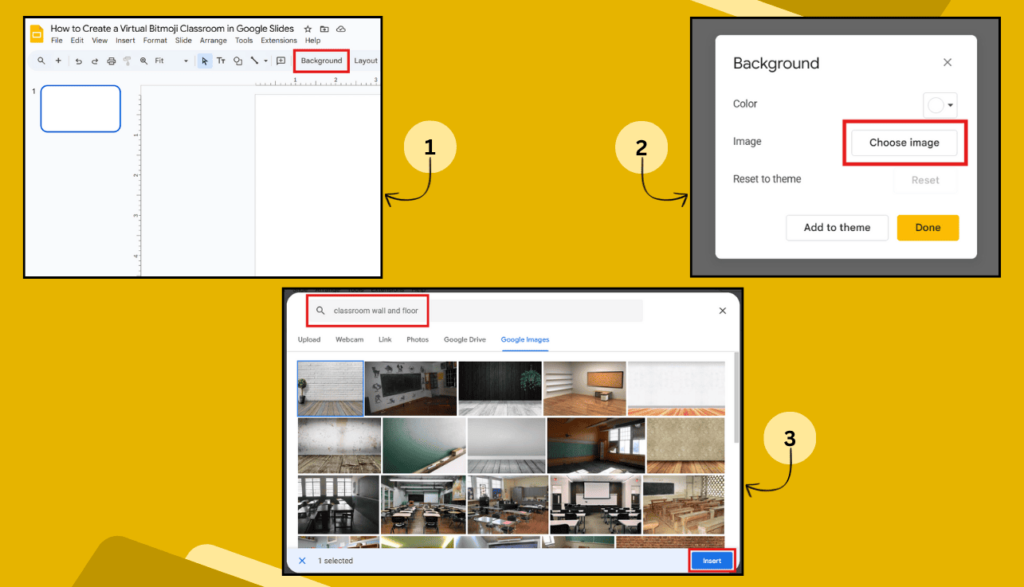
1. Open Google Slides
Start by opening Google Slides. You can go to slides.google.com. Create a new blank slide.
2. Choose a Background
Click on “Background”, then “Choose Image”. You can search for “classroom wall and floor” or use a plain color. This will be your classroom wall and floor.
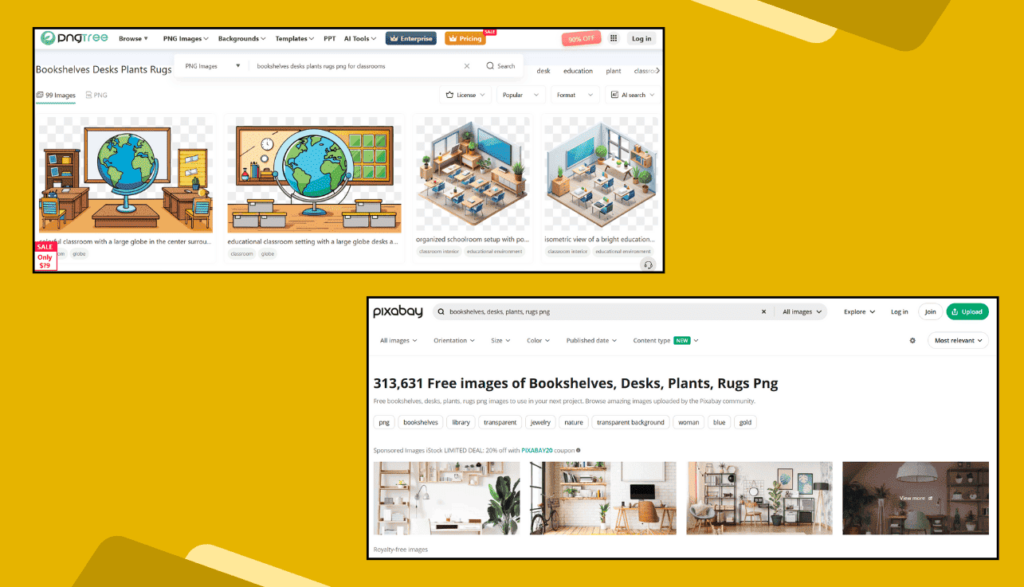
3. Add Furniture & Decorations
Go to Google Images or websites like PNGTree or Pixabay. Search for items like:
- Bookshelves
- Desks
- Rugs
- Plants
Make sure you type “PNG” or “transparent background” in the search so it looks clean in your classroom. Copy and paste or drag them into your slide.
4. Add Your Bitmoji
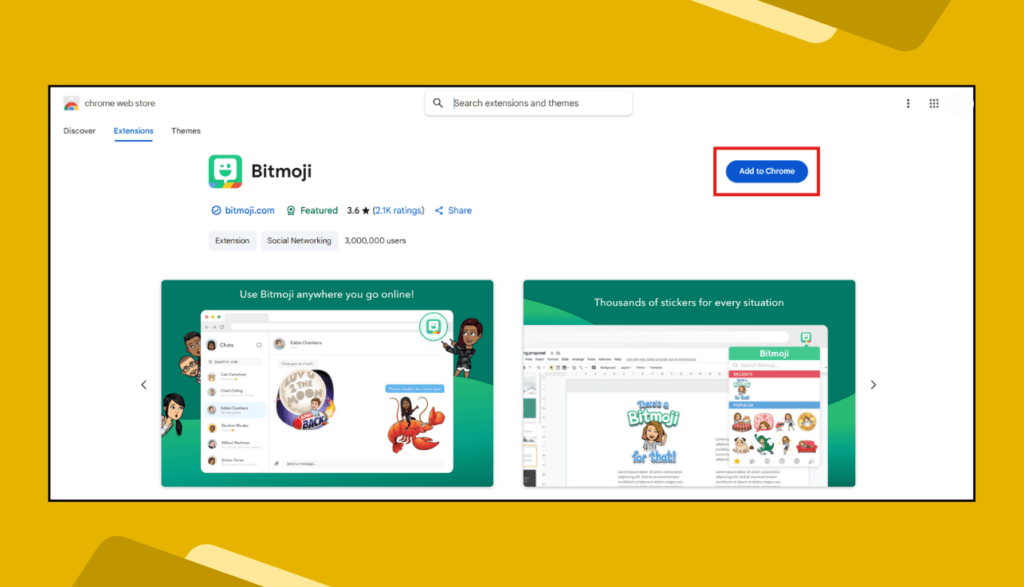
- If you don’t have the Bitmoji app, download it and create your cartoon version.
- Then, install the Bitmoji Chrome Extension.
- Right-click your Bitmoji and drag it into your slide.
- Now it looks like you’re standing inside your classroom!
5. Make Items Clickable
Want to add a link to a book, a video, or your class rules?
- Click on the item → press Ctrl + K (or Cmd + K on Mac) → paste the link. Now students can click on it.
6. Decorate with Fun Signs
Add some labels like “Math Corner,” “Reading Area,” or “Click Here!” Use the Text Box tool to type and decorate with fun fonts.
7. Share Your Classroom
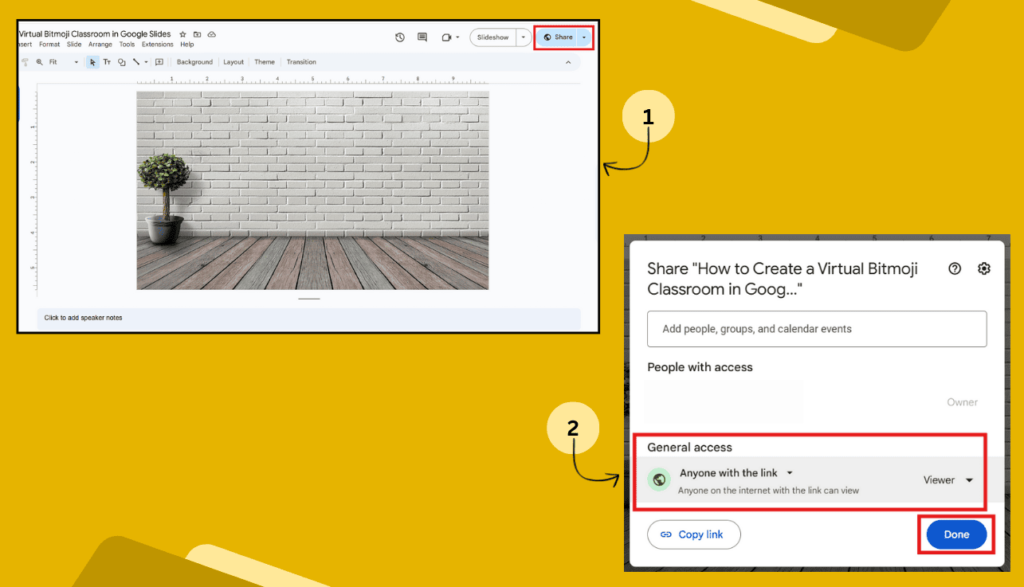
- When you’re done, click on “Share” in the top right.
- Choose “Anyone with the link can view.”
- Now you can email or post the link for your students to explore your virtual room.
🎯 Why Teachers Love Bitmoji Classrooms
- It’s fun and interactive.
- Helps build a strong connection with students.
- Makes online learning feel warm and personal.
- Easy to update anytime.
- Great for sharing links and resources in one place.
You don’t need to be a designer. Just have fun and play around with ideas. Your Bitmoji classroom doesn’t have to be perfect. What matters is that it helps students feel welcome.
💡 Ideas to Make Your Bitmoji Classroom Even Cooler
- 📚 Add a virtual library with clickable book covers.
- 🎵 Link to songs or background music.
- 🖼 Add artwork made by your students.
- 📅 Include a class calendar.
- 👩🏫 Put a whiteboard with your weekly lesson plan.
- 🐾 Hide surprises or “Easter eggs” for students to find.
🙋♀️ Frequently Asked Questions (FAQs)
Q: Do I need to pay to make a Bitmoji classroom?
Nope! Everything is free — Google Slides, Bitmoji, and most of the clip art.
Q: Can I use this on my phone?
You can make your Bitmoji on your phone, but it’s easier to build the classroom on a computer or laptop.
Q: Can students interact with my classroom?
Yes! If you add clickable links, students can explore your classroom and learn by clicking.
Q: Is it only for teachers?
Not at all. Parents, tutors, and even students can make their own virtual classrooms too!
Q: Can I update my Bitmoji classroom later?
Yes, you can open your Google Slide anytime and make changes. It updates automatically.
Creating a virtual Bitmoji classroom in Google Slides is not just about design. It’s about making learning feel more fun, warm, and connected — even when you’re apart. Start simple, play around, and soon your classroom will be the one everyone talks about.
Let the creativity begin!